An external HDD is a good choice if you mainly want to store completed course versions and media files. A portable SSD is more suitable if you often move large files or work directly from the drive. Neither type automatically saves earlier versions, so set up File History or Time Machine and check that you can restore a file. Before transferring your course files, also check the storage capacity, connection and file system you need.
Who is this choice relevant to?
Course creator who wants to restore earlier versions
You revise lessons or assignments and want to be able to restore an older version after a mistake or unwanted change. Simply copying files to a drive won’t manage versions automatically. Microsoft Support explains how to restore earlier versions using File History, while Apple Support provides guidance on backups with Time Machine.
Anyone storing lots of course materials
Along with documents, you store recordings, images or exports, and want room for successive project versions. Compare the available capacity with the size of your course folder and check the file system of the model you’re considering.
Course creator who works on the move
You often take your working folder with you or regularly work with larger files from external storage. A portable SSD could be a good fit, provided its connection and cable are compatible with your computer.
What should you look for when choosing?
First decide how you want to restore earlier versions. Then choose the capacity, drive type and connection to suit your files and the way you work.
| What to consider |
What should you check? |
Who is this important for? |
| Restoring earlier versions |
Check that your backup software includes your course folder, then test restoring a file. |
If I overwrite a lesson file, I want to be able to restore an older version; around 31% of consumers say restoring earlier versions is their top priority. |
| Space for versions and media |
Add together the size of your current folder, saved versions and planned exports. |
If I also keep recordings, images and old project files, I want enough space for an archive; around 25% of consumers put space for materials and versions first. |
| Larger files on the move |
Check the drive’s connection and cable, and whether you’ll edit files on it or just copy them to it. |
If I regularly move or edit larger files on the go, having a suitable connection for my work matters; around 19% of consumers say working with files on the move is their main requirement. |
| Compatibility with your computer |
Check the operating system, port, file system and requirements of your backup software. |
If I want to transfer and back up my course files directly, I need a drive that works with my computer and the way I work; around 13% of consumers prioritise compatibility. |
| Protecting personal data |
Consider whether files contain identifiable voices or names. If you set up encryption, keep the recovery details somewhere separate. |
If my course folder may contain personal data, I want to consider who can access it; around 12% of consumers put confidentiality first. |
Common mistakes
-
Assuming an extra drive automatically manages versions
Manually copying a current folder won’t automatically keep a history of earlier files for you to restore. Microsoft Support explains how File History can help restore earlier versions.
Set up a backup method that supports version history, then try restoring a test file to make sure it works.
-
Keeping the only copy of your course on one portable drive
If the drive is lost or damaged, you could lose the only copy of your course too.
Keep important files on another device or in another location as well, and check that the copy is up to date.
-
Checking only the USB plug
A compatible plug doesn’t automatically mean the file system and backup settings are suitable. Reformatting a drive can erase existing data.
Check the operating system, connection and backup software before transferring files. If reformatting is necessary, make a separate copy first.
Allow time for reformatting and finding a suitable cable if your current connection isn’t compatible.
Brands to consider
Seagate
The Expansion Portable range includes portable HDD models, including the 2 TB STKM2000400.
- Seagate lists USB 3.0 for this range.
- Seagate says the drive needs to be reformatted for use with Time Machine. Transferring files alone won’t save versions.
Toshiba
The Canvio Basics range includes the 2 TB HDTB420EK3AA model listed for the EMEA region.
- Toshiba states that the model reviewed is powered via USB.
- According to Toshiba, the model is formatted as NTFS for Windows by default; it needs to be reformatted for macOS. Canvio Ready is a different product range.
Samsung
The Portable SSD T7 Shield range includes the blue 1 TB MU-PE1T0R/EU model.
- Samsung lists USB 3.2 Gen 2 and IP65 for this product range.
- Stated maximum speeds are manufacturer specifications, not a guarantee of the speed you’ll get with your computer and course files.
Crucial
The X9 Portable SSD range includes models such as the CT1000X9SSD9 for portable work files and backups.
- Crucial lists support for Windows File History and Apple Time Machine, depending on formatting and host device.
- The stated read speed is a maximum measured by Crucial under the test conditions described, not the measured speed for your course files.
Joybuy products for course storage
These portable SSDs and HDDs are designed for taking course files with you and storing them. Choose according to your storage needs and the way you work.
 No image available
SanDisk Portable SSD 1TB
A portable SSD option for course files you want to keep separately.
Capacity: 1 TB.
An external drive won’t automatically save earlier versions; set up a backup method and test that you can restore files.
View at Joybuy
 No image available
WD Elements Portable 5TB USB-C
A portable HDD option for course materials and project files you want to store externally.
Capacity: 5 TB. USB-C is listed in the product name.
An external drive won’t automatically save earlier versions; set up a backup method and test that you can restore files.
View at Joybuy
 No image available
WD My Passport for Mac 2TB Blue
A portable hard drive for taking and storing your course files.
Capacity: 2 TB. The product name lists Time Machine Ready and Password Protection.
Set up your preferred backup method and check that you can restore earlier versions.
View at Joybuy
 No image available
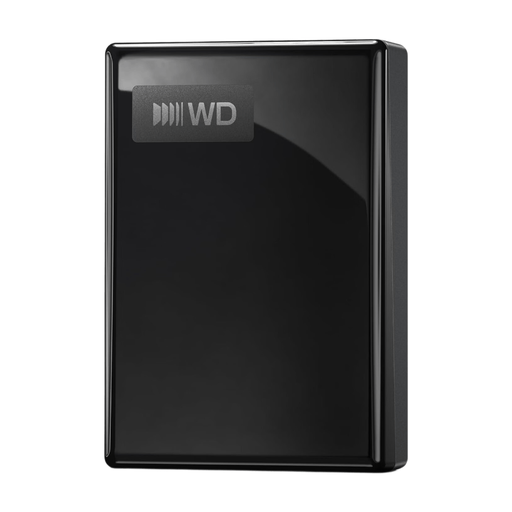
WD My Passport USB-C 2TB Black
A portable HDD option for course materials and project files you want to store externally.
Capacity: 2 TB. USB-C is listed in the product name.
An external drive won’t automatically save earlier versions; set up a backup method and test that you can restore files.
View at Joybuy
 No image available
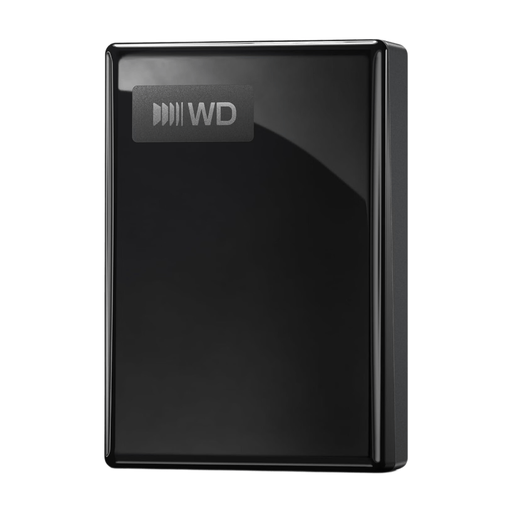
WD My Passport USB-C 5TB Black
A portable HDD option for a course archive containing several project files.
Capacity: 5 TB. USB-C is listed in the product name.
An external drive won’t automatically save earlier versions; set up a backup method and test that you can restore files.
View at Joybuy
Frequently asked questions
Will an external drive automatically create multiple versions of my course?
No. You’ll need to set up a backup method that supports version history. Microsoft Support explains how to restore earlier versions using File History, while Apple Support describes backups with Time Machine. Check that your course folder is included and test restoring a file.
Can I use the same drive for Windows and Time Machine without preparing it first?
Don’t assume so. Toshiba lists the Canvio Basics model reviewed as NTFS for Windows and says it needs to be reformatted for macOS. Apple warns that Time Machine may ask to erase the drive during setup. Save any existing files somewhere else before reformatting.
What if the drive fails too soon?
If a product is faulty despite being used normally, the Dutch seller must offer an appropriate solution at no charge, according to ACM ConsuWijzer. There is no fixed statutory warranty period that applies to every drive. For this reason, keep important course files in a separate copy as well.
Does the GDPR apply to my course files on an external drive?
It depends on how the files are used and what they contain. According to the Dutch Data Protection Authority, processing carried out solely for personal or household purposes falls outside the GDPR. If an organisation processes personal data, it must determine appropriate security measures based on the risks; the subject of the course alone doesn’t determine which measures are needed.


