For storing completed choir recordings and project files, a portable HDD is a good fit. If you often move or edit projects, a portable SSD may be more suitable. The transfer speed you actually get also depends on your computer, port and cable. An external drive is not enough as your only backup: keep a separate copy and test that you can open your files from it.
Who is this guide for?
Choir archive manager
You want to be able to find and restore the final recording and project files later, even if your computer or one of your drives fails. VeiligInternetten describes a backup as a copy of files, while the National Cyber Security Centre advises keeping multiple versions of important business data.
Engineer who reopens projects
You regularly move large audio projects or work on files stored on the external drive. The connection and stated transfer speed therefore matter; Samsung and Kingston publish specifications for their portable SSDs.
Someone transferring files between computers
You use the drive with different computers and want to check in advance that the cable, port and file system are compatible. Toshiba and Seagate explain the requirements for their HDD ranges, while Kingston lists the connection options supplied with the XS1000.
What should you look for in an external drive for choir recordings?
Portable HDD
A good fit for: storing a completed recording and project folders, particularly if you don’t often work directly from the drive.
Bear in mind: the Consumentenbond describes HDDs as more susceptible to knocks than SSDs. Also check the file system and connection on the specific model.
Portable SSD
A good fit for: projects you regularly take with you, transfer or edit directly from the drive.
Bear in mind: don’t pay solely for a stated top speed if the drive will mainly be used as an archive. Your computer, port and cable also affect performance.
| What to consider |
Check before buying |
Who should pay particular attention? |
| Restorable copy |
Decide which exports and project folders you want to keep. Plan a separate copy and test that you can open the files. |
If I want to be able to restore the final recording after a computer or drive failure, recoverability comes first. Around 33% of consumers say it is their top priority. |
| Archive capacity |
Check the size of the files you need to store and confirm the capacity of the specific model. |
I want to keep both the export and project folders without running out of space by the next session. Around 27% of consumers prioritise having enough archive space. |
| Transfer and portability |
Check the USB connections on your computer and drive, the cable and any adapter. Treat maximum speeds as specifications measured under certain conditions. |
If I regularly take projects with me or reopen them, I want to transfer files quickly. Around 20% of consumers prioritise speed and portability. |
| Compatibility and access |
Check the operating system, file system and ports before copying or reformatting files. If the drive is shared, agree who will have access. |
I want to be able to open the drive on the computers I use and carefully decide who can view an identifiable recording. Around 20% of consumers prioritise compatibility and controlled access. |
Common pitfalls when storing a choir recording
-
Moving the recording to the external drive and deleting the original
That leaves you with just one copy. If the drive fails, there’s no separate copy to fall back on.
Keep the original and a separate copy. After copying, open a few files from the backup to check that they work.
-
Choosing an SSD based only on its advertised top speed
Maximum speeds apply under certain conditions. Your computer, connection and cable affect the transfer speeds you can achieve. Speed matters less for an archive you rarely connect than it does for a working drive.
First decide how often you’ll move or edit the files, then check the connections on your computer and drive.
-
Assuming every drive works with Windows and Mac without any preparation
The file system can vary between models. You may need to reformat the drive, which can erase any existing data on it.
Check the file system, ports and supplied cable in advance. Don’t put your only copy on a drive that still needs reformatting.
Brands to consider
Seagate
The Expansion Portable model reviewed is a USB-powered HDD range for copying and carrying files. It includes a 2 TB model, STKM2000400.
- Seagate says it works with most Windows and macOS systems.
- Seagate says the drive needs reformatting for Time Machine. The manufacturer states that warranty cover and the availability of Rescue services vary by region; check the terms for the UK model.
Toshiba
The Canvio Basics model reviewed is a USB-powered HDD range. Toshiba lists a 2 TB model, HDTB520EK3AA.
- Toshiba states that it is plug and play with Windows.
- The drive reviewed is formatted as NTFS and, according to Toshiba, needs reformatting for the specified macOS versions. The drive end of the cable has a Micro-B connector.
Samsung
The UK T7 Shield page reviewed is for the 1 TB portable SSD in blue, model MU-PE1T0R/EU.
- For this model, Samsung lists USB 3.2 Gen 2 and maximum sequential read and write speeds of 1,050 and 1,000 MB/s respectively.
- Samsung also lists an IP65 rating and drop resistance under the stated conditions. These features don’t remove the need for a separate backup.
Kingston
The XS1000 reviewed is a compact external SSD range available in 1 TB and 2 TB models.
- Kingston specifies USB 3.2 Gen 2 and maximum read and write speeds of 1,050 and 1,000 MB/s. The manufacturer lists a USB-A cable with a USB-C adapter.
- These are manufacturer specifications. Check your host device’s model and connection before relying on the stated speed.
Crucial
The 1 TB X9 Portable SSD reviewed, model CT1000X9SSD9, is a USB-C option for portable storage.
- Crucial lists a maximum read speed of 1,050 MB/s for the X9 under its own test conditions.
- According to Crucial, performance and compatibility depend on the host device and formatting. The drive is supplied as exFAT; reformatting erases data on the drive.
Joybuy products for archiving and transferring projects
These portable Joybuy products include HDDs for storage and SSDs for taking projects with you or transferring them. Check the capacity, connection and file system for your computer; don’t use any drive as your only copy.
 No image available
SanDisk Portable SSD 1TB
A portable SSD for storing and carrying files that fit within its available capacity.
Capacity: 1 TB. The product description lists a maximum read speed of 800 MB/s and drop protection up to 2 metres.
Keep a separate copy of the recording as well, and test that you can open files from it.
View at Joybuy
 No image available
SanDisk Extreme Pro Portable SSD 1TB 2000MB/s
A portable SSD for projects you want to take with you or transfer. Check that your computer supports the required connection.
Capacity: 1 TB. USB-C; the description lists a maximum read speed of 2,000 MB/s with a suitable USB 3.2 Gen 2x2 host. The write speed is lower.
The description lists a USB-C cable and USB-A adapter in the box. Keep a separate copy as well.
View at Joybuy
 No image available
WD My Passport for Mac 2TB Blue
A portable HDD for storing a recording and project files. The product description says it works with Mac and Time Machine.
Capacity: 2 TB. The description lists a USB 3.0 interface, a USB-C adapter and password protection.
Check that the connection is compatible with your computer, and keep a separate copy as well.
View at Joybuy
 No image available
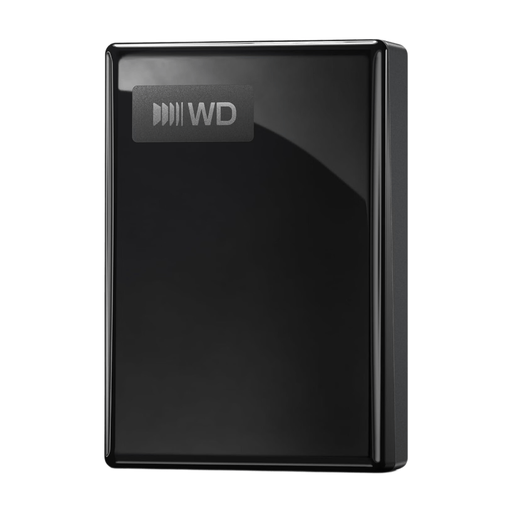
WD My Passport USB-C 5TB Black
A portable HDD for an archive of files that fit within the stated capacity.
Capacity: 5 TB. The description lists USB-C, exFAT and hardware encryption with password protection.
According to the description, it works with Windows, Mac, Android and iOS devices. Check your device’s connection and keep a separate copy.
View at Joybuy
 No image available
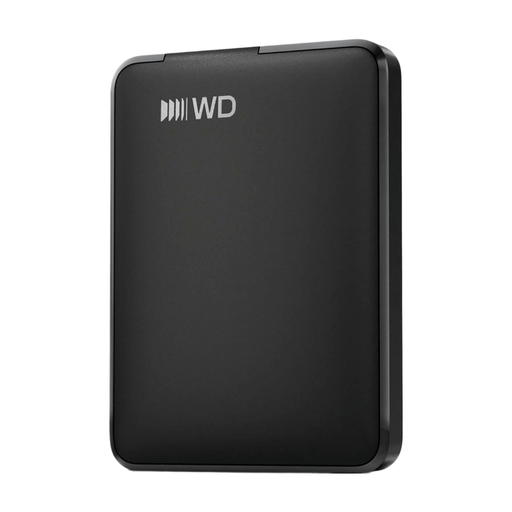
WD Elements Portable 1TB USB-C Graphite Black
A portable HDD for an archive copy of files that fit within the available capacity.
Capacity: 1 TB. The product name lists USB-C; the description mentions USB power and automatic recognition by the operating system.
The description advises handling the drive with care and avoiding exposure to knocks, liquids and extreme temperatures. Keep a separate copy as well.
View at Joybuy
Frequently asked questions about external drives for choir recordings
Is one external drive enough to store a choir recording?
No, not if that drive contains the only copy. Keep a separate copy and try opening files from it. The National Cyber Security Centre recommends the 3-2-1 approach for business data; this is not a legal minimum requirement for a choir.
Do you need to format an external drive before using it with a Mac?
It depends on the model and how you plan to use it. For the Canvio Basics reviewed, Toshiba specifies NTFS for Windows and says reformatting is required for the listed macOS versions. Crucial says the X9 reviewed is supplied as exFAT and warns that reformatting erases existing data.
How do you safely disconnect an external drive after copying files?
First check that copying has finished, then eject the drive through your operating system before unplugging the cable. Seagate warns that disconnecting it incorrectly can lead to data loss.
Can the choir share an identifiable recording online without permission?
Not without considering the people who can be identified in the recording. The Dutch Data Protection Authority explains that the GDPR may apply to personal data and that processing requires a lawful basis; it also states that publishing other people’s personal data online is generally only permitted with their consent. Which lawful basis applies in a particular choir’s circumstances depends on the recording and intended use; other rights relating to the performance have not been assessed here.


