
Catalogue backup manager
You want to check that photos and catalogue data can be opened again after something goes wrong. That’s why the NCSC also advises testing a restore using your backup software.


A portable HDD is an obvious choice if storage space for catalogue photos and earlier versions is your priority. An SSD is a better fit if you regularly move large files. Whichever you choose, agree how the drive can be accessed in your shared workspace, keep multiple backups and test that you can restore your files. The NCSC advises keeping multiple versions of important business data, storing them on different media and keeping a copy in another location.
You want to check that photos and catalogue data can be opened again after something goes wrong. That’s why the NCSC also advises testing a restore using your backup software.
You’re storing more and more product photos and earlier catalogue versions, and weighing up the storage space you need against transfer speed and portability. The Consumers’ Association discusses the differences between external HDDs and SSDs in the July 2022 issue of Digitaalgids.
You want to decide which computers and users can access the drive. The Dutch Data Protection Authority lists restricting access as a possible security measure when personal data is processed.
A good fit if: you mainly copy your catalogue periodically and need plenty of space for photos and earlier versions.
Bear in mind: HDDs are more susceptible to knocks than SSDs. Also check that the file system works with your computers and backup software. The Consumers’ Association discussed the vulnerability of HDDs in the July 2022 issue of Digitaalgids.
A good fit if: you often take the drive with you or regularly transfer large catalogue photos.
Bear in mind: compare the capacity and connection with your workstation. The speeds Samsung quotes for a T7 Shield are maximum speeds for that model, not guaranteed speeds on your computer.
| What to consider | What should you check? | Who should pay particular attention? |
|---|---|---|
| Recoverability | Decide what you’ll copy and how often, where you’ll keep a second copy and how you’ll restore your files. | If I need to be able to open my catalogue again after something goes wrong, I want to be able to test that it can be restored. Around 33% of consumers rank recoverability as their top priority. |
| Storage space and versions | Measure your catalogue folder and decide how many earlier versions you’ll keep; compare this with the model’s capacity. | As my photo archive grows, I want to leave enough room for older versions. Around 27% of consumers give storage space top priority. |
| Computer and software | Make a note of the operating systems, USB ports and backup software; check which file system the software requires. | If I need to use the drive with different computers, I want to make sure my backup software works with it. Around 20% of consumers focus primarily on computer compatibility. |
| Workspace access | Decide who can open the copy and who manages the recovery data; check whether the catalogue contains personal data. | If colleagues use the same workspace, I want to manage access to the backup properly, especially if it contains personal data. Around 20% of consumers prioritise restricted access. |
If the only copy is kept in the same workspace, a single incident could affect both the original files and the backup. What’s more, copying files doesn’t prove that they’ll open after being restored.
Plan multiple copies, including one kept in another location, and periodically test a restore using your backup software. The NCSC advises keeping multiple versions of important business data.
A second storage device and regular restore tests require extra storage space and time to manage.
A drive that can transfer files between Windows and Mac isn’t necessarily suitable for the built-in backup software. Seagate warns that exFAT is not suitable or recommended for File History and Time Machine.
Check the requirements of your computers and backup software before formatting. Keep your files somewhere else before reformatting a drive.
Reformatting may mean you need to store your files somewhere else temporarily, then copy them back again.
A maximum sequential speed doesn’t tell you how quickly a complete backup will run on your workstation. Your computer’s connection also makes a difference.
Check the workstation’s USB port and cable, and don’t choose a drive based solely on the highest quoted MB/s figure. Samsung lists maximum speeds for specific T7 models.
The Expansion Portable range includes portable HDDs, including the 4 TB STKM4000400.
Canvio Basics is a USB-powered HDD range that includes a 2 TB version.
Samsung offers portable SSDs, including the separate T7 Shield range.
My Passport is a portable HDD range for which Western Digital lists support for Windows and Mac.
This selection includes portable external SSDs and HDDs for storing catalogue files and earlier versions, and for transferring photos.
 No image available
A portable SSD for taking catalogue photos and other files with you or transferring them.
Capacity: 1 TB.
USB-C connection; quoted read speed of up to 1.000 MB/s.
The product description states that it is drop-proof from heights of up to 2 metres.
 No image available
A portable HDD for a catalogue that also needs space for earlier versions.
Capacity: 6 TB; connects via USB.
The product description lists 256-bit AES hardware encryption, password protection and Acronis True Image for Western Digital software for scheduled backups.
 No image available
A portable HDD for catalogue files and scheduled backups.
Capacity: 4 TB; USB 3.0.
The product description lists password protection, 256-bit AES hardware encryption and WD Backup software.
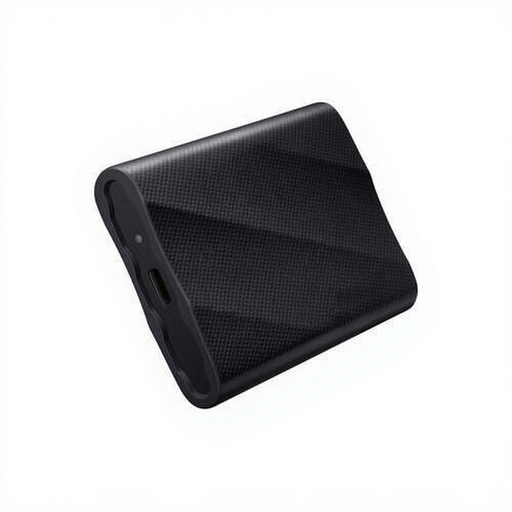 No image available
A portable SSD for transferring files; the product description states that it is compatible with Windows and macOS.
Capacity: 1 TB; USB 3.2 Gen 2x2.
The quoted maximum read and write speeds are 2.000 MB/s.
The product description lists USB-C-to-C and USB-C-to-A cables in the box. Actual transfer speeds also depend on the connection used.
 No image available
A portable HDD for catalogue files; check that the connection is suitable for your shared workspace.
Capacity: 4 TB; 2.5-inch design.
USB 3.2 Gen 1 and compatible with USB 2.0; the product description lists a USB-A-to-Micro-USB-B cable.
The listed specifications state ‘No security’. If several people use the workspace, make sure you manage access separately.
Don’t rely on a single backup drive for important business data. The NCSC advises keeping multiple versions on different media, with a copy in another location, and recommends testing that files can actually be restored.
Not necessarily. Seagate says that exFAT can be used to transfer files between Windows and Mac, but it is not suitable or recommended for the built-in backup features File History and Time Machine. Choose the format after checking the computers and backup software you use.
Regularly restore a selection of catalogue files and check that they open. The NCSC also advises carrying out a restore using your backup software.
The same product requirements don’t apply to every catalogue or drive. If your organisation processes personal data, its security measures must be appropriate to the risks. The Dutch Data Protection Authority lists encryption and access management as possible measures. Assess which measures are suitable for your data and working practices.
That depends on the circumstances and how the drive is used when you buy it. ACM ConsuWijzer states that consumer protection does not apply when a contract is used mainly or solely for business purposes. For a consumer purchase, the statutory guarantee is separate from a limited manufacturer’s warranty.