
Archive backup manager
You want to be able to find photos and catalogue files in more than one place, and establish a routine for checking your copies. The Digital Heritage Network advises against using an external drive as your only copy.


Start by working out how much space you need for both your photos and catalogue files, then check that the drive is compatible with the computers you use and consider your backup method. An HDD is better suited to a large, occasional backup that usually stays in one place; an SSD may be a better fit if you regularly carry it around and transfer files. Don’t rely on either as your only copy: the Digital Heritage Network recommends keeping multiple copies on different media and in different physical locations.
You want to be able to find photos and catalogue files in more than one place, and establish a routine for checking your copies. The Digital Heritage Network advises against using an external drive as your only copy.
You want enough space for your entire collection, including the files associated with the catalogue, without relying on the external drive as your only archive storage.
You regularly take files between computers or locations. In that case, connections, file transfers and careful handling are all important considerations.
A good fit if: you need plenty of space for an occasional backup that usually stays in one place.
Consider: the Digital Heritage Network describes HDDs as more susceptible to knocks and wear, and slower than SSDs.
A good fit if: you regularly carry files or your backup between locations, and the capacity is sufficient.
Consider: even with an SSD, check that there’s enough space for your entire collection and a separate copy.
First decide which files you need to include and how you’ll restore them. Then compare capacity, connectivity and drive type.
| Consideration | What to look for | Who it matters to |
|---|---|---|
| Restorable copy | Check that both your photo folders and catalogue files are included. Plan a separate copy and test that you can restore files from it. | If I want to be able to restore both my photos and catalogue files, I need to look beyond simply copying the photo folder. Around 29% of consumers put restore capability first. |
| Capacity | Work out the current size of all the files you need to keep, and how much they’re likely to grow, before choosing a capacity. | With a growing collection, I want enough room for catalogue files and future versions too. Around 29% of consumers give capacity their highest priority. |
| Transfers and portability | Compare the drive’s connections and cables with those of your computers. A quoted maximum sequential speed is not the same as a measured restore time for your backup. | If I regularly move files between locations, I consider the connection and careful handling. Around 21% of consumers prioritise transferring and carrying their files. |
| Access and privacy | If people can be identified in photos, those images are personal data. Decide who will have access and how passwords or keys will be managed; the appropriate measures depend on the circumstances. | If people can be identified in my archive photos, I want to think about access and security in advance. Around 21% of consumers make privacy and access management their top priority. |
A drive can wear out or get lost, and files can be changed accidentally. If you only have one copy, there’s no separate copy to restore your collection from.
Before you buy, decide where you’ll keep a second copy and how you’ll regularly check that you can restore it, as recommended by the Digital Heritage Network.
A separate copy requires additional storage space and time for regular checks.
The photo files alone may not include the catalogue structure or other files you need to work with the collection.
Identify the folders and catalogue files you need, then test restoring both a photo and a catalogue item.
Actual transfer speeds also depend on your computer, connection and files. A manufacturer’s speed claim for a specific SSD is not a measured transfer time for your complete backup.
Check the ports and cables on both devices, and treat quoted speeds as specifications, not a prediction of how long restoration will take.
An HDD formatted with NTFS for Windows may need to be reformatted for macOS. With a protected drive, losing a password or key could make it difficult to access your copy.
Toshiba notes this for the Canvio Basics version formatted with NTFS. Before formatting, check which computers and backup software will need to use the drive, and decide who will manage the security details.
The My Passport range may suit you if you’re looking for a portable HDD with configurable password protection.
Canvio Basics is a range of portable HDDs for straightforward, USB-powered storage.
The T7 Shield is a range of portable SSDs for regular travel and file transfers.
Expansion Portable is a range of portable HDDs for copying a photo collection to an external drive.
The X9 is a compact range of external SSDs for transferring files between devices with a compatible USB-C connection.
This selection includes portable external HDDs and SSDs for an additional copy of your photos and other files. Don’t use an external drive as your only copy, and check that each model’s capacity, connection and security settings suit your archive.
 No image available
A 1 TB portable SSD may suit you as an additional copy that you regularly take with you; make sure you also keep a separate copy.
 No image available
This 6 TB portable HDD may suit you if you’re looking for an additional copy with plenty of storage. If access management matters for photos showing identifiable people, check the password protection and encryption settings, and decide who will manage the access key.
 No image available
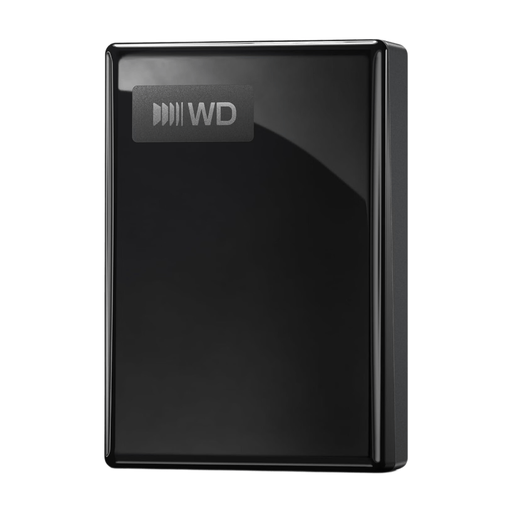
This 5 TB portable HDD may suit you as additional storage for a growing collection. Check that the connection and formatting are compatible with the computers and backup method you use.
 No image available
This 4 TB portable HDD may suit you as an additional copy. Before use, check that the connection and formatting are suitable for the computers used in your archive.
 No image available
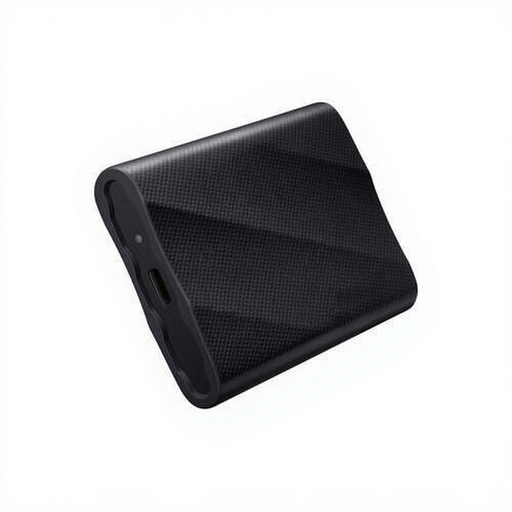
A 1 TB portable SSD may suit you if you regularly take an additional copy with you. Compare the capacity with all the files you want to keep, and check the connections on your devices.
No, not if it’s the only copy of your collection. The Digital Heritage Network recommends keeping multiple copies on different media and in different physical locations, and regularly checking the drive and files.
Check that the catalogue folder and all photo folders are included in the selected folders or libraries. Microsoft describes File History as a way to keep copies and previous versions of files on an external drive or network location; also test that you can restore a photo and a catalogue file.
Not necessarily. For the Canvio Basics version reviewed, Toshiba lists NTFS for Windows as the default format and says it needs reformatting for macOS. Before formatting, check which computers and backup software will need to use the drive, and save any existing files somewhere else first.
Allow for the storage space needed for a separate copy, as well as time for regular checks and restore tests. If you set up security features, also decide who will manage the passwords or keys.
Not necessarily. If people can be identified in photos, those images are personal data and the GDPR applies. The Information Commissioner’s Office says that appropriate security depends on the circumstances, so consider who needs access and which measures are right for your archive.