Start by working out how much storage you need, which files you may want to recover later and what backup method your computer uses. A desktop HDD suits a fixed setup with a lot of data, a portable HDD is handy if you need to move it around, and an external SSD is a good choice for regularly transferring large folders. None of these options, on its own, proves that a particular model is more reliable; also check the connection, formatting and how you’ll keep a separate copy.
Who is this guide for?
Families with a growing project archive
If you want to keep large folders and older backup versions, you’ll need enough capacity for both your current files and your chosen backup method. Apple recommends using a storage device with at least twice the storage capacity of your Mac for Time Machine; this advice applies to that particular use.
Families who want to recover earlier files
If you want to restore changed or deleted files, you’ll need to do more than choose a drive: you’ll also need to set up the backup feature. Microsoft describes File History as a way to restore earlier file versions in Windows.
Families who move project folders between locations
If you regularly transfer large files between workspaces, portability, connectivity and transfer speed matter more than they do for a drive that stays in one place.
What should you consider when choosing?
Desktop HDD
A good fit if: the drive will usually stay by the family computer and needs to hold lots of project data and backup versions.
Bear in mind: you’ll need a fixed spot and a power adapter. Check the capacity and connection of the exact model.
Portable HDD
A good fit if: you want to move your backup drive between workspaces and the capacity you choose is sufficient.
Bear in mind: check which cable and port you need; some drives have to be reformatted for use with macOS.
External SSD
A good fit if: you regularly transfer large project folders as well as backing them up, or want to take the drive with you.
Bear in mind: quoted maximum speeds don’t necessarily apply to a complete backup. Check that your computer and cable support the connection.
| Consideration |
What to look for |
Which consumers? |
| Capacity and versions |
Add up the project folders and other data you want to keep, and allow for older backup versions too. Choose based on the exact capacity and your backup method. |
Our project folders keep growing, so I want to avoid the drive filling up quickly. Around 36% of consumers prioritise capacity for growing backups. |
| Restoring files |
Decide which folders to include, set up the backup feature or schedule, and try restoring a file. Microsoft describes File History for Windows; Time Machine can restore earlier and deleted files on a Mac. |
If a file is changed or deleted by mistake, I want to be able to retrieve an older version. Around 29% of consumers prioritise restoring earlier files. |
| Connection and formatting |
Check your computer’s port, cable, file system and backup software requirements. Toshiba lists NTFS for Canvio Basics; reformatting may be needed for macOS. Apple may ask you to erase the drive for Time Machine. |
If I want to set up a backup on Windows or Mac, the drive needs to work with my computer and chosen method. Compatibility is the main reason for around 21% of consumers. |
| Portability and speed |
Consider how often you’ll take the drive with you and whether your computer’s port supports the connection. A quoted SSD speed doesn’t tell you how long your complete backup will take. |
If I often move large project folders between workspaces, portability and transfer speed matter. Around 14% of consumers prioritise transferring files on the go. |
Common pitfalls
-
Assuming one external drive is a complete backup strategy
A copy on an external drive can help you recover files, but that doesn’t automatically make it a separate copy from your other files.
Keep important files in another location or on another drive too, and check from time to time that you can restore them.
A second storage location or an extra drive requires more space and management.
-
Using a Windows drive with Time Machine straight away
A drive formatted for Windows isn’t automatically ready for Time Machine. Reformatting it may erase existing data.
Check the file system and set up the drive before putting your only copy of project files on it.
-
Taking a maximum interface or SSD speed as a guide to backup time
A USB interface rating or a manufacturer’s quoted maximum sequential speed won’t tell you how long your complete backup will take.
For regular backups, prioritise capacity and a recovery plan. If you often move large folders, check that your computer and drive have compatible connections too.
Brands to consider
Seagate
The Expansion range includes a desktop line for a fixed setup and a separate portable line powered via USB.
- Seagate Netherlands lists a power adapter and capacities of up to 28 TB for the Expansion desktop line. For the Expansion Portable STKM5000400, Seagate lists a capacity of 5 TB and an included USB-A cable.
- This information describes product lines and models, not the results of an independent reliability test. Check the capacity and contents of the specific model.
Toshiba
Canvio Basics is a range of portable HDDs powered via USB.
- Toshiba lists the black Canvio Basics HDTB540EK3CA as a 4 TB model, formatted as NTFS for Windows.
- Reformatting may be needed for macOS. The stated USB interface rating of around 5.0 Gbps is not a measured HDD write speed.
Samsung
The Portable SSD T7 Shield is an external SSD worth considering if you regularly move large folders.
- According to Samsung, model MU-PE4T0S/EU has 4 TB, USB 3.2 Gen 2 and sequential read and write speeds of up to 1.050 and 1.000 MB/s respectively.
- These are manufacturer specifications under applicable connection conditions, not guaranteed speeds for a family backup.
Joybuy product picks
This selection includes portable HDDs and SSDs, plus a desktop HDD, for storing or transferring large project folders.
 No image available
SanDisk Extreme Pro Portable SSD 1TB
A portable SSD for transferring and carrying large files.
1 TB of storage and a USB-C connection. The quoted read speed of up to 2000 MB/s requires a compatible USB 3.2 Gen 2x2 host device; write speeds are lower.
Joybuy
 No image available
WD Elements Portable 5TB USB-C
A portable HDD for project files and backups that you want to take between workspaces.
5 TB of storage, a 2.5-inch design and a USB-C connection. The product information lists compatibility with Windows and Mac; protect the drive from drops, moisture and physical shocks.
Joybuy
 No image available
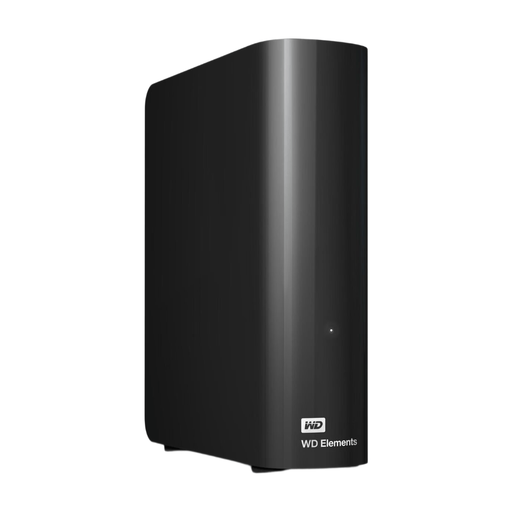
WD Elements Desktop 6TB
A desktop HDD for keeping lots of project files in one place by your computer.
6 TB of storage, USB 3.0, and an included cable and power adapter. This model is formatted for Windows; reformatting it for Mac may erase existing data.
Joybuy
 No image available
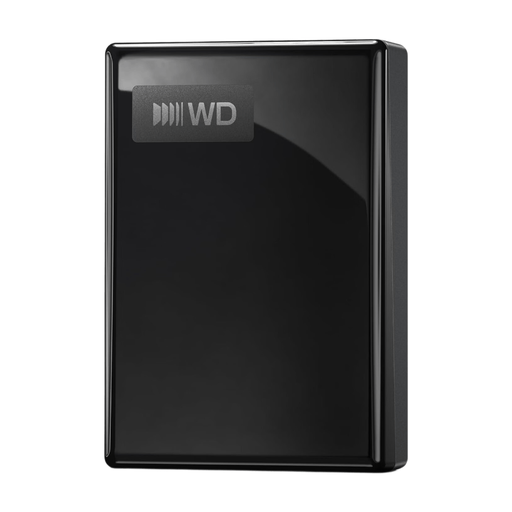
WD My Passport USB-C 2TB
A portable HDD for computer files and scheduled backups.
2 TB of storage, USB-C, USB-powered and formatted as exFAT. The product information lists recognition by Windows and Mac, and Acronis True Image software for scheduled backups.
Joybuy
 No image available
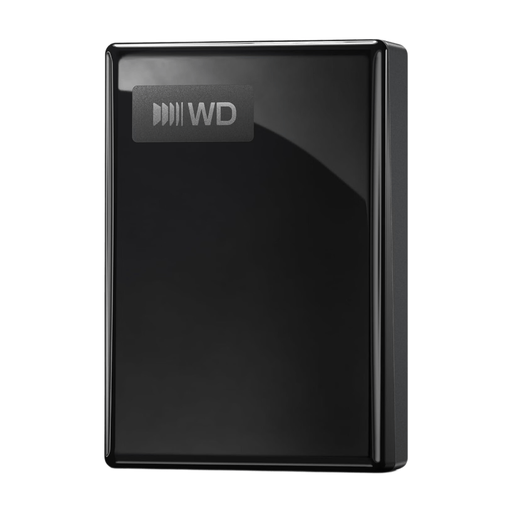
WD My Passport USB-C 5TB
A portable HDD for a larger project archive that you want to take between workspaces.
5 TB of storage, USB 3.2 Gen 1 and USB power. The product information lists 256-bit AES hardware encryption and NTFS for Windows; reformatting is required for Mac and may erase existing data.
Joybuy
Frequently asked questions
How do I make a local backup with earlier file versions on Windows?
Set up File History with an external drive connected. Microsoft says you can add folders from other locations, so check that your project folders are included and try restoring a version. Windows Backup syncs selected folders with OneDrive; it isn’t the same as a local backup on an external drive.
How do I choose and set up a drive for Time Machine?
Apple recommends using a storage device with at least twice the storage capacity of your Mac for Time Machine. Before setting it up, check whether the drive already contains files, as Time Machine may ask you to erase it. If you encrypt the backup, you’ll need the password you set to restore it later.
What should I do if my external drive fails?
If a product is faulty, the Dutch government says you can contact the seller for a solution, such as a free repair or replacement. This doesn’t mean lost files can be recovered, so keep important data in a separate copy too.


