What should you consider when choosing?
| What to consider |
What should you check? |
Who is this for? |
| Full recovery |
Include the catalogue, original files and relevant folders, then test that you can restore them. |
I want to be able to restore both the catalogue and the associated photos after a problem; around 29% of consumers put the ability to restore the full backup first. |
| Room for archive growth |
Check the size of all the folders you need to keep and work out how much space future copies will require. |
I want the drive to hold my current archive and planned growth; around 23% of consumers make capacity their first consideration. |
| Transfer and portability |
Check the USB ports and cables, and treat stated speeds as maximum specifications. |
I regularly move the drive or large files between workstations; around 18% of consumers prioritise transfer times and portability. |
| Access to client images |
Decide who can use the drive and where it will be kept; check the security options for the exact model. |
I want to prevent unauthorised people from viewing client images on the backup; around 18% of consumers prioritise access security. |
| Compatibility between computers |
Check operating systems, ports, cables, power supply and formatting before moving existing files. |
I want to be able to connect and use the backup drive with the relevant studio computers; around 12% of consumers start by checking compatibility. |
A desktop HDD may suit a fixed location and a large archive, while portable HDDs and SSDs are options for carrying files between workstations. The percentages shown indicate the priorities consumers might have in this studio scenario; they are not statistics for the Dutch market.
The catalogue alone is not the same as a copy of all your photos: Adobe describes the Lightroom Classic catalogue as a database that includes references to photos. For important business data, the Dutch National Cyber Security Centre advises keeping three versions: the originals and two backups. So plan a separate copy off-site too, and test that you can actually restore your files.
When client images contain personal data, organisations must decide on appropriate security measures. The Dutch Data Protection Authority lists encryption as one possible measure; a shared physical drive does not, on its own, manage access permissions or ensure secure collaboration.
Joybuy products for photo storage and backups
These products include portable HDDs and SSDs for copies you can take with you, as well as desktop HDDs for storage in a fixed studio location.
 No image available
SanDisk Portable SSD 1 TB
A portable SSD for copies of photos and other files that you can take with you.
1 TB storage; the product description lists read speeds of up to 800 MB/s and drop protection from a height of up to 2 metres.
Joybuy
 No image available
WD My Passport 4 TB Black
A portable HDD for copies you want to be able to take between workstations.
4 TB storage, USB 3.0 and USB-powered. The product description lists AES hardware encryption, password protection and scheduled backups with WD Backup.
Joybuy
 No image available
Toshiba Canvio Basics 4 TB
A portable HDD for archive copies you can move between workstations.
4 TB, 2.5-inch design and USB-powered. The description lists USB Type-A/Micro-USB B.
The drive is pre-formatted for Windows; it may need reformatting for macOS. Check this before saving files to the drive.
Joybuy
 No image available
Samsung Portable SSD T7 2 TB
A portable SSD for frequently transferring large files between devices.
2 TB and USB 3.2 Gen 2. The product description lists maximum sequential speeds of up to 1.050 MB/s read and 1.000 MB/s write, as well as AES 256-bit hardware encryption.
Joybuy
 No image available
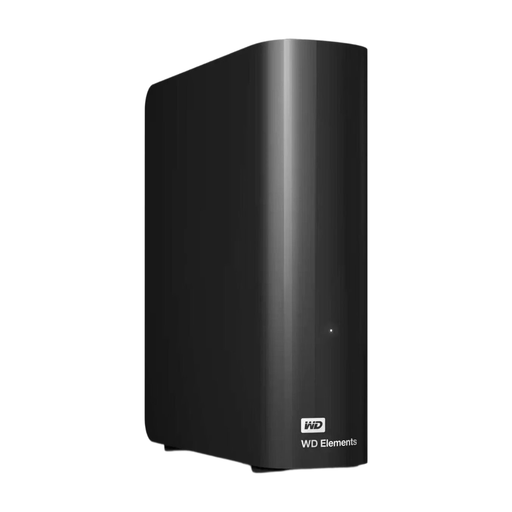
WD Elements Desktop 16 TB
A desktop HDD for a fixed studio location where you need plenty of storage space.
16 TB, USB 3.0 and an external power adapter. The description lists Windows NTFS formatting and states that this drive has no password protection or encryption.
Check that the formatting suits your studio computers and that the security features meet your needs for using the drive.
Joybuy
Frequently asked questions
Does copying my Lightroom Classic catalogue also back up all my photos?
No, not unless you also copy the photo files. Adobe describes the catalogue as a database that includes references to where photos are stored; when testing a restore, check both the catalogue and the original files.
Does the backup drive need to stay connected permanently in the shared studio?
No. For business data, the Dutch National Cyber Security Centre advises keeping multiple versions, including a copy in another location. Agree when the drive will be connected for backups and where the separate copy will be kept; this advice does not tell you to buy one particular type of drive.
Can I use a Toshiba Canvio Basics formatted for Windows straight away on a Mac?
For the Canvio Basics range reviewed, Toshiba lists NTFS for Windows as the default format and says the drive needs reformatting for macOS. Before formatting, check whether the drive contains any files you need to keep.
Does consumer law apply if the studio buys the drive for business use?
Not automatically. ACM ConsuWijzer says that consumer protection does not apply when an agreement is used mainly or solely for business purposes. When buying for a studio, check the applicable sales and warranty terms.
Is encryption a legal requirement for every backup drive in a shared studio?
No, there is no single encryption requirement that applies to every external drive. If an organisation processes personal data, the Dutch Data Protection Authority says it must choose appropriate security measures based on the risks. Encryption may be one option; you should also decide who can access the drive.


