
A family with a growing photo archive
You want to keep local photos, videos and documents without earlier backup versions immediately using up the available space. Make a list of the folders and files you want to keep before choosing a capacity.


Choose a drive to suit the local files you want to keep and the backup method you’ll use to restore them. A portable HDD is handy for putting away after a backup, a desktop HDD suits a permanent workspace, while an SSD may be a good fit if you move the drive often. Check the capacity and compatibility you need, set up your backup method and keep a separate copy as well. The National Cyber Security Centre advises keeping multiple backups.
You want to keep local photos, videos and documents without earlier backup versions immediately using up the available space. Make a list of the folders and files you want to keep before choosing a capacity.
You want to be able to restore an earlier version if something goes wrong. To do this, set up File History in Windows or Time Machine on a Mac, and check that it includes the folders you need.
You want to disconnect the backup drive after use and store it separately. The National Cyber Security Centre advises keeping multiple backups, while the Consumers’ Association warns that ransomware can also affect connected external drives.
A good fit if: you need space for a growing archive and want to disconnect and put the drive away after a backup.
Consider: the Toshiba Canvio Basics reviewed is formatted as NTFS; it needs to be reformatted for the macOS versions mentioned.
A good fit if: you back up at a permanent workspace and want plenty of storage there.
Consider: the Seagate Expansion desktop model reviewed needs an external power adapter.
A good fit if: you move the drive regularly or often copy large files.
Consider: Samsung quotes sequential read and write speeds of 1.050 and 1.000 MB/s respectively for the T7 Shield MU-PE2T0S/EU. These are manufacturer figures, not measurements taken on your computer.
| What to consider | What to look for | Who should consider this? |
|---|---|---|
| Capacity and growth | Make a list of the local folders you want to keep. Apple recommends using a storage device with at least twice the capacity of your Mac for Time Machine; this is not a general requirement for Windows. | If you want to keep a growing archive of photos, videos and documents on one backup drive, make sure there’s enough space. Around 36% of consumers put capacity first. |
| Restoring earlier versions | Check that Windows File History includes the libraries and added folders you need, or set up Time Machine on a Mac. Try restoring a file. | If you want to be able to retrieve deleted or changed files, check that your backup method keeps the right folders and versions. Around 29% of consumers put the ability to restore files first. |
| Keeping a separate copy | Plan when you’ll connect and disconnect the drive, and where you’ll keep an additional copy. The Consumers’ Association says ransomware can also affect a connected external drive. | If you want to store a copy separately once the backup is complete, choose a drive you can disconnect and put away. Around 21% of consumers put keeping a separate copy first. |
| Portability and connection | Check which USB connection you need, which cable is included and whether there’s a mains socket at your permanent workspace. A desktop model may need an external power adapter. | If you want to take the drive with you regularly or copy large files, consider the connection and how you’ll use it. Around 14% of consumers put portability or speed first. |
A separate drive won’t automatically protect you against events that affect both your computer and your backup. The National Cyber Security Centre advises keeping multiple backups.
Also make an extra, separate copy of irreplaceable files and test that you can restore a file.
The Consumers’ Association warns that ransomware can also affect files on connected external drives.
Set up a routine for connecting and disconnecting the drive that works with your chosen backup method.
The Toshiba Canvio Basics reviewed is formatted as NTFS, and Toshiba says it needs to be reformatted for the macOS versions mentioned. Apple says existing data may need to be erased when you set up a drive for Time Machine.
Save any files you want to keep somewhere else before reformatting the drive or setting it up for Time Machine.
Check the format and back up any existing files before setting up the drive for Time Machine.
The Canvio Basics is a range of portable HDDs for anyone who wants to connect a drive via USB and put it away after backing up.
The Expansion desktop is an option for backing up at a permanent workspace.
The T7 Shield is a range of portable SSDs for anyone who regularly moves a drive or copies large files.
Western Digital’s external HDD range includes portable My Passport models and desktop models such as My Book.
Rugged Mini is a range of portable HDDs for anyone who wants to protect their drive while travelling.
This selection includes portable HDDs, a desktop HDD and a portable SSD for local computer backups. Options include drives for a permanent workspace and models you can put away after use.
 No image available
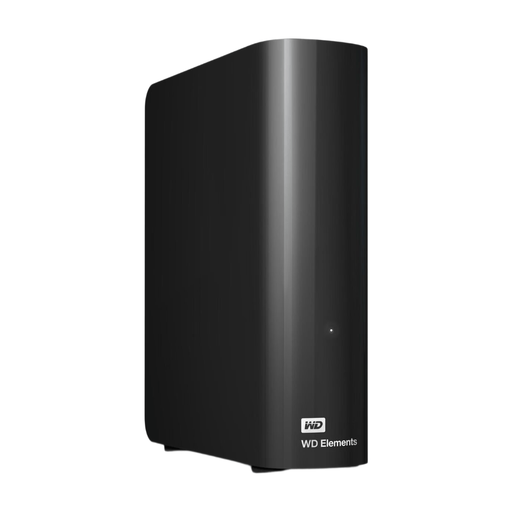
A desktop HDD is a good fit for backing up at a permanent workspace.
6 TB; USB 3.0. This version needs an external power adapter.
 No image available
A portable HDD is a good fit if you want to disconnect and put your backup drive away after use.
4 TB; portable external hard drive.
 No image available
A portable HDD may suit you if you want to take the drive with you or put it away after a backup.
4 TB; USB-C.
 No image available
A portable HDD is a good fit for a local archive you want to put away after backing up.
4 TB; USB Type-A / Micro-USB B; USB 2.0/3.2 Gen 1 (3.1 Gen 1). The Canvio Basics version reviewed is formatted as NTFS and needs to be reformatted for the macOS versions mentioned.
 No image available
A portable SSD is a good fit if you regularly want to move your backup drive.
1 TB; USB Type-C; USB 3.2 Gen 2 (3.1 Gen 2).
Yes, if File History is set up for the relevant library or added folder and a backup is available. Microsoft Support explains how to restore earlier versions of files and folders.
Connect a suitable storage device and add it as a backup drive in Time Machine settings. Check beforehand whether any existing data needs to be erased. Apple recommends a drive with at least twice the storage capacity of your Mac and advises using it for Time Machine backups.
The drive needs to be connected while the local backup is being made. Also plan when you’ll disconnect it afterwards and store it separately; the Consumers’ Association says ransomware can affect connected external drives.
According to the Dutch government, the retailer—not the manufacturer—must provide a solution if a product is faulty. The manufacturer’s warranty and any extra warranty you’ve bought come on top of your legal right to a product that works properly; how long you can claim under this right depends on the circumstances.
Not simply because the photos show identifiable people. The Dutch Data Protection Authority describes an exemption for personal or household use when photos stay private or are shared only with a very limited group. Different conditions apply if you publish them more widely or use them for business.