For one workspace with a weak signal, a wireless extender may be suitable, provided it’s placed somewhere that still gets a usable signal from the router. If ethernet is available, compare a wired access point or LAN bridge. For several rooms with poor coverage, multiple Wi-Fi points may be a better option, provided the mesh feature works with your router. Don’t treat stated radio speeds as guaranteed download speeds, and check the provider’s information on the exact version and applicable requirements.
Who is this guide for?
People with a workspace that has a weak signal
You download course materials in one spot where the existing Wi-Fi signal is weak. First, check whether there’s a plug socket between the router and that spot where the signal is still usable. KPN recommends placing the extender halfway between the router and the area where you want better coverage.
People sharing a network
Several people use the workspace at the same time and need coverage beyond the area next to the router. Look at how the Wi-Fi points connect to each other, and check that the mesh feature you want to use works with your existing router.
People who can run a cable
You can run ethernet to the workspace and want Wi-Fi there, or a wired connection for a device. Check whether the model you choose supports access point or LAN bridge mode.
What should you consider when choosing?
Standalone wireless extender
Suitable when: one workspace has weak Wi-Fi and there’s a spot where the extender can still receive a usable signal from the router.
Trade-off: placement and the wireless connection back to the router remain key; no cable is needed.
Wired access point or LAN bridge
Suitable when: you can run ethernet to the workspace or a suitable spot nearby.
Trade-off: the wired option requires a cable, but doesn’t rely on a wireless connection between the router and the Wi-Fi point.
Multiple mesh or Wi-Fi points
Suitable when: coverage is poor in several rooms or on multiple floors, or you’ve confirmed that your router works with the mesh system you have in mind.
Trade-off: this setup requires more equipment and configuration than extending coverage in one weak spot. The word ‘mesh’ doesn’t guarantee compatibility with every router.
| Factor to consider |
What should you check? |
Who should prioritise this? |
| Coverage where you download |
Find a spot between the router and workspace with a usable router signal and a plug socket. If there isn’t one, compare wired options. |
If I download course materials in one spot with weak Wi-Fi, I want to know whether an extender can still connect to the router there. Around 36% of consumers prioritise coverage in their study workspace. |
| Simultaneous use |
Check how many Wi-Fi points you need and how they connect to each other. Don’t assume stated radio speeds reflect the measured speed when several people are downloading at once. |
When several people use the same workspace, I want the connection to remain usable there, not just near the router. Around 29% of consumers prioritise a connection that can handle simultaneous use. |
| Wired connection |
Check whether you can run ethernet to the area and whether the exact model supports access point or LAN bridge mode. |
If I can run a cable to the workspace, I want to be able to use Wi-Fi from that wired connection. Around 21% of consumers prioritise a wired connection. |
| Router and management |
Note your router model and check that it’s compatible with the mesh feature you want to use, as well as checking update support for the exact device. |
Anyone connecting a new device to an existing shared network will want to know in advance whether its features work with the router and network management setup. Around 14% of consumers prioritise router compatibility and management. |
Common buying mistakes
-
Placing the extender where the Wi-Fi signal has almost disappeared
A wireless extender needs a usable connection to the router itself. Without one, the spot you’ve chosen won’t solve the poor coverage in your workspace.
Before buying, check whether there’s a suitable midway spot with a plug socket. If not, compare a wired access point.
If there’s no suitable midway spot, you may need an additional Wi-Fi point or a wired solution.
-
Assuming the stated Wi-Fi speed is your download speed
Radio speed isn’t the same as measured download speed in your workspace. Placement and the connection back to the router also affect performance.
Use stated radio speeds to understand the technical specifications, not as a guarantee of the course-material download speed you’ll get at your location.
-
Assuming every mesh product works with your router
OneMesh, AiMesh and D-Link Wi-Fi Mesh each have requirements for the devices that make up the system.
Check your exact router model and which mesh feature it supports. Otherwise, assess the device as a standard extender or access point, if it supports that mode.
A specific mesh feature may require a compatible router or other network equipment.
Brands to consider
TP-Link
The RE705X is a Wi-Fi 6 extender with access point mode and a gigabit ethernet port.
- TP-Link lists OneMesh support for the RE705X.
- OneMesh requires a compatible OneMesh router, so check compatibility before buying.
FRITZ!
According to FRITZ, the FRITZ!Repeater 1200 AX has a gigabit LAN connection and can be used as a LAN bridge.
- FRITZ also describes LAN bridge use with a router from another manufacturer.
- Check the version and the mesh compatibility you need separately.
D-Link
The DAP-X1860 is a Wi-Fi 6 extender with a signal indicator and a gigabit ethernet port.
- D-Link describes D-Link Wi-Fi Mesh as working with a compatible D-Link router.
- Don’t assume the mesh feature works with routers from other brands.
ASUS
According to ASUS, the RP-AX58 can work as an access point or, with a compatible ASUS router, as an AiMesh node.
- ASUS describes ethernet backhaul for access point or AiMesh node setups.
- AiMesh requires a compatible router, so check which configuration suits your network.
NETGEAR
The EAX15 is a Wi-Fi 6 extender with a gigabit ethernet port.
- The ethernet port provides a wired connection option for a device.
- Check that the mesh features you want work with your existing router.
Joybuy products for extending Wi-Fi
This selection of Joybuy products includes standalone repeaters, mesh kits with multiple points and a wired access point. The right option depends on where your Wi-Fi signal is weak, whether you can run ethernet and whether the product is compatible with your router.
 No image available
WiFi Repeater Pro Black
A standalone repeater for extending your existing Wi-Fi in a spot with a weak signal. Place it somewhere that still receives a signal from the router.
The product information lists 2.4 GHz, up to 300 Mbps, a signal indicator and support for up to 24 devices.
View at Joybuy
 No image available
TP-Link Deco BE68 2-Pack
A mesh kit with two units for a setup with multiple Wi-Fi points. Check that the configuration you choose suits your network.
The product information lists Wi-Fi 7, tri-band and wired WAN/LAN ports on each unit.
View at Joybuy
 No image available
TP-Link Deco X50 (3-Pack) Wi-Fi 6
Three mesh units are an option if you want to extend Wi-Fi to several areas.
The product information lists Wi-Fi 6 and three gigabit ethernet ports per unit.
View at Joybuy
 No image available
TP-Link Omada EAP653 access point
A wired access point for an area with an ethernet connection where you need Wi-Fi.
The product information lists Wi-Fi 6, PoE support and WPA3.
View at Joybuy
 No image available
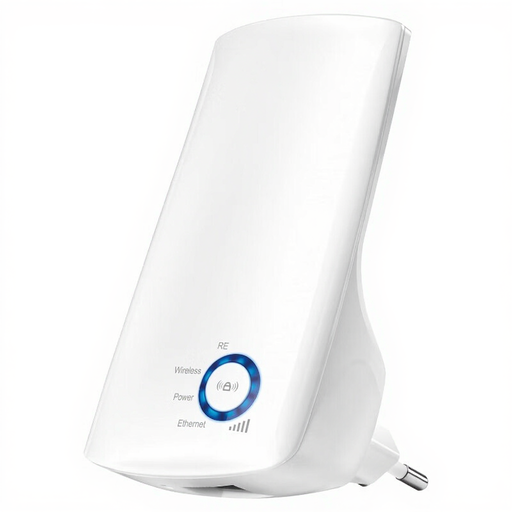
TP-Link TL-WA850RE
A Wi-Fi extender for improving coverage in a spot with a weak signal. Check where you place it in relation to the router.
The product information lists Wi-Fi 4, a wireless data rate of up to 300 Mbit/s and an ethernet port.
View at Joybuy
Frequently asked questions
Where should you place a wireless Wi-Fi extender?
Place it between the router and workspace, somewhere it can still receive a usable signal from the router. KPN recommends starting with a spot halfway between the two; then check coverage in the workspace itself.
Can an extender work as an access point through a network cable?
It depends on the model and mode. TP-Link documents access point mode for the RE705X, while FRITZ describes a LAN bridge for the FRITZ!Repeater 1200 AX, including with a router from another manufacturer. Check the manual for the version you’re considering.
Will a mesh extender work with any router?
No, don’t assume it will without checking. Features such as OneMesh, AiMesh and D-Link Wi-Fi Mesh have router requirements, so check your exact router model and the compatibility information.
Is the stated Wi-Fi speed also your download speed?
No, a stated radio speed doesn’t guarantee the download speed you’ll get in your workspace. Placement and the connection to the router also matter, so check coverage where you download your course materials.
What requirements apply to a Wi-Fi extender sold in the Netherlands?
Applicable wireless equipment must meet European requirements. The Dutch Authority for Digital Infrastructure (Rijksinspectie Digitale Infrastructuur) says sellers must check, among other things, the CE marking and declaration of conformity. Since 1 August 2025, stricter digital security requirements have applied to relevant wireless equipment. An older declaration alone doesn’t show that the version being offered meets all current requirements.


