A wireless repeater can help if Wi-Fi coverage is poor in just one lesson spot and the repeater itself can still get a usable connection to the router. If there’s an Ethernet cable to your lesson spot, an access point with an explicit access point mode could be an alternative; for coverage across several rooms, mesh may be a better fit. First check whether the problem also occurs close to the router: a repeater won’t fix an unreliable internet connection, and advertised Wi-Fi speeds don’t guarantee lesson speeds.
Who could benefit from extending their Wi-Fi?
Learner with poor coverage in one lesson spot
You usually take your lesson in one room and want to check whether poor Wi-Fi coverage is the main issue there. The Consumentenbond highlights coverage as something to consider with Wi-Fi boosters; NETGEAR Support stresses that a repeater needs to stay within range of the router itself.
Household with several devices using Wi-Fi at once
Other people at home use Wi-Fi while you’re having your language lesson. You’ll want to make sure your router, repeater and connected devices work well together; the Consumentenbond points out that Wi-Fi 6 is only relevant if your devices support it.
Teacher with a fixed or changing lesson spot
You need to be able to speak, and may also need to stream video. Zoom Support lists a broadband connection as a requirement; for a fixed lesson spot, a cable to an access point could work well, while teaching in different rooms calls for good coverage.
What should you look for in Wi-Fi for online language lessons?
First work out whether interruptions are mainly due to poor coverage in one spot, several people using your home network at once, your own device’s connection or the need for coverage across multiple rooms.
Wireless repeater
Choose this if: coverage is poor in one room and there’s still a spot between the router and that room where the router signal is usable.
Bear in mind: the repeater still relies on a wireless connection to the router.
Wired access point
Choose this if: an Ethernet cable from the router can reach your regular lesson spot and your chosen model supports access point mode.
Bear in mind: you’ll need a cable and may need to arrange installation.
Mesh extender or mesh system
Choose this if: you take lessons in several rooms or move devices around the house.
Bear in mind: proprietary mesh features may require a compatible router; check that your router and device work together.
Check your router or internet connection first
Start here if: your lesson also cuts out close to the router or over a direct cable connection.
Bear in mind: extra Wi-Fi equipment won’t fix a problem with the internet connection itself.
| Concern |
What to look for |
Who it’s for |
| Coverage where you take lessons |
Test the connection where you take lessons and at a spot in between; check the signal indicator there if needed. |
I mainly want better coverage in one lesson room and want to position the repeater somewhere it can still connect to the router. Around 36% of consumers say better coverage in one lesson spot is their top priority when buying. |
| Several devices at home |
Make a note of which devices use your home network at the same time; check what your router and devices can support. |
If other people at home use Wi-Fi at the same time, I want to know which devices are sharing my network. Around 29% of consumers say simultaneous use at home is their top priority. |
| Your own voice or video connection |
Compare the lesson experience where you normally use your device with a spot close to the router; if using a cable, check explicitly for access point mode. |
If I’m teaching or actively taking part, I want my voice and video to come through over my own connection. Around 21% of consumers prioritise their own voice or video connection. |
| Coverage across several rooms |
Decide where you take lessons and check that the mesh feature is compatible with your router and chosen model. |
If I might take lessons in more than one room, I want the coverage and router to work well together. Around 14% of consumers prioritise coverage across several lesson rooms. |
Common buying mistakes
-
Plugging the repeater into the room with the poorest coverage
The connection between the repeater and the router may be too weak there as well.
Look for a spot in between where the router signal is still usable. Check the indicator if needed, then test your lesson there.
-
Assuming AX or Mbps figures are guaranteed lesson speeds
Advertised Wi-Fi speeds don’t measure the speed of your lesson connection. Positioning, your router and devices, and your internet connection all play a part too.
Choose based on the problem you’re experiencing, then test the video and audio on the devices you use during lessons.
-
Assuming a standard repeater automatically works as a mesh extender
TP-Link describes OneMesh as working with a compatible OneMesh router; FRITZ! describes its mesh features in combination with a suitable FRITZ!Box.
Check your router model and which mesh features it supports. Otherwise, compare standard repeater mode with a wired access point.
Brands to compare
TP-Link
The RE605X and RE705X product ranges are designed to extend an existing network; TP-Link lists Wi-Fi 6, a gigabit port and access point mode for these models.
- TP-Link says OneMesh works with a compatible TP-Link OneMesh router.
- Advertised wireless link speeds aren’t measured speeds during an online lesson; check the model and router before relying on mesh.
FRITZ!
The FRITZ!Repeater 1200 AX is worth comparing if you’re looking for a Wi-Fi 6 repeater with gigabit LAN, for example for an existing FRITZ! network.
- FRITZ! describes using the device via LAN and with other routers.
- The FRITZ! Mesh features described for use together require a suitable FRITZ!Box; this isn’t an independent performance test result.
devolo
The WiFi 6 Repeater 5400 is a standalone model worth comparing if you’re looking at several connections and the possibility of extending a mesh network.
- devolo says the repeater can be used with routers, and mesh with other devolo Wi-Fi products.
- The quoted 5400 Mbit/s is an advertised maximum, not a measured speed during a language lesson.
NETGEAR
NETGEAR is an option to compare if you’re investigating a local coverage problem; its documentation covers connecting to existing routers and positioning the extender.
- NETGEAR describes extenders for use with a range of routers.
- Performance can depend on the available Wi-Fi band. NETGEAR recommends placing the extender within range of the router.
Joybuy products for different Wi-Fi solutions
The selection below includes wireless repeaters, wired access points and a mesh system for extending Wi-Fi for online lessons. Choose a solution based on where you take lessons, whether you can run a cable and the coverage you need.
 No image available
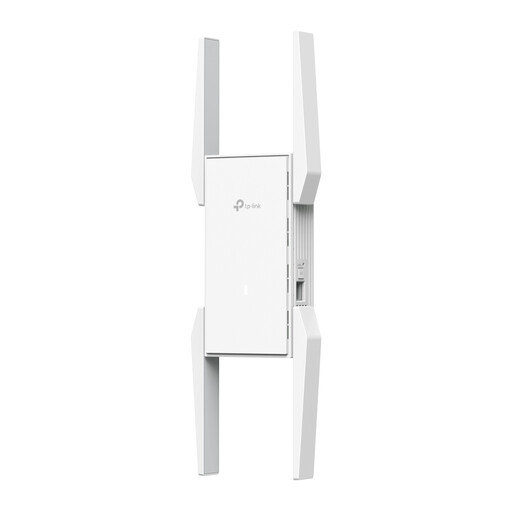
TP-Link Omada EAP673-Extender Network Repeater, white
Worth considering if you mainly want to improve Wi-Fi coverage in one lesson spot; the repeater itself needs to stay within range of the existing network.
View at Joybuy
 No image available
TP-Link Omada EAP653 access point, 2976 Mbit/s, white
A good fit for a fixed lesson spot if you can run an Ethernet connection to the access point. The product name lists 2976 Mbit/s and Power over Ethernet (PoE); you’ll still need a cable to the router.
View at Joybuy
 No image available
TP-Link Deco XE75 mesh system, tri-band Wi-Fi 6E (2.4, 5 and 6 GHz)
A mesh system worth comparing if you want to extend Wi-Fi to several parts of your home; this isn’t a standalone repeater. The product name lists tri-band Wi-Fi 6E and the 2.4, 5 and 6 GHz bands.
View at Joybuy
 No image available
Wi-Fi Repeater Pro, black
Worth considering if you want to improve coverage in an area with a weak Wi-Fi signal. Find a spot where the repeater can still connect to the router, then test your lesson there.
View at Joybuy
 No image available
TP-Link TL-WA801N access point/Wi-Fi extender, up to 300 Mbps, Passive PoE
Could suit a fixed lesson spot if you’re looking for access point or range extender mode. The product name lists up to 300 Mbps, two aerials, WPS and Passive PoE; this maximum doesn’t guarantee lesson speeds.
View at Joybuy
Frequently asked questions
Will a repeater help if your internet also cuts out close to the router?
Not with the underlying problem with your internet connection: the repeater relies on the router’s connection. Before choosing extra Wi-Fi equipment, first compare your lesson close to the router or, if possible, using a cable.
Where should you position a wireless repeater?
NETGEAR Support recommends placing it between the router and the device you use for lessons, somewhere still within the router’s Wi-Fi range. Then check the connection indicator and test your lesson where you normally use your device; the best spot will depend on your home.
Does mesh work with every router?
No, proprietary mesh features may require a compatible router. TP-Link specifies a compatible OneMesh router for OneMesh, while FRITZ! describes its mesh features in combination with a suitable FRITZ!Box; check that your router and model work together.
Which marking and requirements matter for a Wi-Fi repeater in the Netherlands?
The Dutch Authority for Digital Infrastructure states that radio equipment sold in Europe must carry the required CE marking. Since 1 August 2025, stricter applicable digital security requirements have also applied when placing wireless devices on the European market; check the documentation for the specific model.
Should you update your repeater’s firmware?
Follow the update instructions for your chosen model. ACM ConsuWijzer highlights the importance of updates for the security of network equipment; before buying, check how the device receives updates.


