With few sockets available, an all-in-one is an obvious choice, as the computer and built-in screen form a single setup. If you already have a suitable screen, or want to choose one specifically for print work, compare a mini PC or tower with that screen and factor in the power sockets required. A more compact computer doesn’t necessarily mean you’ll need fewer sockets.
Which setup is right for you?
Creator with one available socket
You want to create your catalogue at a dedicated workstation without needing to power a separate monitor as well. Compare all-in-ones with a built-in screen, and count the sockets needed for a printer and other equipment separately.
Designer checking print work
You review photos, layouts and print colours, and want to choose your screen and manage colour deliberately, even if that means using an extra socket. Adobe explains how to use colour profiles and printer settings in InDesign.
Working with large files
You switch between documents and image files as you work on layouts. Adobe recommends 16 GB of RAM for InDesign; also check how much storage space your project files will need.
What should you look for?
All-in-one
A good fit if: you want to work without a separate monitor and keep the number of individual devices to a minimum.
Bear in mind: you choose the computer and built-in screen together; a high resolution doesn’t prove that screen colours will match print colours.
Mini PC with external screen
A good fit if: you already have a suitable screen or want to choose one to suit your workflow.
Bear in mind: the computer and a standard external screen will generally each need a power socket; also check that your software works on macOS and with the chosen chip.
Tower with external screen
A good fit if: you want a configurable Windows desktop and the freedom to choose your screen separately.
Bear in mind: a tower doesn’t have a built-in screen, so factor in the screen’s power supply and your chosen configuration.
For a desktop workstation used to create an exhibition catalogue, the table below highlights one key buying priority for each consumer.
| What to consider |
What should you check? |
Who is this important for? |
| Power sockets required |
Add up the sockets needed for the computer, screen, printer and other equipment. |
If you want to combine the computer and first screen at a fixed workstation with few spare sockets, this is the top priority for around 28% of consumers. |
| Screen for layouts and print work |
Compare the resolution of the exact model and match colour profiles and proofing checks to your print workflow. |
When reviewing photos and pages for print, you’ll want to match the screen and colour management carefully; around 22% of consumers put this priority first. |
| Memory and project storage |
Check the requirements of your own programmes and the space needed for local files. Adobe recommends 16 GB of RAM for InDesign. |
If you work with large files and multiple documents while creating layouts, having enough memory and storage matters; around 22% of consumers start with this need. |
| Connections for existing equipment |
Make a note of the connections and power requirements of the devices you actually want to use. |
If you want to keep using existing screens or peripherals, you’ll need to know whether they’ll connect to your chosen computer; around 17% of consumers make this their top priority. |
| Replaceability and aftercare |
Compare which components you can choose or replace individually, and check the terms and conditions of your purchase. |
If you want to be able to replace the computer and screen independently and arrange aftercare separately, that flexibility matters; around 11% of consumers make it their starting point. |
Common buying mistakes
-
Assuming a mini PC solves the one-socket problem
A mini PC needs a separate screen. In a standard setup, that screen needs power too.
Count the sockets required for your entire workstation before comparing computer sizes.
With a separate setup, allow for an additional screen and any cables you may need.
-
Confusing resolution with reliable print colours
A high screen resolution doesn’t tell you whether the colours on screen will match the final print.
Match colour profiles and print checks to the workflow you use.
-
Looking only at the series name or base model
Models in the same product series can differ in memory and included components. The Lenovo ThinkCentre neo 50a Gen 7 base configuration reviewed has 8 GB of soldered RAM and is shown without a keyboard and mouse.
Before ordering, check the full model number, the selected memory and which components are included with that model.
Brands to compare
HP
The OmniStudio X is an all-in-one range for anyone looking for a Windows computer with a built-in screen.
- For the 27-cx0625nd reviewed, HP specifies a 27-inch QHD screen, 24 GB of RAM and a 512 GB SSD.
- These screen specifications alone don’t establish whether screen colours will match print colours.
Acer
The Aspire C is an all-in-one range; the C27-195ES DQ.BMFEH.002 described here has a built-in screen.
- For this model, Acer lists a 27-inch Full HD screen, 16 GB of RAM and a 1 TB SSD, with a keyboard and mouse.
- Check the specifications for the exact model number; general information about a series doesn’t necessarily apply to every model.
Apple
The Mac mini M6 is a compact macOS desktop for anyone who wants to choose their own external screen.
- Apple specifies support for external screens with the Mac mini M6.
- There’s no built-in screen. Check your screen choice, the power sockets required and whether your catalogue software is compatible.
Dell
The Pro Tower QCT1255 is a tower option for anyone who wants a separate screen and a choice of configurations.
- Dell lists memory and SSD options on the configuration page shown.
- The tower doesn’t have a built-in screen; check the specifications of the configuration you actually choose.
Lenovo
The ThinkCentre neo 50a Gen 7 is a business all-in-one option for a workstation where space is limited.
- For the base configuration reviewed, Lenovo describes a 23.8-inch Full HD screen.
- This configuration has 8 GB of soldered RAM and is shown without a keyboard and mouse. Adobe lists 8 GB as the minimum and 16 GB as the recommendation for the InDesign version reviewed.
All-in-one PCs at Joybuy
These all-in-one PCs have a built-in screen, making them suitable for a dedicated catalogue workstation where you don’t want to power a separate monitor. When assessing colour, check the full screen and colour-management workflow; resolution alone doesn’t confirm a match with print.
 No image available
Acer Aspire C24-A WI5418 NL
The built-in screen suits a dedicated workstation without a separate monitor.
23.8-inch Full HD IPS screen; Intel Core 5 120U; 16 GB DDR5; 1 TB PCIe NVMe SSD; Windows 11 Home.
Screen resolution doesn’t prove that screen colours will match print colours; match colour management and proofing checks to your print workflow.
View at Joybuy
 No image available
MSI Modern AM273QP AI 1UM-061EU
The integrated screen and computer form a dedicated workstation without a separate monitor.
27-inch QHD IPS screen; Intel Core Ultra 5 125H; 16 GB DDR5; 1 TB SSD.
Screen resolution doesn’t prove that screen colours will match print colours; match colour management and proofing checks to your print workflow.
View at Joybuy
 No image available
MSI Modern AM273Q AI 1UM-058EU
The built-in screen means you don’t need a separate monitor for your basic setup.
27-inch QHD screen; Intel Core Ultra 7 155H; 32 GB DDR5; 1 TB SSD; Windows 11 Pro; Wi-Fi 6E.
Screen resolution doesn’t prove that screen colours will match print colours; match colour management and proofing checks to your print workflow.
View at Joybuy
 No image available
Lenovo Yoga AIO 27IAH10 F0J2001DNY
The all-in-one setup combines the computer and built-in screen for a dedicated workstation.
27-inch QHD screen, 120 Hz; Intel Core Ultra 7 255H; 16 GB LPDDR5X; 1 TB SSD; Windows 11 Home.
Screen resolution doesn’t prove that screen colours will match print colours; match colour management and proofing checks to your print workflow.
View at Joybuy
 No image available
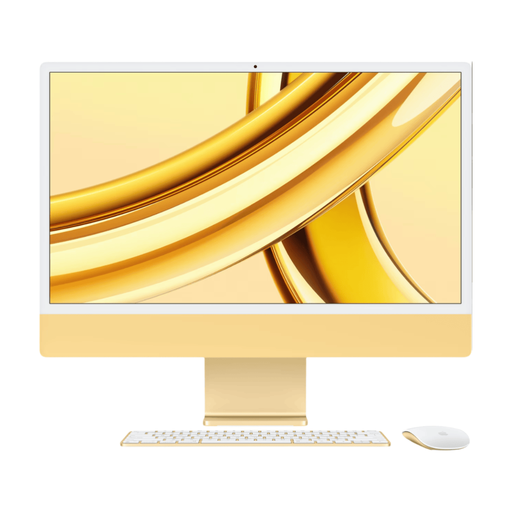
Apple iMac 24-inch M3, 24 GB, 512 GB, yellow (2023)
The built-in screen makes this model worth comparing with separate computer and screen setups.
24-inch 4.5K Retina screen; 24 GB memory; 512 GB SSD.
Screen resolution doesn’t prove that screen colours will match print colours; match colour management and proofing checks to your print workflow.
View at Joybuy
Frequently asked questions
Does a mini PC mean I only need one power socket?
Not for a standard workstation with a separately powered screen: allow for power for both the computer and the screen. An all-in-one has the first screen built in; count other equipment separately.
Is a QHD screen automatically suitable for checking print colours?
No. Resolution tells you how many pixels are displayed, not whether screen colours will match print colours. Match colour profiles and print checks to your print workflow.
Can I plug extension leads into one another if I have few power sockets?
No. Brandweer Twente advises against connecting extension leads to one another. Check the condition and load of your power supply, and leave space around the computer for ventilation.
What warranty applies to a purchase in the Netherlands?
Consumer purchases are covered by the statutory guarantee, in addition to any manufacturer’s or seller’s warranty. ACM ConsuWijzer explains that the seller must offer an appropriate solution free of charge if a product used normally develops a fault sooner than you could reasonably expect. This explanation does not establish the same entitlement for a business purchase.
Is CE marking relevant for a desktop sold in the Netherlands?
For applicable electrical and electronic equipment, Dutch government information describes CE marking and an EU declaration of conformity as part of the requirements. CE marking is not a quality mark. Check what conformity information is available for the exact model.


