
Catalogue designer
You bring together text, pages and linked images, and want enough room to check the layout before handing over the work.


Start with the software you use, the size of your image files, and the displays and equipment at the shared desk. For catalogue layout, a portable laptop with suitable software support may be enough, while intensive photo editing can call for more memory and storage. Check the display, ports and included accessories for each configuration; a wide colour gamut does not guarantee an accurate print proof.
You bring together text, pages and linked images, and want enough room to check the layout before handing over the work.
You edit lots of photos as well as working on the layout, so you want to factor in memory, available storage and a controlled colour workflow when choosing.
You move your laptop regularly and connect a display or other equipment at a shared workstation. Available ports vary by configuration.
Start with your catalogue software and display setup, then work out how much image editing, connectivity and portability your work calls for.
A good fit if: you mainly lay out pages and move between workspaces. Apple Netherlands lists a 13.6-inch P3 display, 16 GB of memory and two Thunderbolt 4 ports among the specifications for one MacBook Air M5 configuration.
Bear in mind: a compact display gives you less room for pages and control panels. Check that macOS and the ports are compatible with your software and equipment.
A good fit if: a touchscreen and pen are genuinely part of your workflow. The ASUS ProArt PX13 HN7306 configuration reviewed lists 64 GB of memory, a 1 TB SSD and a 13.3-inch OLED touchscreen.
Bear in mind: the configuration listed has a glossy display and a US INTERNATIONAL keyboard. ASUS’s colour accuracy claims are manufacturer statements, not proof of an accurate print proof.
A good fit if: you can show that you need more local capacity, connectivity or Windows management. The HP ZBook Ultra G1a configuration reviewed lists 32 GB of RAM and a 1 TB SSD; HP also lists HDMI, USB-A and three USB-C ports.
Bear in mind: don’t automatically pay for workstation capabilities if you mainly lay out pages. One ThinkPad P14s Gen 6 configuration reviewed is sold without an operating system and lists a display with 45% NTSC coverage; check the exact configuration.
| Consideration | What should you check? | Who is this important for? |
|---|---|---|
| Layout software and workspace | Check the requirements of the software you use and the resolution of your laptop display and any external display. For InDesign 21.3 and later on Windows, Adobe lists 8 GB of RAM as the minimum, 16 GB as the recommended amount and 1920 × 1080 as the recommended display resolution. | If I want to keep pages, text and control panels easy to navigate, I look at software support and usable display space. Around 36% of consumers say layout space and compatible software are their top priorities. |
| Photo editing and colour assessment | Consider how much space your active image files need and check the relevant software requirements. For Photoshop 27.x on Windows, Adobe recommends 16 GB of RAM or more and a fast internal SSD. Agree colour profiles and proofs with the printer. | If I edit lots of photos alongside the layout, I want enough working space for my files and a coordinated colour workflow. Around 29% of consumers put image editing first. |
| Connecting equipment and handing over work | Make a note of the display cables, storage and other equipment used at the workstation. Compare these with the ports on the exact laptop configuration, and check linked files and fonts before handing over your work. | If I use an external display or other equipment at the shared desk, I want to be able to connect everything and hand over complete projects. Around 21% of consumers say suitable workstation connections and handover are their top priorities. |
| Moving between workspaces | Choose a display size based on how often you work without an external display. Check the charging requirements and what comes with the specific configuration. | If I take my laptop with me often, I look for a practical balance of portability, built-in workspace and charging. Around 14% of consumers see portability and a suitable charging solution as their most important choice criteria. |
The final print colours also depend on colour profiles and print settings; a display specification alone won’t tell you what the printed work will look like.
Ask the printer which colour workflow and proof are required before choosing a laptop based solely on display claims.
Colour matching and a print proof can take extra time.
The operating system, memory and display can vary between configurations. For example, one ThinkPad P14s Gen 6 configuration reviewed is sold without an operating system and has a display with 45% NTSC coverage.
Before buying, compare the full model number, operating system, memory and exact display configuration.
Your laptop’s ports need to work with the equipment at the shared desk. The Joybuy product page for the MacBook Air configuration reviewed does not list a charger.
Take stock of your cables and equipment, then check the ports, charging requirements and box contents for each configuration.
Depending on the configuration and equipment, you may need a suitable charger, cable or adapter.
Missing files or fonts can leave a project incomplete when handed over and lead to extra work to put things right.
Run the checks in InDesign on the final project and agree which files the recipient will need.
Fixing problems can delay the handover.
A MacBook Air may suit a portable macOS workflow; check software support and the ports on your chosen configuration in advance.
The ProArt PX13 is a Windows option worth considering if a convertible device with touch and pen support suits your creative workflow.
The ZBook Ultra G1a is a Windows workstation worth comparing if your work involves several demanding local tasks or requires a range of connections.
The ThinkPad P14s Gen 6 is a configurable Windows workstation option; pay attention to the operating system and chosen display configuration.
Within the XPS range, pay particular attention to the chosen display option and the ports on the full model.
The Joybuy laptops below have display sizes ranging from 15.3 to 18 inches. Consider them if a larger built-in display matters to you, and check whether each configuration suits your software and workspace.
 No image available
Could suit you if you mainly want a large built-in display at the shared desk; check that this gaming configuration works with your catalogue software and workflow.
The product name lists an 18-inch display, Ryzen 9 8940HX, RTX 5060, 16 GB of memory and a 1 TB SSD. According to the product information, the charger must be purchased separately.
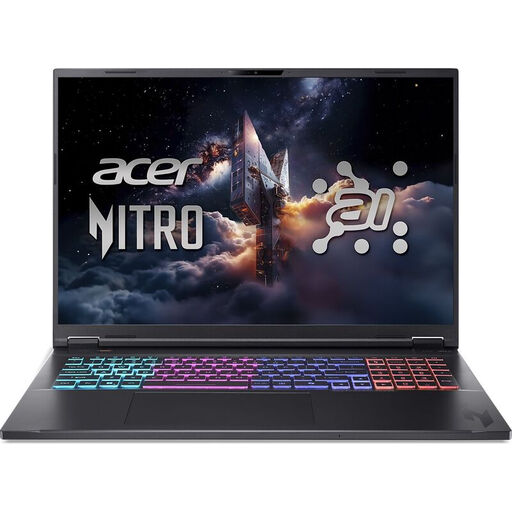 No image available
Could suit you if you want to view pages and panels on a large built-in display; check the software requirements and connections on this exact configuration.
The product name lists an 18-inch WQXGA display with a 165 Hz refresh rate, a Ryzen AI 7 350, RTX 5060, 16 GB DDR5, a 1 TB SSD and Windows 11 Home.
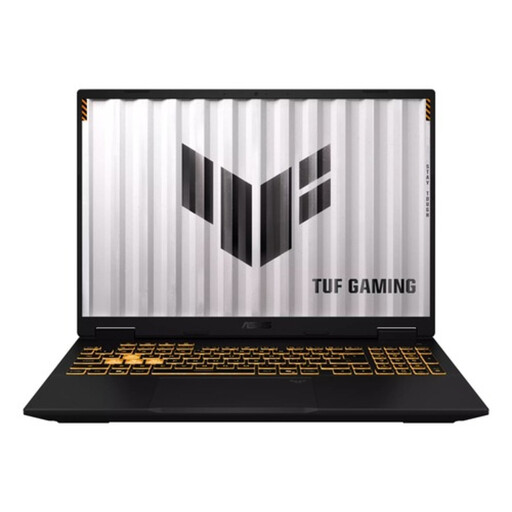 No image available
Could suit you if a 16-inch display works for your workspace; check which ports your existing equipment needs before choosing this configuration.
The product name lists a 16-inch display, Core i7-14650HX, RTX 5060, 16 GB of RAM and a 1 TB SSD.
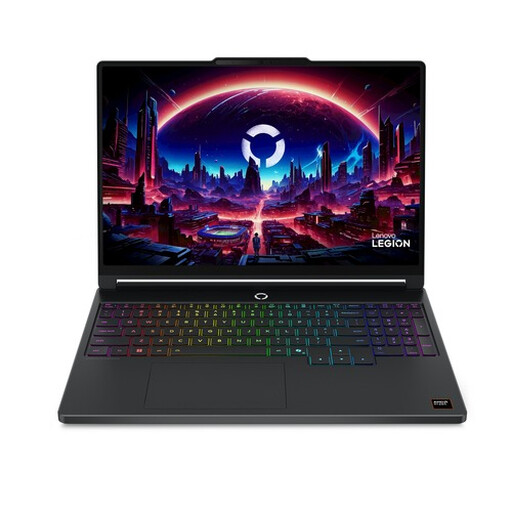 No image available
Could suit you if you’re looking for a 15.3-inch built-in display; check that the storage capacity and exact ports work for your files and workspace.
The product name lists a 15.3-inch WQXGA OLED display with a 165 Hz refresh rate, Ryzen 7 250, 16 GB DDR5, a 512 GB SSD, RTX 5060 and Windows 11 Home.
 No image available
Could suit you if you want a 16-inch built-in display for catalogue work; compare the configuration with your software requirements and check the workstation connections.
The product name lists a 16-inch QHD+ OLED display with a 240 Hz refresh rate, Core Ultra 9 386H, RTX 5060, 32 GB DDR5, a 1 TB SSD, Wi-Fi 7 and Windows 11 Home.
Not just because you’re creating a catalogue. Check the requirements of the software and features you use: Adobe lists separate GPU requirements for Photoshop and requirements for optimal GPU performance in InDesign on Windows. Choose extra graphics capacity only if your own workflow calls for it.
In InDesign, use Preflight to check for missing fonts and linked files, among other things. Use the Package feature if you need to hand over the editable layout and its associated assets; agree print files and colour settings separately with the printer.
No. A display specification alone can’t determine how colours will look on the chosen printer and paper. Match colour profiles and settings to the printing process, and ask the printer what kind of proof is needed.
According to ACM ConsuWijzer, consumers buying online generally have 14 days from delivery to change their mind. You’re also covered by the statutory guarantee if a product doesn’t meet reasonable expectations under normal use; this isn’t simply a fixed two-year warranty period. If you’re buying on behalf of an organisation, check which terms apply to that purchase.
Check the product page for the exact configuration and the connections on your equipment. The Joybuy page for the MacBook Air M5 configuration reviewed does not list a charger; Apple states a minimum charging capacity of 30 W for its 13-inch M5 model. This doesn’t indicate what is included with other configurations.