A 27-inch QHD monitor is a good choice for evening study if you regularly want to view a historical map alongside a source or your notes, and have enough desk space. A more compact screen may be more practical for a small workspace. In either case, check the adjustability, reflections and connection to your laptop. A blue-light or reading mode alone does not prove that a monitor prevents eye strain or sleep problems.
Who is this choice relevant for?
Comparing maps and source material
You want to view a historical map alongside a source or your notes, so usable screen space is your first priority. Some archive maps can be viewed online, but not every image is available or can be zoomed in without limit. The National Archives of the Netherlands and the image bank of the Cultural Heritage Agency of the Netherlands explain these limitations.
Evening reader
You read for longer stretches and value legibility, a suitable screen position and manageable reflections more than a general claim about eye comfort. The Dutch Working Conditions Portal (Arboportaal) highlights small text, reflections and ambient light as factors to consider when working with a screen.
Student with limited desk space
You’re looking for a screen that fits your workspace. Depending on your laptop, the number of cables you need may also matter, so check which connections carry video and whether they’re compatible with your laptop.
What should you look for when choosing?
First, consider whether you want to see a map and text at the same time or mainly read one source at a time. Then check that the size and connections suit your desk and laptop.
| What to consider |
What to look for when buying |
Who is this important for? |
| Viewing a map and source at the same time |
Compare screen size and native resolution, and check whether two windows are easy to read at your usual text size. |
If I want to place a historical map alongside a source and my notes, I want to be able to read both clearly. That’s why around 31% of consumers prioritise viewing a map and source at the same time. |
| Evening readability |
Check the screen finish and assess text size, brightness, and the position of your lamps and screen. |
During long reading sessions, I want to minimise distracting reflections and text that’s difficult to read. Around 31% of consumers give evening-study readability top priority. |
| Size and screen position |
Measure the available desk space and check how adjustable the stand is, or whether a suitable VESA solution is an option. |
If my desk has limited space, I want to position the screen comfortably without taking up too much of the work surface. Around 23% of consumers prioritise a compact, adjustable workspace. |
| Connecting to your laptop |
Check whether USB-C video is supported, how much charging power your laptop needs and which cables are included. |
When I connect my study laptop regularly, I want to know whether one cable can provide video and enough power. Around 15% of consumers prioritise a suitable laptop connection. |
Common buying mistakes
-
Treating a blue-light or eye-comfort label as a guarantee
A reading mode changes the display, but it doesn’t replace suitable lighting, text size or screen positioning. A Cochrane review of blue-light-filtering glasses found no clear short-term benefit for eye strain during computer use; the results for sleep were unclear. The research did not directly test the built-in mode of a specific monitor.
Start by considering readability and your workspace setup. Treat a screen mode as an adjustment option, not a proven health treatment.
-
Assuming every USB-C port supports video and charging
USB-C features vary by model. On the Dell P2425, the USB-C downstream port is specified for data, while LG and BenQ specify USB-C with up to 65 W Power Delivery for the models described.
Check your laptop’s video support, port type and power requirements against the specifications of the exact monitor model.
You may need an extra cable, adapter or separate laptop charger if the connections aren’t compatible.
-
Comparing screen size alone
A monitor also needs to fit on your desk and sit at a comfortable height. The ASUS VA24EHF, for example, doesn’t have height adjustment on its supplied stand.
Measure the available space and check the stand’s adjustability and any VESA mounting options before choosing a model.
If the stand can’t be adjusted enough for your workspace, you may need a suitable separate monitor arm.
Brands to consider
LG
The 27BA65QB-B is a 27-inch QHD monitor for anyone who wants to view maps and text side by side.
- LG lists a resolution of 2560 × 1440 pixels and USB-C Power Delivery up to 65 W for this model.
- The larger screen needs enough desk space. Check that the connections and power supply suit your laptop.
BenQ
The GW2790QT combines a 27-inch QHD screen with features including an ePaper mode, an anti-glare finish and adjustment options.
- BenQ specifies USB-C video and up to 65 W Power Delivery for this model.
- Display modes are features, not proof that they reduce eye complaints or improve sleep. Check compatibility with your laptop.
Dell
The P2425 is a more compact 16:10 monitor with an adjustable stand, suited to reading and note-taking.
- Dell specifies a resolution of 1920 × 1200 pixels and height, tilt, swivel and pivot adjustment.
- The USB-C downstream port supports data and up to 15 W, but it isn’t a USB-C video input for a one-cable connection.
ASUS
The VA24EHF is a 23.8-inch Full HD option for anyone looking for a smaller screen.
- ASUS lists an anti-glare IPS panel and VESA mounting for this model.
- The supplied stand tilts, but isn’t height-adjustable. The specifications list one HDMI connection and no built-in speaker.
Philips
The 27E1N5600AE/00 is a 27-inch QHD monitor with USB-C for a compatible laptop.
- Philips lists video, data and power over USB-C for compatible devices.
- Check the charging capacity you need and your laptop’s connection options before relying on a one-cable setup.
Joybuy monitors for studying maps and source material
These Joybuy monitors are suited to viewing historical maps and source material, with both 27-inch QHD models and a more compact QHD model.
 No image available
MSI Pro MP275Q
The 27-inch QHD format suits anyone who wants to view a map and source material side by side.
27 inches; 2560 × 1440 pixels; Wide Quad HD.
View at Joybuy
 No image available
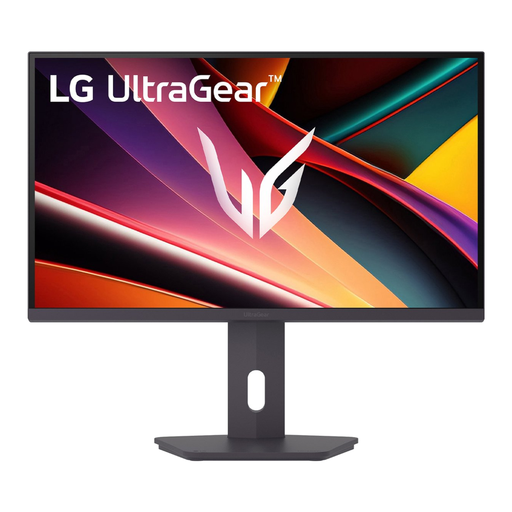
LG UltraGear 27G610A-B
The 27-inch QHD format suits anyone who wants to view map material and source text at the same time.
27 inches; QHD; IPS; 200 Hz.
View at Joybuy
 No image available
Dell UltraSharp U2724D
The 27-inch QHD format is an option for anyone who wants to place a map alongside text or notes.
27 inches; 2560 × 1440 pixels; Quad HD.
View at Joybuy
 No image available
Dell Plus S2725QC
The 27-inch size suits anyone who wants to view several windows side by side.
27 inches; 3840 × 2160 pixels; 4K Ultra HD.
View at Joybuy
 No image available
Dell Pro Plus P2425D
This more compact QHD format is suited to reading and note-taking in a smaller workspace. There’s less room than on a 27-inch screen to view a large map alongside a document.
24 inches; 2560 × 1440 pixels; Quad HD.
View at Joybuy
Frequently asked questions
Do I always need a 4K monitor for historical polder maps?
No. Start by considering how many windows you want open side by side and whether the digital map has enough detail. The National Archives of the Netherlands notes that some material hasn’t been digitised. In the image bank of the Cultural Heritage Agency of the Netherlands, zooming in only works for images available in high quality. Then check whether text remains readable at your preferred size.
How should I set up a monitor for evening reading?
Position your screen and lamps so that reflections and light sources in your field of view don’t make reading difficult. Enlarge small text if needed and adjust the screen to a comfortable position. The Dutch Working Conditions Portal (Arboportaal) highlights readability, lighting and posture as factors to consider when working with a screen; these aren’t individual medical guarantees.
What are the Dutch rules for buying online and disposing of my old monitor?
According to the Dutch government, consumers who buy from a business online have a 14-day cooling-off period. If a private individual buys a new, similar monitor, the retailer must take back the old device free of charge under the like-for-like take-back scheme, according to the Dutch government. This also applies to online purchases. Rules for employers on screen-based work don’t automatically apply as purchasing obligations to someone studying privately.


