
Vandaag of morgen in huis

Kwaliteit gegarandeerd

Welkomstaanbiedingen ontgrendelen: GRATIS bezorging | Tot 80% korting | Gratis 30 dagen JoyPlus-proefperiode
Download de app
An ergonomic mouse can make working at a computer for hours every day more comfortable. However, an unusual shape won’t automatically suit every hand. A vertical mouse, for example, may take some getting used to, while a compact wireless mouse might feel too small during long working sessions.
When comparing models, don’t focus only on claims such as “comfortable” or “natural”. Check the shape, hand orientation, connection, sensor and buttons. That way, you can avoid paying for features you won’t use.
A vertical mouse holds your hand at a more rotated angle. Some users may find this comfortable, but the angle, size and thumb rest all affect how well it works in practice. A model designed for right-handed use won’t suit you if you’re left-handed.
So check:
A mouse isn’t a medical solution for persistent pain, tingling or numbness. Adjust your working posture and seek advice from a qualified healthcare professional if you have symptoms.
DPI indicates how sensitively the cursor responds to movement. A high setting can be useful for large screens or gaming, but it doesn’t automatically make a mouse more accurate or comfortable. For office work, an adjustable sensor ranging from around 800 to 4,000 dpi is practical for many users. Gamers may have different requirements, such as a high polling rate and a low-latency sensor.
So look at adjustable dpi, tracking on your desk surface and the software options. Even if the product information says a sensor works on glass, you should still check how well it performs in your specific workspace.
An ergonomic wireless mouse can help keep your desk tidy, but check the type of connection. A USB receiver takes up a port. Bluetooth is handy for laptops and tablets, but your device needs to support the right version of Bluetooth. A mouse with both options gives you more flexibility.
Also check:
An ergonomic computer mouse should suit the way you hold it. A vertical mouse usually calls for a palm grip, while a gaming mouse is more often suited to a claw or fingertip grip. A heavier model may feel stable, but a lighter one takes less effort to move during fast-paced actions.
Check the stated dimensions and weight. For example, the Logitech Lift weighs 125 grams and, according to the product information, is designed for small to medium-sized hands. The Trust Bayo II has a 57-degree vertical angle and weighs 110 grams. These are verifiable details, but they don’t tell you how every user will find the mouse.
A wireless mouse with Bluetooth is handy for a laptop without any free USB ports. A 2.4GHz receiver may be a good option if you want a stable connection to a desktop computer. Some models support multiple devices, which is useful if you work from home with a laptop and a second screen or computer.
A rechargeable mouse means you won’t need to replace AA batteries regularly. However, check the estimated battery life and charging port. A USB-C model is generally easy to charge with cables you already have, but always check which accessories are included.
For office work, programmable buttons can be useful for going back, copying, using shortcuts or switching between programmes. A quiet mouse can be handy in a shared workspace, library or home office. Horizontal scrolling is useful for spreadsheets, while extra buttons and an adjustable sensor are often more important for gaming.
More features do mean more setup. Choose a mouse with programmable buttons only if you’re actually going to use them.
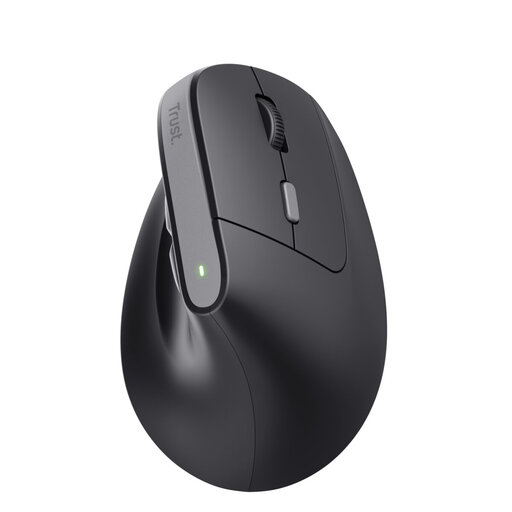
Why it suits this user: This right-handed vertical mouse offers an easy introduction, with a 2.4GHz receiver, six buttons and adjustable dpi from 800 to 2,400.
The 57-degree angle and stated ErgoCert classification make the shape easy to assess. Bear in mind that Bluetooth and left-handed use aren’t supported.
Rechargeable battery, quiet buttons and a wireless USB receiver that can be stored inside the mouse.
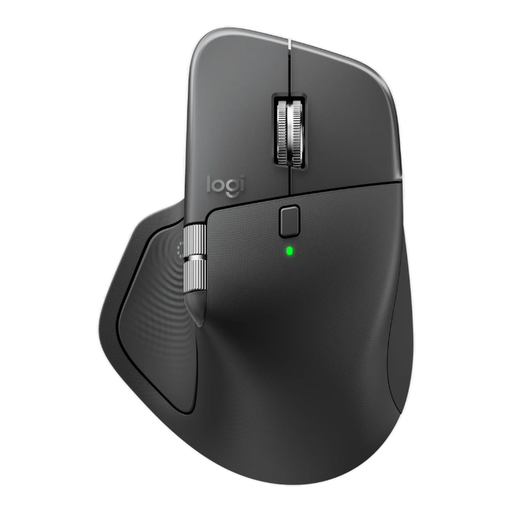
Why it suits this user: This right-handed model is aimed at office professionals who use multiple devices, fast scrolling and plenty of keyboard shortcuts.
The specifications list eight programmable buttons, Bluetooth, a Logi Bolt receiver and connection to up to three devices. The shape isn’t ambidextrous.
8,000 dpi, horizontal scrolling, USB-C charging and, according to the product information, quiet clicks.
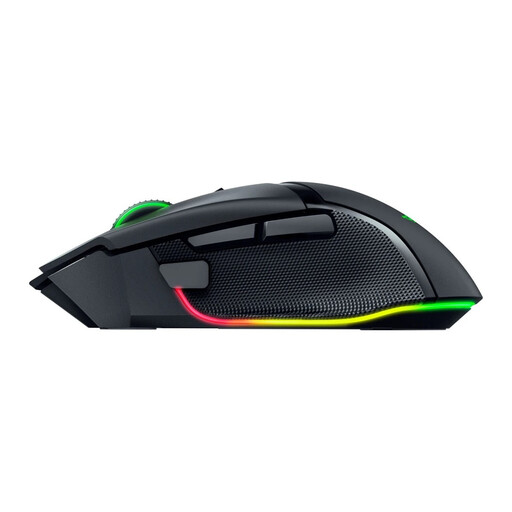
Why it suits this user: Gamers looking for extra controls, configurable software and wireless flexibility get a mouse with 11 programmable buttons.
The product information lists 2.4GHz, Bluetooth and wired use. This lets you choose the connection that suits gaming or general computer use.
35,000 dpi, 11 programmable buttons and Razer Chroma RGB lighting. According to the specifications, the mouse weighs around 112 grams.
We’ve put together a complete, up-to-date list of products that meet these strict selection criteria and the applicable European safety regulations.
A different shape can change the way you hold a mouse, but the effect varies from person to person. An RSI mouse or a mouse for wrist problems doesn’t guarantee relief from symptoms. Try to maintain a relaxed posture, take regular breaks and get persistent symptoms assessed by a qualified professional.
Start with a dpi setting that lets you move the cursor across the screen with small movements. Place the mouse close to your keyboard, keep your shoulder relaxed and avoid resting your wrist on a hard edge for long periods. Programmable buttons can reduce the need to repeat keyboard shortcuts, but only use them if they genuinely make your work easier.
That depends on the battery type and battery life. A model with AA batteries comes with ongoing replacement costs. With a rechargeable mouse, the main cost is electricity, with the occasional need to replace the whole device when its built-in battery wears out. If you’re using a Bluetooth mouse or USB receiver, also check that your computer supports the connection you want.
