If you usually practise at one computer, a wired headset with a suitable connection and an easy-to-position microphone is a sensible place to start. Choose Bluetooth only if the freedom to move around is worth the pairing and charging. The headset itself doesn’t create a recording file: select the microphone in your recording software, make a short test recording and export it locally. A manufacturer’s claim about noise cancellation doesn’t, on its own, tell you how clearly your voice will come through in your practice space.
Who is this advice for?
Readers who listen back to check their pronunciation
If you record short passages, listen critically to your own voice and save files locally, you’ll benefit from selecting the microphone as the recording source and making a test recording. Audacity Support explains these steps for recording and exporting audio.
People practising at a desktop computer
If you always practise on the same device, focus on finding a suitable connection and easy-to-reach microphone controls. Check the connection on the exact headset variant before choosing.
People practising in a shared space
If there’s background noise, listen back to a test recording made in your own practice space. A manufacturer’s claim about microphone noise cancellation doesn’t guarantee that every sound will disappear.
What should you look for when choosing?
First check that the connection and microphone input work. Then assess the recording, and consider comfort and background noise.
| What to consider |
What to look for when buying |
Who should pay particular attention? |
| Voice clarity |
Check that you can position the microphone consistently near your mouth. Select it as the input and listen back to a short test recording. |
If I want to assess soft and loud words afterwards, the correct microphone needs to be the recording source. Around 36% of consumers say voice clarity is their top priority. |
| Connection and local file |
Check whether your device has USB-A, USB-C or a suitable 3,5 mm microphone input. Select the headset as the input in your recording software, then check where the file has been saved after exporting. |
If I want to save my practice recording as a file on my own device, the connection, input and export need to work together. Around 29% of consumers prioritise a suitable connection and local file storage. |
| Comfort for repeated practice |
Check the adjustability and wearing style of the exact variant. Consider whether you’d prefer both ears covered or one ear left free. |
For regular practice sessions, I want a fit and wearing style that feels comfortable to me. Around 21% of consumers say wearing comfort is their main concern when buying. |
| Noise in your practice space |
Treat noise cancellation as a manufacturer’s claim, not a guarantee of recording quality. Make a test recording in the room where you practise and listen back to it. |
If I practise in a shared space, I want to check how my voice and the background noise sound in the recording. Around 14% of consumers put background noise at the top of their list. |
Common pitfalls
-
Expecting the headset to save a file by itself
A headset provides the microphone and headphones, but recording and saving are done using a device and recording software. Without selecting the right recording source and exporting the file, you may not have a local recording to listen back to.
Make a short test recording straight away, listen back to it and check that the exported file is in the chosen location. Audacity Support explains how to select the microphone; the Audacity manual covers exporting.
-
Assuming all versions with the same family name are identical
USB-A, USB-C and 3,5 mm connections aren’t necessarily interchangeable. Versions within a product range may also differ in their connections and included accessories.
Before buying, compare the full model name, plug and any included adapter with the ports on your device.
An unsuitable connection may mean you need a compatible adapter or a different version of the headset.
-
Assuming noise cancellation guarantees a clear recording
Statements about microphone noise cancellation from Trust or EPOS are manufacturer claims for the models mentioned; they don’t prove how your read-aloud practice will sound in a particular room.
Record the same passage in your own practice space and listen back to the softer words and background noise.
-
Choosing Bluetooth when you always practise in one place
The freedom to move around with a wireless headset is most useful if you’ll move while practising. Bluetooth also requires a working connection and sufficient battery charge.
Choose based on where you practise, and check before your session that the headset microphone is selected as the input.
Brands to consider
Logitech
Logitech offers wired USB versions with the H390, and the Bluetooth Zone 300 for anyone who values the freedom to move around.
- For the H390, Logitech lists a positionable microphone and in-line controls. Logitech says the Zone 300 offers up to 16 hours of talk time; this isn’t a measure of read-aloud recording quality.
- Check which USB version of the H390 you’re buying. With the Zone 300, you’ll need to allow for pairing and charging.
Trust
The Ayda USB 25088 and Ayda USB-ENC 25089 are separate wired options for computer use.
- For the 25088, Trust lists on-ear controls, mute by flipping up the microphone and a USB-C-to-A adapter. For the 25089, Trust claims microphone noise cancellation.
- The noise-cancellation claim isn’t an independent test of read-aloud recordings. Check the model number to make sure you don’t confuse the two versions.
EPOS
According to EPOS, the PC 8 USB, article number 1000432, is a wired stereo headset for PC or Mac with in-line controls.
- For the PC 8 USB, EPOS lists volume control, mute and a noise-cancelling microphone.
- The mention of clarity reflects the manufacturer’s language for calls, not a measured benefit for pronunciation practice. Check the article number too: EPOS lists a PC 8 USB with article number 504197.
Jabra
According to Jabra, the Evolve 20 family includes mono and stereo variants, and USB-C or USB-A versions for wired computer use.
- Jabra lists an in-line call control unit and features that vary by version.
- Jabra lists the USB-C MS Stereo version with item number 4999-823-189 as discontinued. This doesn’t automatically apply to every Evolve 20 version, so check the item number being offered.
HP Poly
HP Poly’s wired Blackwire 3200 series offers mono and stereo wearing options for computer use.
- HP lists an adjustable headband and different connection options within the series.
- The series description doesn’t confirm that every Blackwire 3220 or other version has the same plug or accessories. Check the exact model.
Headsets for recording at a computer
These are wired headsets for recording and listening back at a computer, with a USB or 3,5 mm connection. You’ll also need recording software to create a local audio file.
 No image available
Logitech PC 960 USB
A wired USB headset for practising at a computer with a compatible USB port.
The microphone boom is adjustable, and the cable has volume controls and a mute function. The headset offers stereo audio; you’ll record and export files locally using recording software.
View at Joybuy
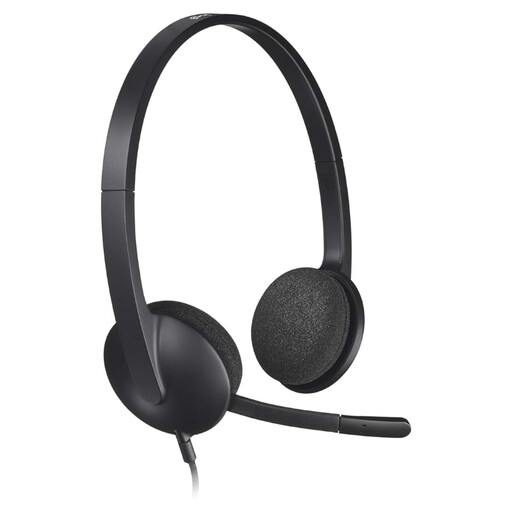 No image available
Logitech H340 USB headset, black
A wired USB headset for practising at a computer, with the microphone selected as the recording source.
The microphone and headband are adjustable, and stereo audio is listed. Recording and exporting files locally is done using recording software.
View at Joybuy
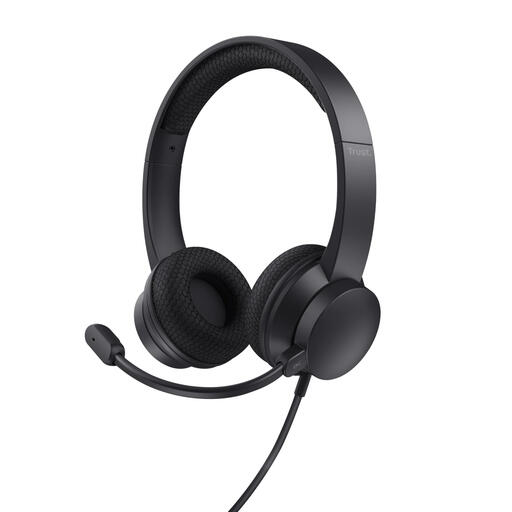 No image available
Trust Ayda wired USB headset
A wired headset for computer use. The connection described is suitable for USB-A, and the included adapter cable is intended for USB-C.
The headset has on-ear volume controls and a flip-up microphone for muting. The description lists an adjustable headband. Check the microphone’s performance in your own practice space.
View at Joybuy
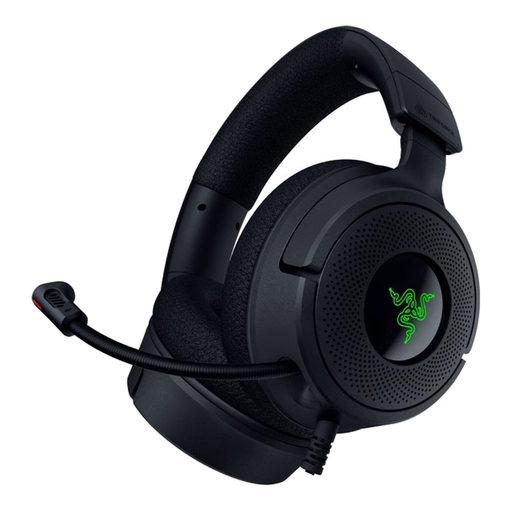 No image available
Razer Kraken V4 X
A wired headset with a microphone for computer use, provided the connection is compatible with your device.
USB-C and USB-A compatibility are listed. The headset has a foldable microphone; you’ll need separate software to make and export local recordings.
View at Joybuy
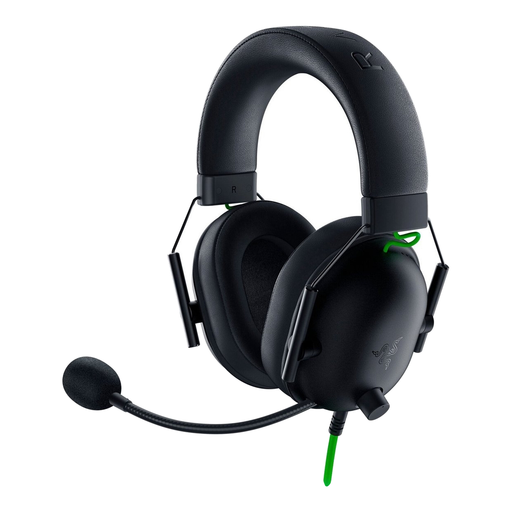 No image available
Razer BlackShark V2 X 7.1
A wired headset with a 3,5 mm connection for a device with a compatible headset socket.
The description lists a microphone, volume control and mute switch. A splitter cable is listed for computers with separate audio and microphone ports. You’ll record and export files locally using recording software.
View at Joybuy
Frequently asked questions
Can you save local recordings using just the headset?
No. The headset is the input and listening hardware. Select the headset microphone in your recording software, make a test recording and export the file to a local folder. Audacity Support and the Audacity manual explain these steps.
How can you avoid accidentally recording with your laptop microphone?
Select the headset explicitly as the input device in your recording software. Check the recording level meter as you speak, then listen back to a short test to confirm which microphone was used.
Which file format works well for a single read-aloud voice?
First, use the format requested by your teacher or practice system. The Audacity manual recommends exporting a mono recording as mono too.
Is a noise-cancelling microphone enough for a good read-aloud recording?
Not on the basis of the product description alone. Trust and EPOS make model-specific claims about microphone noise cancellation, but these aren’t independent tests of your read-aloud recording. Make a test recording in the room where you practise and listen back to it.
What cooling-off period applies to a headset bought online?
According to the Dutch Government, distance purchases in the Netherlands are often covered by a 14-day cooling-off period, with some exceptions. Check which terms apply to the purchase and product.


