
Learner practising quiet pronunciation
You want to record quiet Dutch sounds and listen back to them accurately. Microphone position and a test recording matter more than a general promise of clear calls.


For practising Dutch pronunciation quietly, a headset with a boom microphone that you can position in the same place each time is a practical choice. A wired model is best if you usually practise at a computer, while wireless is only worthwhile if freedom of movement matters more to you than charging and checking the connection. No specification alone proves that quiet sounds will be captured accurately: make a test recording in the software you use and listen back to it. Microsoft Support explains how to test a microphone and adjust the input level.
You want to record quiet Dutch sounds and listen back to them accurately. Microphone position and a test recording matter more than a general promise of clear calls.
You practise with ventilation or other audible background noise and want to find out whether noise reduction helps without removing the sounds you are studying.
You switch between devices or want to move around while practising. Check the connection or wireless connectivity for each version.
First, check that the headset connects to your device and that you can position the microphone in the same place each time. Then make a test recording to hear how your quiet pronunciation sounds with the settings you actually plan to use.
| What to consider | What should you check? | Who should pay extra attention? |
|---|---|---|
| Listening back to quiet sounds | Test the microphone position and input level using your usual quiet speaking voice. | If I want to listen back to quiet sounds accurately, I need a recording I can assess properly; around 36% of consumers put verifiable recording quality first. |
| Background noise | Compare a test recording using the noise settings you actually plan to use. | If ventilation or other constant noise is present, I want to be able to hear my pronunciation clearly; around 29% of consumers give reducing background noise top priority. |
| Connection | Check your device’s port and select the correct input microphone after connecting the headset. | When I switch between devices, I want to know whether the headset is compatible and selected as the microphone; around 21% of consumers put device connectivity first. |
| Fit and freedom of movement | Compare the style and wired or wireless options; if you choose wireless, remember to factor in charging. | When practising regularly, I want a fit that feels comfortable or gives me enough freedom of movement; around 14% of consumers give comfort or freedom of movement top priority. |
A feature described as being for calls does not prove that quiet Dutch sounds will be preserved in your recording.
Make a test recording of the sounds you want to practise using the software you plan to use, then listen back to it.
Connections and included features can vary between versions. If the connection is incompatible, you may need a separate adapter.
Compare the full model name and version with the ports on your recording device, and check which adapter is included.
Setting the recording level too high can cause distortion that is difficult to fix afterwards.
Position the boom microphone in the same place each time, check the level meter and listen back to a short clip first. Audacity Support advises lowering the recording level to prevent distortion.
The H390 is a wired computer headset for anyone looking for a USB version with in-line controls.
The Ayda USB-ENC is a wired on-ear option for computer use; make sure you compare the right version.
The Blackwire 3200 series includes wired business headsets with different connection and wearing options.
The IMPACT 100 series is a wired business option if weight and a USB-C or USB-A connection matter to you.
The Evolve 20 range offers wired mono and stereo headsets; the exact version and connection determine what you get.
This selection includes wired headsets with microphones for computer-based practice. Check that each model has the right connection and make a test recording before relying on how it sounds.
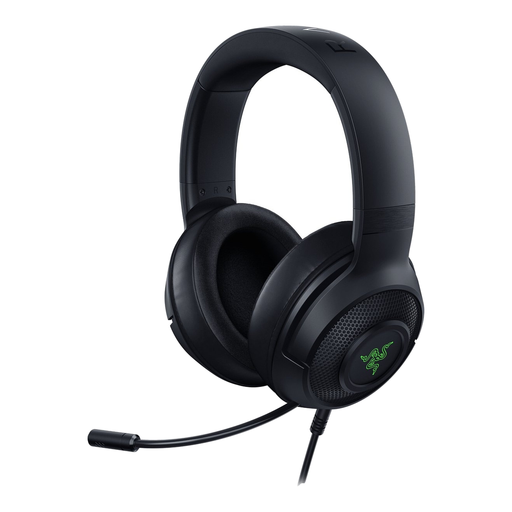 No image available
Could suit you if you practise at a computer. Check the connection and select the headset as the input microphone before making a test recording.
 No image available
The wired USB version could suit computer-based practice without the need to charge it. Check the microphone position and listen back to a short recording.
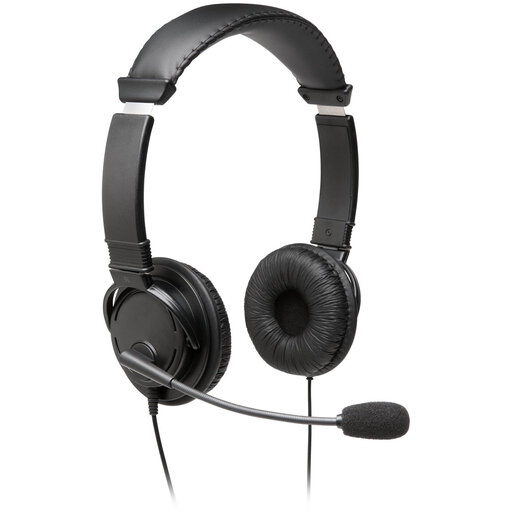 No image available
A USB headset with a microphone could be an option for computer use. Check that the USB connection is compatible and that the right recording device is selected.
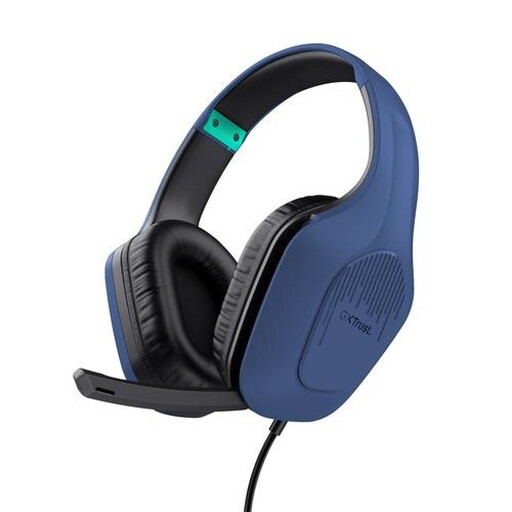 No image available
The wired version could suit you if you don’t want to charge a headset. This version has a 3.5 mm connection, so your device needs a compatible audio port.
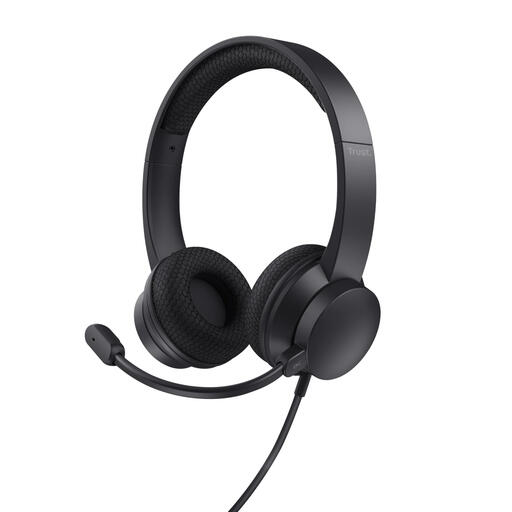 No image available
This wired version could suit computer recordings. Check that your device has a USB Type-A port, then make a test recording to hear how quiet sounds come through.
Select the headset as the input microphone, record a sample using your normal quiet speaking voice, then listen back to it. Adjust the input volume if needed; lower the recording level if it’s too high to prevent distortion.
No. Audacity says noise reduction is designed for constant sounds such as hum or hiss, not individual clicks or irregular traffic noise. Keep an original test recording so you can compare pronunciation details with the edited version.
For distance purchases, a 14-day cooling-off period applies in many cases, according to the Dutch government. Exceptions and conditions may apply, so check what applies to your specific purchase.
According to the Dutch Data Protection Authority, the GDPR does not apply to the processing of personal data solely for personal or household purposes. If you collect or share identifiable recordings of other people outside that private setting, check which privacy rules apply.