For recording a spoken introduction on a computer, a wired headset with an adjustable microphone and a compatible connection is a sensible starting point. Choose wireless if freedom of movement matters more to you. A headset won’t automatically record both people in a conversation, so check your call software’s recording feature and listen back to a test recording. Manufacturers’ product features aren’t a direct comparison of recording performance, and don’t necessarily predict how clear your recording will sound in your own space.
Who is this relevant for?
People recording an introduction
You want to listen back to your Dutch sentences and need a microphone you can position close to your mouth. Make a test recording before a longer session and listen back to it. Logitech, Jabra and Microsoft Support describe features or steps that may help.
People practising conversations with another person
You want to keep not only your own introduction but also your conversation partner’s replies. Check whether your call software supports recording both voices and how to start the recording. Zoom explains the recording settings for computer meetings.
People practising on different devices
You switch between devices or practice locations, so you’ll need to check that the connection and microphone work with your recording app. Jabra’s guide warns that not every USB-C device or app supports the audio connection; Belkin explains Bluetooth compatibility with phones, tablets and laptops.
What should you look for when choosing?
| What to consider |
What should you check? |
Who should prioritise this? |
| Clear introduction |
Check that you can position and mute the microphone, and select the correct input in your recording app. Listen back to a test recording. |
If you mainly want to listen back to your own pronunciation, microphone positioning is an important consideration. Around 33% of consumers prioritise how clearly their own voice can be heard. |
| Recording both voices |
Make a short test recording with the call app you plan to use, then check that you can hear both your voice and the other person’s. |
If you also want to keep your conversation partner’s replies, check the recording feature and who is allowed to start recording. Around 27% of consumers prioritise a complete recording of both voices. |
| Connection and device |
Check which port your device has and confirm the exact headset version. If you’re using a mobile device, also check whether the app supports headset audio. |
If you need the headset to work with a device you already own, a compatible connection is essential. Around 20% of consumers prioritise compatibility with their recording device. |
| Comfort and freedom of movement |
Consider the fit and the practical impact of a cable or wireless connection. Test the microphone before a longer session. |
For longer practice sessions, or if you want to move around during a conversation, fit and cable length matter. Around 20% of consumers prioritise comfort or freedom of movement. |
Common pitfalls
-
Relying on noise cancellation alone
A manufacturer’s call feature doesn’t guarantee that your Dutch recording will be clear in your space.
Make a short test recording where you usually practise and listen back to it before starting a longer session.
-
Assuming the headset will record the other person automatically
Recording two voices also requires a suitable feature in your call software, and it needs to be switched on. Zoom says the host can start a computer recording or give a participant permission to do so.
Test the full conversation recording and check in advance who is allowed to record in the app you’re using.
-
Choosing a version based on the model name alone
The Jabra Evolve2 30 SE is available in different USB versions. The guide says that not every USB-C device or app supports the audio connection.
Compare the exact version with the port and app on the device you want to record with.
A different connection may mean you need an adapter or another version. Check this before you choose.
-
Treating private playback as the same as sharing online
A practice recording for yourself and publishing it are different uses. Data protection rules may apply once you share the recording.
Talk to your conversation partner about what you’re recording and check the relevant terms before making the recording available online.
Brands to consider
Logitech
The H390 is a wired computer headset for anyone looking for USB, an adjustable microphone boom and on-cable controls.
- Logitech lists a noise-cancelling microphone and a mute button for the H390.
- The product specifications list a USB-A connection. Check the version: USB-A and USB-C aren’t automatically interchangeable. The manufacturer’s claim isn’t an independent recording test.
Jabra
The Evolve2 30 SE is designed for calls on a computer and is available in different connection types, as well as mono and stereo versions.
- Jabra describes a two-microphone system and recommends positioning the microphone close to your mouth.
- The guide warns that not every mobile USB-C device or app supports the audio connection. Check the specific version.
JBL
The Quantum 100 is a wired headset with a detachable directional microphone.
- JBL lists a mute function and memory foam ear cushions.
- The product information doesn’t include an independent assessment of speech recordings for language practice.
Belkin
The SoundForm Adapt AUD005 is a wireless over-ear option for anyone who values freedom of movement or switching between devices.
- Belkin lists Bluetooth, multipoint connectivity and a flip-up boom microphone.
- The stated noise cancellation and battery life are manufacturer claims. Check that your recording app uses the headset’s microphone.
Headsets at Joybuy
This selection focuses on wired headsets for practising on a computer, with USB or 3.5mm connections. Check which connection your device supports and whether the microphone works with your chosen recording app.
 Image unavailable
Logitech PC 960 USB headset
A wired option for recording an introduction on a computer, with an adjustable microphone boom.
USB connection; on-cable volume and mute controls; adjustable microphone boom and headband.
Requires an available USB port.
View at Joybuy
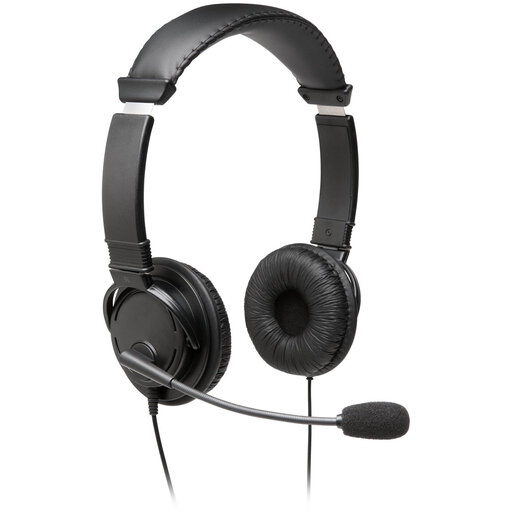 Image unavailable
Kingston USB Hi-Fi Headphones with Microphone
A wired USB option if you want to position the microphone boom while recording.
USB; stereo sound; flexible microphone boom rotates 270 degrees; 1.8 m USB cable.
Requires an available USB port.
View at Joybuy
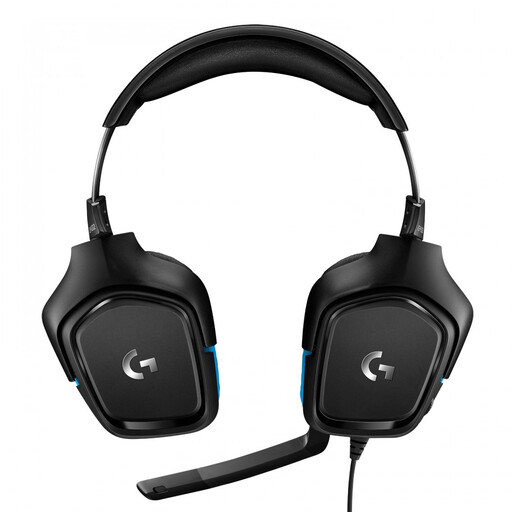 Image unavailable
Logitech G G432 7.1 wired gaming headset
A wired headset to consider if you want a flip-up microphone and more than one connection option.
3.5mm connection and USB DAC; 6 mm microphone that flips up to mute.
Check which connection is right for your device.
View at Joybuy
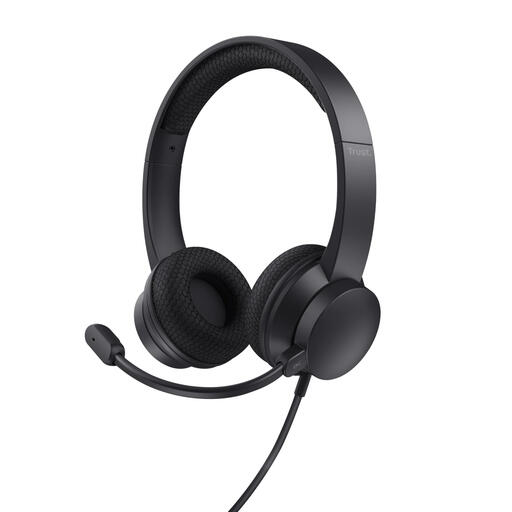 Image unavailable
Trust Ayda wired headset
A wired option for computer use, with a microphone you can mute when needed.
USB-A connection; the product description also mentions a USB-C adapter cable and volume controls on the ear cup. Flip the microphone up to mute it.
Check which connection and cable are right for your device and version.
View at Joybuy
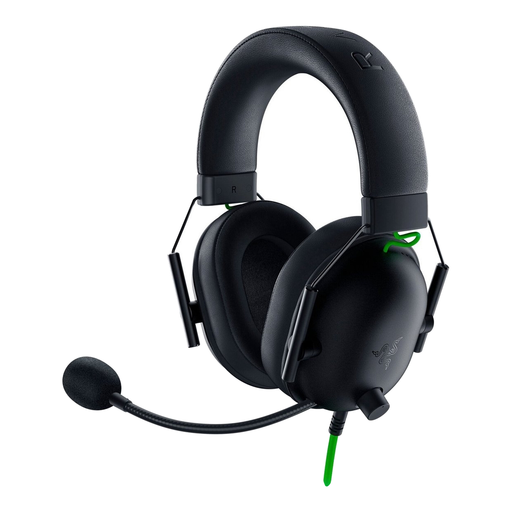 Image unavailable
Razer BlackShark V2 X 7.1 wired gaming headset
A wired headset for anyone who wants to position the microphone close to their mouth and mute it when needed.
3.5mm connection; directional cardioid microphone and mute button.
A splitter cable may be needed for a computer with separate headphone and microphone ports. Check the connections and included accessories.
View at Joybuy
Frequently asked questions
Will a headset automatically record both voices in an online practice conversation?
No. Use your call software’s recording feature and make a short test to check that you can hear both voices. Zoom says the host can start a computer recording or give a participant permission to record.
How do you check your microphone before recording?
In Windows, select the microphone you want to use as the input device, start a test and listen back to the recording. Microsoft Support explains these steps. Also check that the headset isn’t muted.
In the Netherlands, am I only covered by the manufacturer’s warranty?
No. According to the Government of the Netherlands, you’re also entitled to a product that works properly, and the retailer is your point of contact if there’s a problem. The Netherlands doesn’t have a fixed statutory warranty period.
Can I record a practice conversation and share it online?
Treat a recording for personal use differently from one you share online. A policy from the Municipality of Enschede covers conversations recorded by someone who is taking part, but it doesn’t establish general nationwide permission to publish them. The Dutch Data Protection Authority says that consent is required in most cases to publish personal data online. So talk to your conversation partner about what you’re recording and what you plan to do with it.


