
Card creator with a fixed workstation
You want to see your editor and vocabulary list side by side, and you have room for a separate screen. Microsoft Support explains how to set up connected displays individually.


If you usually work at a desk, a standard laptop with a compatible external monitor can display your editor and vocabulary list side by side. If you want to use two work areas in places where there isn’t a monitor available, a laptop with two built-in screens may suit you better. Whichever option you choose, check the exact screen specification, connections and components included with that configuration.
You want to see your editor and vocabulary list side by side, and you have room for a separate screen. Microsoft Support explains how to set up connected displays individually.
You want to take two work areas with you without relying on a monitor being available where you’re working. ASUS and Lenovo describe laptops with two integrated screens.
You use images as well as text and want to consider memory, storage and screen specification. Canva’s description of its flashcard maker includes adding images and diagrams.
A good fit if: you usually work at a desk and want to open source material alongside your editor.
Bear in mind: you’ll need a separate screen and a suitable video connection.
A good fit if: you want to use two work areas in different places without having to find a monitor there.
Bear in mind: the screens, keyboard layout and included components may vary between configurations.
A good fit if: you want to use macOS and are happy to have a separate screen at your workstation.
Bear in mind: check that your monitor’s connection is compatible with the laptop, and find out which cable or adapter you’ll need.
| What to consider | What should you check? | Who is this important to? |
|---|---|---|
| Two usable work areas | Decide whether the second screen needs to be built in. If not, check the video output on the exact laptop configuration. | If I want to see my source material and design side by side, I focus on having two separate work areas. Around 31% of consumers put this need first. |
| Taking screens with you | Check which components are included with the configuration and whether you’ll need a separate monitor where you’re working. | When I work in different places, I don’t want to rely on a monitor being available there. Around 25% of consumers prioritise the portability of two work areas. |
| Using several programmes at once | Compare the memory in the exact configuration with the requirements of your editor, browser and other programmes. | If I keep my editor, browser and documents open at the same time, I want everything to run smoothly with multiple windows. Around 19% of consumers say this is their main need. |
| Reviewing images | Check the screen resolution and panel type of the configuration you’re considering. | For image-rich cards, I want to be able to review text and images on screen. Around 13% of consumers prioritise image quality. |
| Complete setup | Include any monitor, cable or adapter in your comparison, and check what’s included. | If I want two work areas without finding out that essential components are missing, I compare the complete setup. Around 12% of consumers make the overall package their main priority. |
The screen resolution and refresh rate of the ASUS Zenbook DUO UX8406 vary by configuration. ASUS lists 1920 × 1200 pixels and 60 Hz for one Dutch configuration, so check the specifications of the exact model.
Compare the resolution and refresh rate on the page for the configuration you want to buy.
To connect a second external screen, the relevant port must support a video signal. The shape of the connector alone doesn’t confirm this.
Look for video signal support in the specifications of the exact laptop and compare it with your monitor’s input.
Depending on the connection, you may need a different cable or adapter.
A standard laptop and a dual-screen laptop don’t automatically provide the same complete setup. A standard laptop may need a separate monitor and a suitable connection.
Check which screens, cables and other components are included with your chosen configuration before comparing the setups.
A separate monitor and the necessary connection may mean extra purchases.
A stated manufacturer’s or seller’s warranty is not the same as your statutory rights. ACM ConsuWijzer explains that the seller is responsible for the statutory guarantee.
Keep your proof of purchase and contact the seller if something goes wrong. You should also consider what you could reasonably expect from the product under normal use.
The Zenbook DUO UX8406 is an option if you’re looking for two built-in screens. ASUS lists Thunderbolt 4 with video support and HDMI among the series’ connections.
The Yoga Book 9 14IAH10 offers two integrated screens, while the IdeaPad Slim 3 14AHP10 is a standard laptop that you can use with an external screen.
The 13-inch MacBook Air with M5 is a macOS option for a setup with an external screen, rather than a laptop with two built-in screens.
The Pavilion Plus 14-ew1000 series shows the screen and memory configurations you can compare in a standard laptop.
These laptops are options to consider for a setup with extra workspace. For the exact configuration, check that the video connection and other specifications suit your monitor and the way you work.
 Image unavailable
Worth considering if you’re looking for a standard laptop to use with an external screen at your workstation. Check the video output on this exact configuration and make sure it’s compatible with your monitor.
 Image unavailable
An option to compare if you’re looking for a laptop for design work. Check whether the exact configuration is suitable for your external monitor.
The product name lists 32GB RAM, a 1TB SSD and a 3K 120Hz OLED touchscreen.
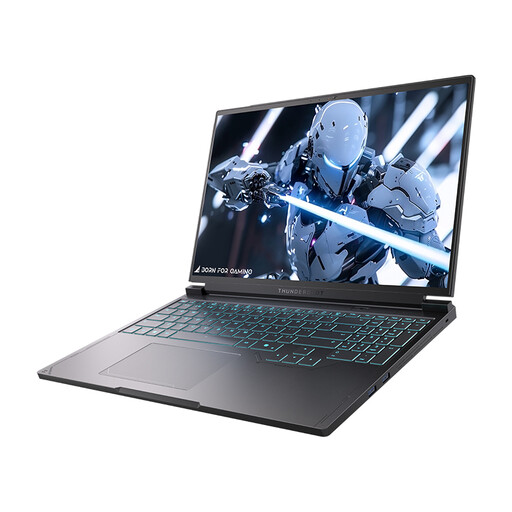 Image unavailable
Compare this laptop with your preferred setup if you want to use two work areas. Check the exact connections and monitor compatibility.
The product name lists a 16-inch QHD+ 240Hz screen, 16GB DDR5 RAM and a 1TB SSD.
 Image unavailable
Worth considering for a macOS workstation with an external screen. Check which connections this configuration supports and whether they’re compatible with your monitor.
The product name lists 16GB of memory and 512GB of storage. According to the product information, the power adapter is not included.
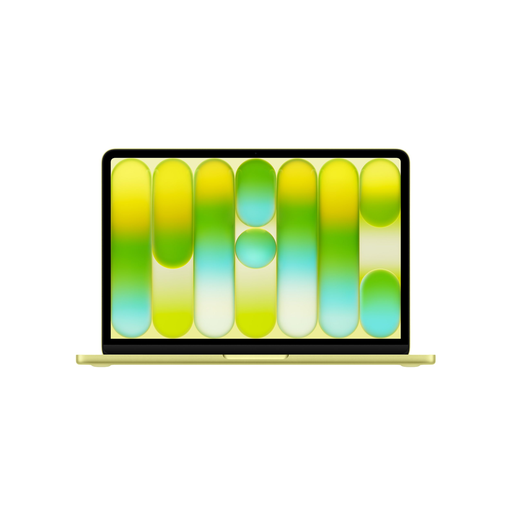 Image unavailable
Compare this configuration with the programmes you want to use at the same time, and check that its external screen connection suits your setup.
The product name lists 8GB of memory and 512GB of storage. Consumentenbond recommends 16 GB, where possible, if you keep several programmes open at once. This is general buying advice, not a minimum requirement for a specific card editor.
First, connect a compatible external screen. In Windows display settings, you can identify and arrange detected screens. Choose an extended display if you want to use your editor and vocabulary list side by side. Microsoft Support explains these settings.
If you want to keep several programmes open at once, Consumentenbond recommends 16 GB as a sensible choice, if possible. This is general buying advice, not a measured minimum for a specific card editor.
No. Your statutory rights are separate from any extended manufacturer’s warranty you buy. ACM ConsuWijzer points out that the seller is responsible for the statutory guarantee. Contact the seller if something goes wrong.
For online consumer purchases, ACM ConsuWijzer says you often have up to 14 days to change your mind after the product has been delivered. Check the relevant exceptions and returns policy for your purchase.