
Sketching with a tablet you already own
You want to draw furniture ideas on your own iPad or Galaxy Tab and are looking for a pen that works with that exact model. Apple and Samsung set out compatibility by pen version and tablet model.


Start by deciding how you want to use the two screens: sketch on a tablet you already own, use a tablet as a second computer screen, or draw on a pen display connected to a computer. Then check that the pen is compatible with your exact tablet model, and that the connection, software and any power requirements are right. The best option depends on the equipment you already have and the screen you want to use in your drawing app.
You want to draw furniture ideas on your own iPad or Galaxy Tab and are looking for a pen that works with that exact model. Apple and Samsung set out compatibility by pen version and tablet model.
You want to keep reference images or computer work alongside your sketch. First decide whether your tablet can work as a second screen or whether you need a connected pen display. What’s possible depends on your devices and how they connect.
You want more than outlines, with different pen strokes or extra controls. Compare these features once you know which pen and screen setup will work with your equipment.
A good fit if: you already have a compatible iPad and want to sketch on it. Sidecar can also use a compatible iPad as an extension or display for a Mac desktop.
Bear in mind: Sidecar requires compatible Mac and iPad models, along with other conditions. Apple Pencil versions differ in their controls and how they pair and charge.
A good fit if: you have a compatible Galaxy Tab and want to draw on it, perhaps alongside a Windows PC.
Bear in mind: Samsung’s instructions for Second screen refer to the Tab S7 and S8 series and the relevant PC requirements. Don’t assume other models are supported just because they’re compatible with the S Pen.
A good fit if: you want to draw directly on a connected display using computer software.
Bear in mind: check the video and data connection, power supply and any drivers you may need. A USB-C port alone doesn’t guarantee the required video signal.
Choose how you want to work first, then check compatibility and connections. These scenarios help you prioritise the main buying questions; they are not based on measured market share.
| What to consider | What should you check? | Who is this important for? |
|---|---|---|
| Pen and tablet | Find your full tablet model on the manufacturer’s compatibility list. Check any software requirements too. | If I want to keep using my current tablet, I need to make sure the pen is compatible. For around 33% of consumers, compatibility with their own tablet comes first. |
| Two screens | Decide whether you want two separate devices, an extended desktop or a mirrored display. Check that both devices support it and have the connection you need. | If I want to sketch on one screen and see computer work or references on the other, the connection needs to suit my setup. This is the main priority for around 27% of consumers. |
| Pen controls | Compare the features of the exact pen version and check whether your drawing app supports the controls you want. | If I want to develop furniture concepts further, I’ll focus on the pen controls I actually need. Around 20% of consumers prioritise these drawing controls. |
| Complete setup | Work out which tablet or computer, cables, power supply and any software you already have. | If I need a complete working drawing setup, not just a pen, I want to know in advance what’s involved. For around 20% of consumers, the complete setup matters most. |
Compatibility can vary by pen version and tablet model. A pen that doesn’t work with your device won’t be suitable for your setup.
Before choosing a pen, compare your tablet’s full model number with the manufacturer’s compatibility information.
Using a tablet on its own, extending a computer desktop to a tablet and connecting a pen display to a computer are different ways of working. Each has its own device and connection requirements.
First decide what you want the second screen to show, then check that both devices support the feature.
For the Kamvas 13 (Gen 3)’s USB-C connection, Huion specifies a port with a DisplayPort signal. Depending on the connection, you may also need a power supply.
Check your computer port’s video specifications and the complete connection setup before choosing a pen display.
Apple Pencil versions are designed for compatible iPads. Subject to certain conditions, Sidecar can use an iPad as an extra Mac screen.
S Pens are model-specific options for Galaxy Tabs. Some tablet and PC setups can also offer a second-screen option.
The Kamvas 13 (Gen 3) is a pen display that connects to another device.
The Artist 13 (2nd Gen) is a connected drawing display for use with a computer.
The Wacom One range includes pen tablets and pen displays that connect to another device.
These products are suited to sketching on a tablet or drawing on a pen display connected to a computer. Before buying, check which pen, devices and connections will work with your setup.
 No image available
A pen display for drawing on a connected computer; the product information lists USB-C as a connection option.
 No image available
For sketching and extra pen controls on a compatible iPad; the product information lists squeeze and barrel roll gestures.
Listed compatibility covers specific iPad Pro and iPad Air models, as well as iPad mini (A17 Pro). Check that your exact model is included.
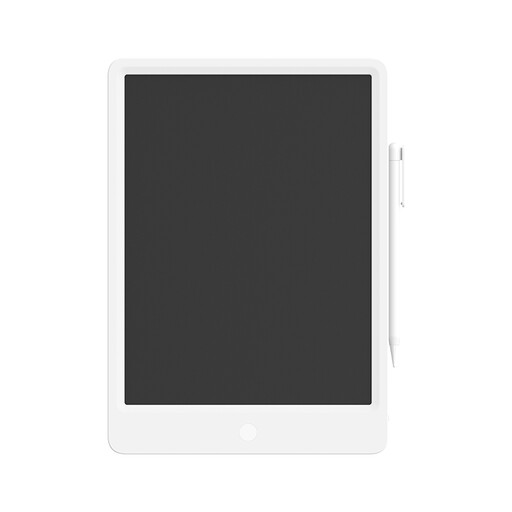 No image available
The product information describes sketching and drawing on the tablet with the included stylus.
 No image available
For drawing and sketching on a compatible iPad; the product information lists tilt sensitivity.
The pen charges through the USB-C port beneath the cap. Check compatibility with your iPad.
 No image available
For drawing and sketching on the iPad models compatible with this version; the product information lists double-tap and magnetic pairing and charging.
Listed compatibility includes certain generations of iPad Pro, iPad Air and iPad mini. Check your iPad’s full model name.
No. Apple Support describes Sidecar as a way to extend the Mac desktop to an iPad or show it there in sync. Conditions apply, including compatible Mac and iPad models and the same Apple Account. Check both models before relying on this setup.
No. S Pen support doesn’t automatically mean the Second screen feature is available. In the instructions consulted, Samsung Netherlands refers to the Tab S7 and S8 series and the relevant software and Windows requirements. Check current support for your exact Tab and PC.
Huion describes connecting via HDMI and USB-A using the 3-in-1 cable, or via USB-C if the computer port supports DisplayPort. Check the right cable setup and whether your connection requires an additional power supply.
Samsung says the nib on the Galaxy Tab S11 Series S Pen can be carefully removed and replaced. Follow the instructions for your exact pen version, and don’t assume nibs are interchangeable between models without checking.
When you buy as a consumer, you’re entitled to a product that meets the terms of the contract. If it’s faulty, the seller must provide a solution. The Dutch government says there is no fixed statutory warranty period that applies to every product in the Netherlands. For distance purchases, you’ll also usually have a 14-day cooling-off period; check the conditions and exceptions that apply to your order.