What should you look for?
First decide whether your laptop will be the second screen or whether you need two external monitors. Then compare readability, positioning and the connections required for your setup.
| What to consider |
What to look for |
Who it matters to |
| Readability and arranging windows |
Compare the screen size and resolution with the windows you want to use side by side; set the text to a readable size. |
If I want to view my manuscript and sources at the same time, I need to arrange windows without making the text too small to read. Around 36% of consumers prioritise this layout and readability. |
| Positioning during long sessions |
Check the height adjustment, tilt, stand dimensions and glare where you work. |
During long editing sessions, I want to position the screen so reading remains comfortable and glare doesn’t get in the way. Around 27% of consumers prioritise a comfortable, adjustable reading setup. |
| Connection and number of screens |
Decide whether the laptop itself will be your second screen. If you’re using two external screens, check that your computer, monitors and cables support the setup. |
If I want to connect two external screens, my computer needs to support that setup; having a monitor port alone doesn’t guarantee it. Around 27% of consumers prioritise a reliable screen connection. |
| Viewing travel photos |
Decide whether you just want to view photos or edit them critically too; check the resolution and whether text remains readable at your chosen scaling. |
If I want to look at travel photos while editing, extra image resolution may be useful alongside readable text. Around 10% of consumers prioritise displaying travel images. |
Monitors on Joybuy
These monitors are suited to a setup where you spread your manuscript and sources across two screens. The range includes QHD and 4K resolutions; check that the connections and text scaling suit your computer and workspace.
 No image available
MSI MAG 272QPF E20 27-inch WQHD monitor
A 27-inch WQHD screen for your manuscript or sources alongside your laptop screen.
The product name lists HDMI and DisplayPort connections.
Joybuy
 No image available
AOC Gaming Q27G42XNE 27-inch Quad HD monitor
A 27-inch QHD screen for your manuscript or source material on an external display.
The product name lists 2560 × 1440 resolution, two HDMI ports and DisplayPort.
Joybuy
 No image available
LG UltraFine 27U711B-B 27-inch 4K IPS monitor
A 27-inch 4K screen for viewing travel images as well as text.
The product information lists 3840 × 2160 resolution, IPS and HDMI and DisplayPort connections. The stand is height-adjustable.
Joybuy
 No image available
MSI Modern MD272UPHG 27-inch 4K monitor
A 27-inch 4K screen for your manuscript and sources on an external monitor.
The product information lists 3840 × 2160 resolution, USB-C with DP Alt Mode and 98 W Power Delivery. The stand is adjustable for height, tilt and swivel.
Joybuy
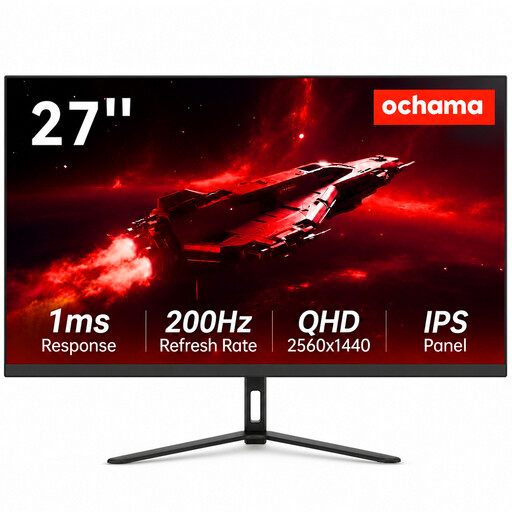 No image available
Ochama 27-inch 2K monitor
A 27-inch screen for text and sources on an external monitor.
The product name lists 2K resolution and a design for use with multiple monitors.
Joybuy
Frequently asked questions
Is using a laptop with one monitor the same as using two external monitors?
No. In the first setup, your laptop screen is the second screen; to use two external monitors, your computer must support that number. Check the ports and cables too. Apple Support directs you to the display specifications for the exact Mac model.
How should I position my screens for editing?
Place the screen you read most directly in front of you and adjust it so you’re looking slightly downwards. This is advice from Arboportaal, not a required measurement for every home-based writer. In Windows, you can identify and arrange your screens in the display settings.
Will daisy-chaining work with any USB-C or HDMI connection?
No. According to Dell, daisy-chaining won’t work via HDMI or via USB-C without the required video feature. Your computer, monitors and cables all need to support the connection you want. Check the manuals for all your equipment.
What costs and service terms should I check alongside the monitor?
Check whether your chosen setup also requires a second monitor, a suitable cable or adapter and, possibly, a different stand. According to the Dutch government, the seller must provide a solution if a product is faulty; an additional warranty doesn’t replace your statutory protection.
What Dutch rules apply to screen work and online purchases?
Rules on screen work apply to employees. For people who work with a display for more than two hours a day, Arboportaal notes, among other things, that the display and keyboard must not be attached to each other. Don’t take this to mean there is a general legal monitor requirement for every personal writer. According to the Dutch government, online purchases from a business come with a 14-day cooling-off period in many cases. There is no fixed statutory warranty period for products in the Netherlands.


