
Anyone who reads accounts and invoices side by side
You want to view two documents at once and position the screens so the text stays easy to read. Compare a side-by-side setup, height adjustment and screen rotation.


A dual clamp arm is a good fit if your desk has a suitable edge or cable-grommet hole and you want to keep the work surface clear for paper invoices. A freestanding stand is an option if you can’t attach anything to the desk and have room for the base. Before buying, check the VESA pattern and weight of each screen separately, measure the available space and decide whether you want to adjust the screens independently.
You want to view two documents at once and position the screens so the text stays easy to read. Compare a side-by-side setup, height adjustment and screen rotation.
You want to leave room beside the screens for paper invoices. Measure the space needed for a clamp and compare it with the depth of a freestanding base.
You can’t or don’t want to use a clamp or grommet mount on your desk. In that case, look at a freestanding dual stand and check that its base fits on your work surface.
Start by checking whether your desk can accommodate a clamp or grommet mount. Then decide whether you want to adjust the screens independently or usually keep them at the same height.
| What to consider | What should you check? | Who is this important for? |
|---|---|---|
| Positioning documents for easy reading | Check whether both screens fit side by side and whether one needs to rotate to portrait orientation. | If you want to view accounts and invoices at the same time, choose a setup that works for both documents. Around 31% of consumers prioritise this way of viewing documents. |
| Desk space | Measure the desk depth, the distance to the wall, the available edge space and the room you need for paperwork. | With a small desk, you’ll want to keep space for invoices without a base or arm getting in the way. Around 25% of consumers give this clear space top priority. |
| Compatibility with both screens | Check the VESA pattern and weight of each screen without its stand, then compare them with the limits of the exact mount. | If you have two different screens, you’ll want to know in advance whether both can be attached and are within the stated weight limit. Around 25% of consumers start by checking compatibility. |
| Desk mounting | Measure the desktop thickness and check the desk edge and underside. Also check whether clamping or drilling is allowed. | If your desk edge isn’t suitable or you’d rather not use a clamp, a freestanding base may be a better option. Around 19% of consumers prioritise mounting without a clamp. |
Screen size alone doesn’t confirm that the weight and VESA pattern are compatible with the mount. Neomounts lists a range of 1–9 kg per screen and VESA 75 × 75 or 100 × 100 mm for the DS70-810BL2.
Check the weight of each screen without its stand and its mounting pattern, then compare these with the specifications of the exact mount.
A freestanding stand takes up space of its own. According to the manufacturer, the freestanding Neomounts DS45-600BL2 has a base depth of 29.7 cm, while a clamp arm needs a suitable desk edge.
Measure your work surface and desk edge before choosing a base, clamp or grommet mount.
The Neomounts DS45-600BL2V is designed for screens stacked one above the other. This isn’t the same as viewing two documents side by side.
Check the model diagram to see how the screens are positioned before choosing a dual stand.
The Dutch product listing for the iiyama DS1002C-B1 states a maximum of 30 inches, while iiyama’s UK manufacturer page lists a maximum of 32 inches. Dell’s MDA20 Quick Release is designed for certain Dell monitors; Dell lists an optional VESA adapter for other screens.
If your screen is larger than the lowest stated size limit, ask for confirmation that it’s compatible with the exact listing. For screens from other brands, also check whether you need the right adapter.
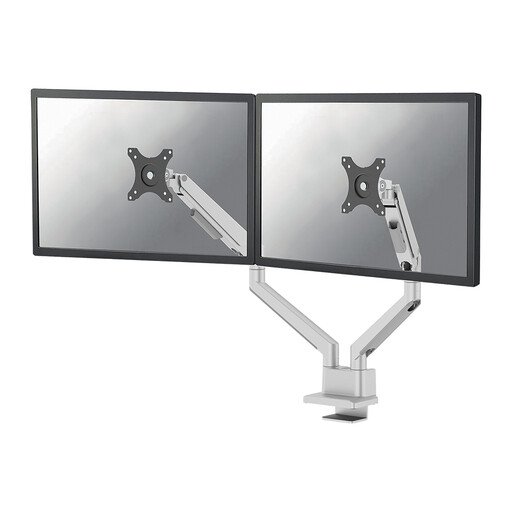
The range includes dual clamp arms and freestanding stands for two screens.
The Z2 (Gen 3) is a dual desk mount with an adjustable viewing angle and an integrated USB 2.0 hub.
The ARMBARDUOG is a dual mount with a crossbar, designed for anyone who wants to align their screens together.
The DS1002C-B1 is a dual clamp mount with height adjustment and rotation.
The MDA20 is aimed at users with compatible Dell monitors.
This selection includes dual monitor stands for anyone who wants to position two screens on one desk, with different ways to adjust their width, angle or position.
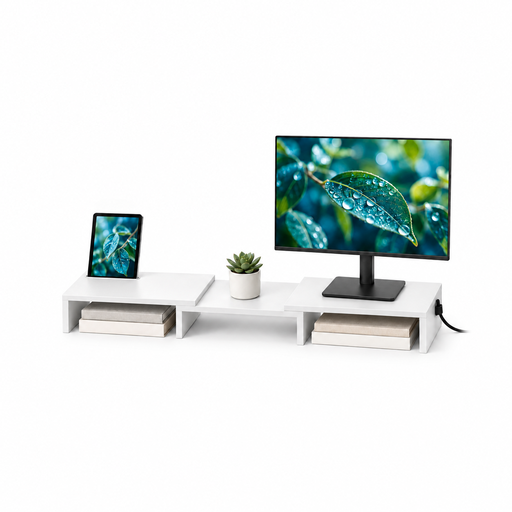 No image available
An option if you want to position two screens on one stand and adjust their width and angle.
The product title lists MDF and the colour white.
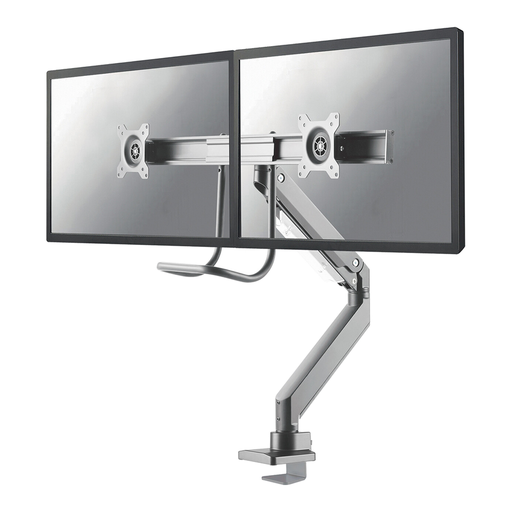 No image available
An option for positioning two screens when you want to adjust their height, depth or viewing angle.
The product title lists a gas spring, Topfix and a 180° stop.
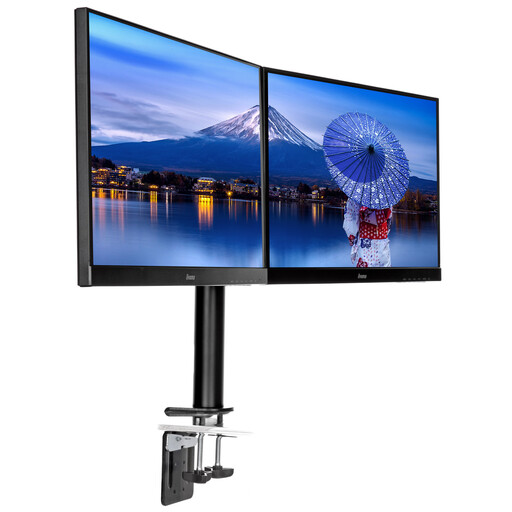 No image available
An option if you want to position two screens using a desk clamp and adjust their position.
The Dutch Joybuy product listing states a maximum of 30 inches; the UK iiyama manufacturer page lists a maximum of 32 inches. If your screen is larger than 30 inches, check the limit for the specific listing.
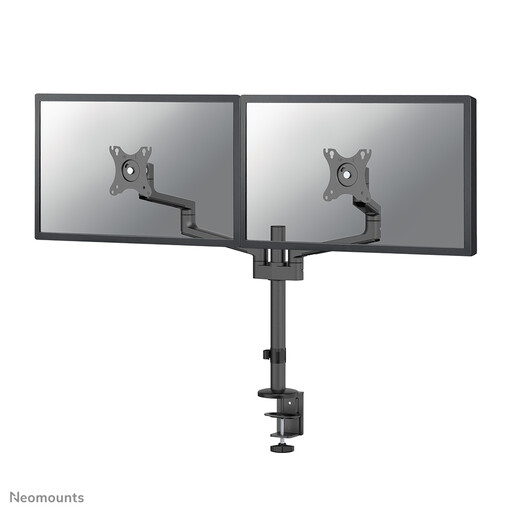 No image available
An option for positioning two screens and adjusting their viewing positions.
The product title describes a space-saving design.
 No image available
An option if you want to position two screens and adjust their viewing positions.
The product title lists a gas spring, Topfix and a 180° stop.
First, measure the desk edge and the clear depth of the desktop. The Neomounts DS70-810BL2 offers clamp and grommet mounting; according to the manufacturer, the freestanding DS45-600BL2 has a base depth of 29.7 cm. Whether you’re allowed to clamp or drill into your desk depends on the desk itself and any agreement with the owner.
No. Check the mounting pattern and minimum and maximum weight for each screen, and compare them with the limits of the exact mount. Neomounts lists VESA 75 × 75 or 100 × 100 mm and 1–9 kg per screen for the DS70-810BL2. Compatibility hasn’t been confirmed unless the mounting pattern fits or adapter compatibility has been verified.
Position the screens so the text is easy to read, avoid reflections and break up long periods of screen work. Arboportaal highlights readability and awkward, static working postures as factors to consider; a monitor arm alone won’t prevent problems.
According to ACM ConsuWijzer, online consumer purchases generally come with a statutory 14-day cooling-off period after delivery, although exceptions may apply. You’re also entitled to a product that, under normal use, meets what you could reasonably expect. A manufacturer’s warranty doesn’t replace your statutory rights.
No. Arboportaal’s information about employers’ obligations concerns the relationship between employers and employees. It doesn’t create a separate legal requirement for students to buy particular equipment. However, its advice on readability, adjustability and taking breaks can help you set up your study space.