What should you look for when choosing?
First, decide what you need from the main screen in terms of colour and canvas detail. Then check that your computer can drive both screens; consider refresh rate mainly if moving previews are part of your work.
| What to consider |
What to look for when buying |
Who is this important for? |
| Canvas colour reproduction |
Check the colour modes, colour space and options for calibrating and profiling the main screen. |
If I want to assess colours accurately, I look for a screen that suits the colour space I work in. Around 29% of consumers give colour reproduction top priority. |
| Connecting two screens |
Check your computer’s display support, video outputs, cables and any USB-C video capability. |
I want to see the canvas and references at the same time, and first make sure my computer supports both screens. Around 29% of consumers put connectivity first. |
| Canvas detail and readability |
Compare screen size, native resolution and scaling settings at your intended viewing distance. |
When I want to see fine details and tool panels at the same time, I look at the balance between resolution and readable scaling. This is the top priority for around 18% of consumers. |
| Desk setup |
Check height and swivel adjustment, stand dimensions and, if using a monitor arm, the VESA size and weight. |
I want to position the canvas directly in front of me and angle the second screen towards my references. Around 12% of consumers prioritise their workspace layout. |
| Moving game previews |
Compare the maximum refresh rate, resolution and video connection for the exact model. |
If I assess moving footage as well as painting, I want to know what refresh rate my computer and connection can handle. Around 12% of consumers prioritise previews. |
Joybuy monitors for painting and previews
This Joybuy selection includes monitors for canvas detail and colour-focused work, as well as models for anyone who also views moving game footage. Stated resolution, refresh rate and connections vary by model; check that your computer supports the combination you want.
 No image available
KTC M27P6 27-inch 4K MiniLED gaming monitor
A 4K screen with a stated high refresh rate could suit painting alongside moving game previews.
4K: 3840 × 2160 pixels; 4K mode up to 160 Hz and FHD mode up to 320 Hz.
MiniLED, Fast IPS, 1152 dimming zones, HDR1400, Type-C 65 W and KVM.
View at Joybuy
 No image available
ASUS ProArt OLED PA32UCDM 31.5-inch 4K monitor
The stated 4K resolution suits anyone who values detail on the painting canvas and also views moving footage.
31.5 inches, 3840 × 2160 pixels, 4K Ultra HD and QD-OLED.
The product description warns of possible burn-in with static content and recommends using a screen saver and varying the content. The stated refresh rate is 240 Hz.
View at Joybuy
 No image available
Philips 27E1N1800AE/00 27-inch 4K UHD IPS monitor
A 27-inch 4K model to consider if canvas detail matters more than a high refresh rate for previews.
3840 × 2160 pixels, 60 Hz and 4 ms; HDMI and DisplayPort.
The product listing mentions a height-adjustable stand.
View at Joybuy
 No image available
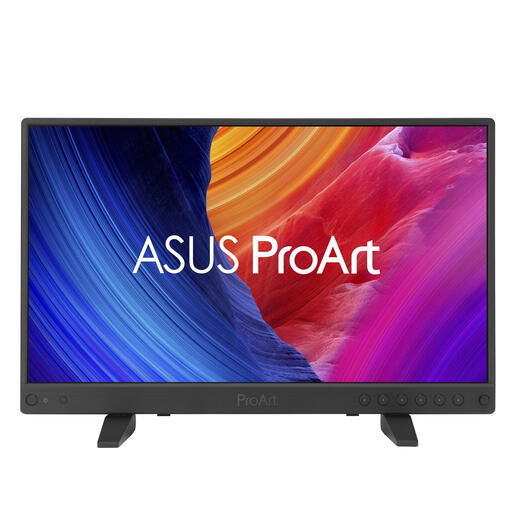
ASUS ProArt PA16USV 15.6-inch 4K monitor
This compact 4K model could suit anyone looking for a smaller monitor for a colour-focused workflow.
15.6 inches, 3840 × 2160 pixels and up to 60 Hz.
The product description lists USB-C with DisplayPort Alt Mode, HDMI, a USB hub and mounting on a stand or tripod. It also mentions sRGB and Rec.709 coverage and factory calibration.
View at Joybuy
 No image available
AOC Gaming Q27G42XNE 27-inch QHD gaming monitor
The stated 180 Hz could be useful if you view moving game footage as well as painting; QHD has fewer pixels than 4K for fine canvas detail.
27 inches, QHD (2560 × 1440 pixels) and 180 Hz.
The product listing mentions FreeSync Premium, HDR10, two HDMI 2.0 ports and one DisplayPort 1.4 port.
View at Joybuy
Frequently asked questions
Do both screens need to be the same model for colour assessment?
No, but don’t assume they’ll look the same straight away. Adobe lists differences between monitors, ageing, calibration and ambient light as factors that can affect how colours appear. So assess colour-critical work on a main screen that you’ve deliberately configured and profiled.
How do I set up my canvas and references across two screens?
Connect both screens, then arrange them in your computer’s display settings. In Windows, you can identify and arrange screens; on a Mac, you can extend or mirror your display. Apple Support recommends checking in advance how many external screens your specific Mac model supports.
What can I expect for warranties and returns in the Netherlands?
There is no fixed term for the legal guarantee in the Netherlands: according to the Dutch government, what you can expect depends on the product and the circumstances. For distance purchases, you can usually change your mind within 14 days; check the terms for your purchase. A manufacturer’s warranty is separate from these legal rights.
Which energy labels are relevant for a monitor?
According to the European Commission, computer monitors are covered by the EU energy labelling rules for electronic displays, which use a scale from A to G. Compare the energy label and product information for the models you’re considering, especially if you want to use two screens at once.


