
Presenter with a notes screen
You want the presentation screen directly in front of you and the notes screen positioned separately. Arboportaal advises placing the main screen directly in front of you.


Choose two independently adjustable arms if you want the presentation screen directly in front of you and often need to position the notes screen separately. If the screens usually stay side by side in line with each other, a mount with a crossbar may be more practical. A monitor mount organises or positions screens, but it doesn’t supply power, so check separately how both monitors will be powered and connected.
You want the presentation screen directly in front of you and the notes screen positioned separately. Arboportaal advises placing the main screen directly in front of you.
You want to route cables along the mounts, but need a separate solution for the power and video connections for both screens.
You’re looking for a mount that works when a desk clamp or grommet hole isn’t an option, or when desk space is limited.
First compare how independently you want to adjust the screens, then check the connections, screen compatibility and how the mount attaches to your desk.
| What to consider | What should you check? | Who should pay particular attention? |
|---|---|---|
| Positioning screens separately | Compare two separate arms with a crossbar, and measure how much space the arms need. | If I want to position the notes screen differently from the presentation screen, I prioritise independent adjustment. Around 33% of consumers say positioning is their top priority. |
| Power and cables | Check the power supply for each monitor separately from the video connection; cable management doesn’t supply power. | With few power sockets, I want to know in advance how both screens will be connected and powered. Around 27% of consumers prioritise power and cables. |
| Screen compatibility | Check the weight and VESA size for each screen against the exact mount variant. Neomounts specifies 2–7 kg per screen and VESA 75 × 75 or 100 × 100 mm for the DS70-750BL2. | I want to make sure both my screens are within the limits for this exact model. Around 20% of consumers say compatibility is their top priority. |
| Desk mounting | Measure the desk thickness and available space; ACT specifies a maximum desk thickness of 88 mm for the AC8322, while the AC8320 stands on a base. | If my desk edge won’t take a suitable clamp, I look for a mount that fits without taking up too much desk space. Around 20% of consumers prioritise a suitable desk mount. |
Cable clips and cable management keep wires together, but they don’t change how much power the screens need. A daisy chain can organise the video connection differently when supported by the devices, but that doesn’t automatically mean fewer power connections are needed.
Before buying, map out the power and video connections for both screens separately, and check that your computer and monitors support the video connection you want to use.
Weight limits and VESA sizes can vary by model. Some variants also have different weight limits for curved or ultrawide screens.
Check the weight limit and VESA size for each screen against the exact model variant. If the connection isn’t compatible, you may need a suitable adapter or a different mount.
With a crossbar, both screens share the same main support. This makes them less independent to move in height and depth than screens on separate arms.
Decide in advance whether the screens will usually stay in line with each other or whether you’ll often want to adjust the notes screen separately.
A clamp won’t fit every desk edge, while a freestanding base takes up desk space. ACT specifies a maximum desk thickness of 88 mm for the AC8322.
Measure the desk thickness, usable edge and available desk space before choosing a mounting type.
Offers dual gas spring arms for positioning screens separately, including the DS70-750BL2, DS70-810BL2 and DS70-250BL2.
Its range includes the dual AC8322 with a crossbar and the freestanding AC8320.
The LX Dual Side-by-Side Arm 45-491-216 is designed for two screens on separate arms, with desk mounting.
These models are designed for desk setups with two screens; check whether the listed version suits your screens and how you want to adjust them.
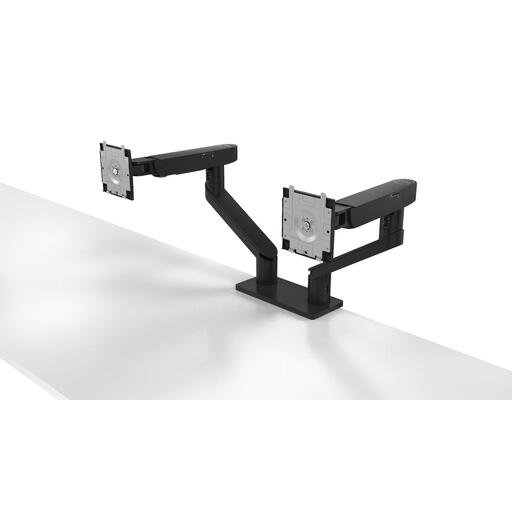 No image available
A dual monitor arm for a desk setup where you want to position two screens for presentations and notes.
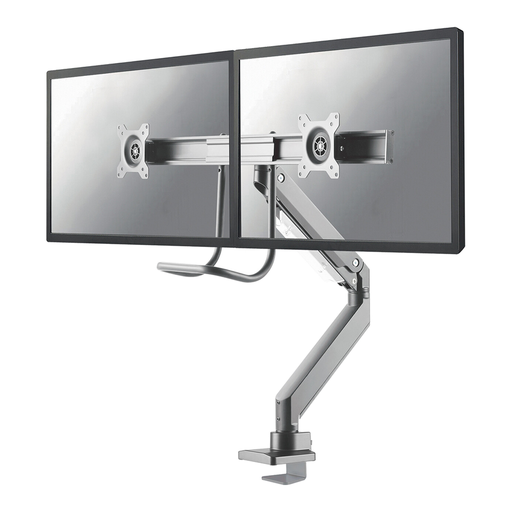 No image available
For a setup with two screens that you want to position separately.
The product name specifies a gas spring, Topfix, 180° stop and a screen size range of 10–32 inches.
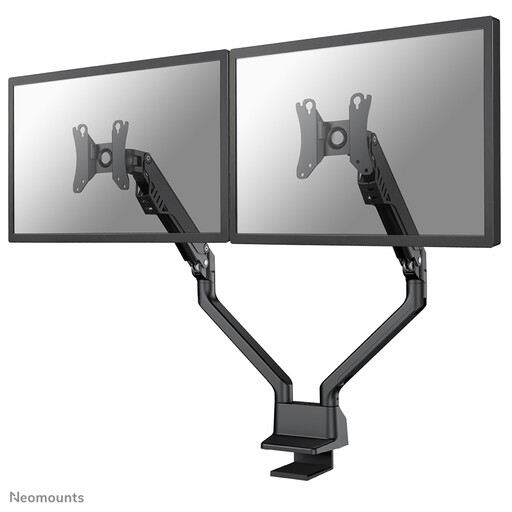 No image available
For a desk setup with two screens that you want to position separately.
The product name specifies a gas spring, Topfix, 180° stop and a screen size range of 10–32 inches.
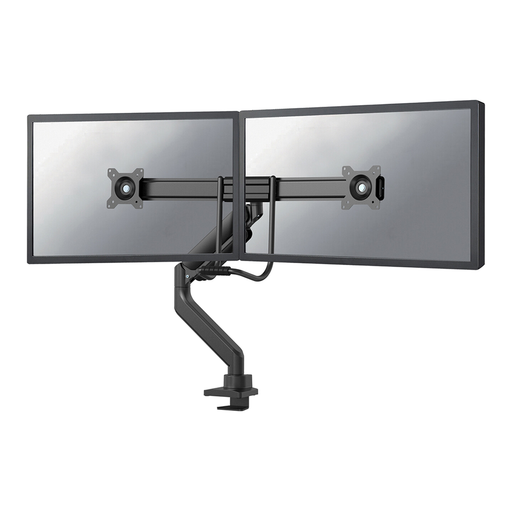 No image available
For anyone who wants to position the presentation and notes screens separately.
The product name specifies a gas spring, Topfix, 180° stop and a screen size range of 17–32 inches.
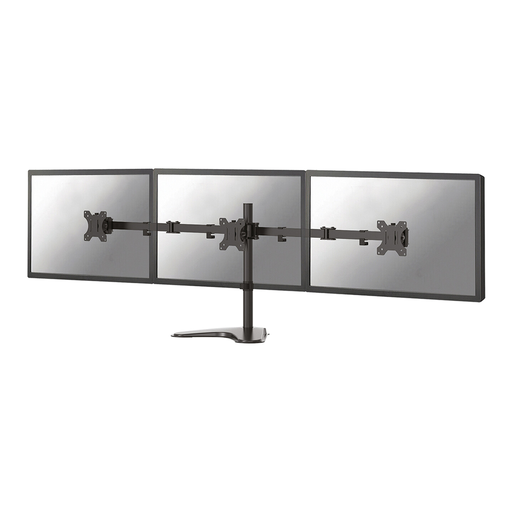 No image available
A monitor stand for a desk setup with two screens, when you want to adjust their viewing angles.
The product name specifies a screen size range of 10–32 inches.
Don’t count on it: a monitor mount positions screens and can route cables, but it doesn’t supply power. Check the power supply for each monitor separately. A compatible daisy chain can organise the video connection differently, but that doesn’t automatically mean fewer power connections are needed.
Place the screen you mainly work from directly in front of you, with the notes screen beside it and angled towards you. Arboportaal advises positioning the top of the screen slightly below eye level, so you look down at it gently.
No. Check the weight and VESA size of each screen against the limits for the exact mount variant. For example, Neomounts specifies 2–7 kg per screen and VESA 75 × 75 or 100 × 100 mm for the DS70-750BL2.
Choose a mount that suits both the support and your desk, and measure the available space in advance. Route the cables so they won’t become taut or get trapped when you adjust the screens; Neomounts specifies a suitable, undamaged tabletop and enough slack for the cables for the DS70-750BL2.