
Dashboard and report reader
You want to place two screens side by side and position the one you look at most comfortably. Independently adjustable arms are particularly useful if you need to set each screen at a different viewing position.


Choose a dual monitor mount based on how you want the screens to move and how your desk can be mounted: separate arms give you more freedom to position each screen, while a crossbar moves both screens together and a freestanding base requires no clamp. Check the weight and VESA size of both screens; a mount can manage cables, but it won’t provide power for your monitors.
You want to place two screens side by side and position the one you look at most comfortably. Independently adjustable arms are particularly useful if you need to set each screen at a different viewing position.
The available desk edge, desktop thickness and space for a base will determine whether a clamp, grommet mount or freestanding mount suits your setup.
You want a tidy setup with two screens, but you’ll need to plan the power supply separately. Cable management on a monitor mount does not provide power.
Suitable if: you often want to position your dashboard and report at different heights or distances. The Neomounts DS70-810BL2 has two independently positionable arms.
Keep in mind: check the weight and VESA size of each screen, and measure whether your desk can accommodate your chosen clamp or grommet mount.
Suitable if: you usually move both screens side by side together. With the ACT AC8344, you move the crossbar using a handle.
Keep in mind: a shared crossbar is less suitable if you often need to position each screen at a different depth or height. Also check there’s enough room for the full width of both screens.
Suitable if: you can’t use a clamp and don’t want to make a grommet hole. The ACT AC8332 stands on a base.
Keep in mind: the base takes up space on your desktop. The ACT AC8332 is designed for two screens up to 27 inches and 6 kg per screen.
| What to consider | What should you check? | Who is this important for? |
|---|---|---|
| Screen positioning | Measure the width of your screens and the clear space beside and behind your desk. Decide whether the screens need to move independently in depth and height. | I want to position my dashboard and report at different viewing distances; around 36% of consumers say independent positioning is their main concern when buying. |
| Fit on your desk and screens | Check the weight of each screen without its original stand and its VESA size. Also measure the desktop thickness, desk edge and space available for a base, if applicable. | I want to know in advance whether the mount and both screens will fit my desk; around 29% of consumers say physical compatibility is their main concern when buying. |
| Power sockets and cables | Count the power and video connections needed for your screens and computer. Check that the cables will be long enough when the arm moves. | I have few power sockets and want to know whether my screens and cables can be connected conveniently; around 21% of consumers prioritise connections and cables. |
| Adjustability | Check whether the height and depth adjust independently or together, and check the weight limits before choosing a gas-spring arm. | I regularly change my screen position and want to know how the mount adjusts; around 14% of consumers say frequent adjustment is their main concern when buying. |
Cable clips or cable guides help keep cables tidy along an arm, but they don’t power your monitors.
Count the power connections your own equipment needs before ordering, and treat the mount as a mounting solution.
A screen size that appears suitable doesn’t necessarily mean the weight and VESA holes are compatible with the mount. Limits vary by model and apply to each screen individually.
Check the weight without the stand and the VESA size of each screen separately, then compare them with the specifications for the exact model.
A freestanding mount sits on the desktop and takes up space, while a clamp requires a suitable desk edge.
Measure the clear desktop space, desk edge and desktop thickness before choosing a mounting option.
The DS70-810BL2 we looked at is a dual arm for anyone who wants to position screens independently and choose between a clamp or grommet mount.
The models we looked at include a freestanding dual mount (AC8332) and a clamp-mounted dual arm with crossbar (AC8344).
The DS1002C-B1 is a dual mount with a desk clamp.
The Viewlite upgrade kit 58.600 is designed to expand an existing compatible Viewlite setup to accommodate two monitors.
These Joybuy product picks are designed to position two screens on a desk, using either a freestanding stand or a dual monitor arm. The mount organises or positions the screens, but does not provide power.
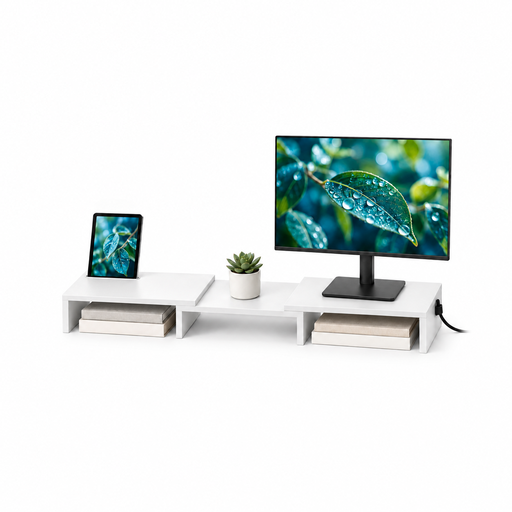 No image available
The adjustable width and rotating side platforms are useful if you want to position two screens side by side.
The product description specifies a width of around 80–108 cm and a fixed lift of 10.4 cm. The stand takes up space on your desktop.
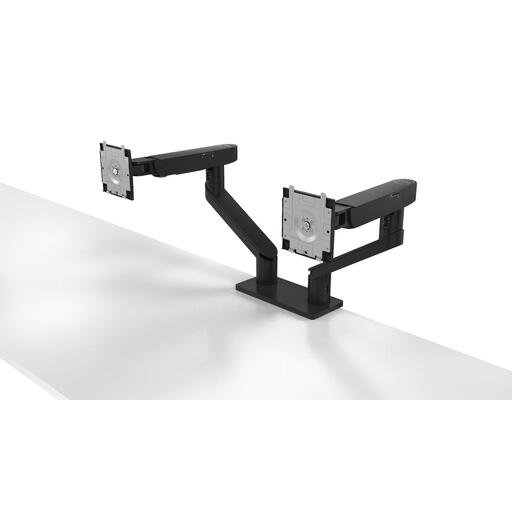 No image available
This dual monitor arm is designed for anyone who wants to position two screens on a desk and adjust their height and depth.
The product description mentions cable management clips. The tool-free Dell Quick Release is designed for compatible Dell UltraSharp and P Series monitors.
No, a dual monitor mount does not replace a power connection for your monitors. The product specifications we looked at describe mechanical mounting and cable management, so check separately which power connections your two screens need.
First, measure the desk edge and desktop to see whether a clamp or grommet mount will fit. The Neomounts DS70-810BL2 offers both mounting options. If neither will work, a freestanding mount such as the ACT AC8332 may be an alternative, provided there’s enough space on the desktop.
Check that both VESA plates are secured according to the instructions and that the screens move within the specified range. Route the cables so they don’t become taut when you adjust the screens, and check the installation again whenever you replace a screen.
According to the Dutch Government, when you buy remotely from a business, you’re often entitled to a 14-day cooling-off period. Exceptions apply, and purchases from private sellers are not necessarily covered by the same rules. Check who the seller is and what the returns information says in the listing.
No, Arboportaal’s guidance does not specify a dual monitor arm as a required product. Workplace rules apply to employees doing screen-based work where relevant; Arboportaal also recommends alternating screen work with other tasks or taking a break. These employment rules do not automatically apply to every personal home setup.