If you use email as your main screen and check your calendar less often, place the email screen directly in front of you and put the calendar beside it, angled slightly towards you. TNO describes this setup for screen-based work. Choose between adjustable arms and a stand with a base after checking the weight and VESA pattern of both screens, and making sure the mounting method suits your desk. A base takes up desk space, while an arm needs a suitable desk edge for a clamp or a grommet hole.
Who is this setup suitable for?
Email as your main screen
You mainly work in email and want to check appointments on a second screen without shifting your main screen to one side. For a screen you use less intensively, TNO recommends placing it beside the active screen and angling it slightly towards you.
You often switch between screen-based tasks
You use both screens intensively or regularly change your viewing direction. Independent adjustment can help you position the screens to suit your setup, provided they fall within the weight and mounting limits of the chosen mount.
You don’t have a suitable desk edge for a clamp
You want to set up two screens but can’t or don’t want to attach an arm to the edge of your desk or through a hole. A stand with a base is an alternative to consider if you have enough desk space.
What should you look for in a dual monitor mount?
Independently adjustable arms
Choose this option if: you want to keep the email screen directly in front of you and position or adjust the calendar screen separately.
Bear in mind: the arm must be attachable to the edge of your desk or through a hole. Also check the weight and VESA pattern of each screen.
Dual stand with a base
Choose this option if: a clamp or grommet mount won’t fit or isn’t suitable, and you have enough desk space for a base.
Bear in mind: the base takes up desk space. Also check the height adjustment and the weight and VESA limits for both screens.
| What to consider |
What should you check? |
Who is this important for? |
| Viewing direction |
Check whether both screens fit side by side and whether you can position the main screen directly in front of you. |
If email is my main screen, I want to be able to check my calendar beside it without moving my main screen. Around 36% of consumers give viewing direction top priority. |
| Screen compatibility |
Note the weight of each screen without its stand and its VESA pattern, then compare these with the specifications for the exact mount version. |
When I mount two screens, I want to know in advance that their weight and mounting patterns are compatible. Around 29% of consumers give screen compatibility top priority. |
| Desk mounting |
Check whether the desk edge or grommet hole is suitable and whether there’s room for a base. |
If I don’t want a clamp on my desk, there needs to be enough room on the desktop for a stand. Around 21% of consumers say desk mounting is their main consideration. |
| Setup and cables |
Check how the screens are mounted and whether the cables have enough room when you adjust the screens. |
I want to position the screens practically and route the cables neatly, without overlooking whether they’ll fit. Around 14% of consumers give ease of mounting and cable management top priority. |
Pitfalls to avoid when buying a dual monitor mount
-
Choosing based on screen size alone
A screen’s diagonal measurement alone doesn’t confirm that it will fit. The manufacturer’s weight and VESA limits matter too.
For each screen, check its weight without the stand and its VESA pattern against the specifications for the exact mount.
A screen that isn’t compatible may need a different mount or mounting adapter.
-
Choosing an arm without checking the desk edge
A clamp, grommet mount and base each require a different position or mounting method on your desk.
Check the desk edge, any grommet hole and the space available for a base before choosing a mounting option. Also follow the mounting instructions for the mount and desk.
If the chosen mounting method isn’t suitable for your desk, you may need a different method or mount.
-
Confusing the manufacturer’s warranty with your statutory rights
The Dutch government states that there is no fixed term for the statutory guarantee in the Netherlands; a manufacturer’s warranty is in addition to this.
Keep your proof of purchase and contact the seller if a fault develops.
Brands and product ranges to compare
Neomounts
The DS70-250BL2 NEXT Slim is a dual gas-spring arm for screens that need to be adjusted independently, with clamp or grommet mounting.
- Neomounts lists a 180° stop, cable management and VESA 75 × 75 or 100 × 100 mm.
- The stated limits are 1–9 kg per flat screen and up to 8 kg per curved or ultra-wide screen. Check the weight of both screens against the relevant limit.
ACT
The AC8302 offers clamp or grommet mounting; the AC8320 is a different version with a base that sits on the desk.
- ACT specifies a maximum of 8 kg per screen for both models.
- The AC8320’s base avoids the need for a clamp but takes up desk space. The two models therefore use different mounting methods.
iiyama
The DS1002C-B1 is a dual mount with a desk clamp, adjustable positioning and cable management.
- iiyama lists a maximum of 10 kg per screen and VESA 75 × 75 or 100 × 100 mm.
- Joybuy’s Dutch product listing mentions screens up to 30 inches; iiyama’s UK product information says up to 32 inches. So compatibility with 31–32-inch screens is not confirmed for the version on offer.
Dell
The MDA20 is designed, among other things, for mounting compatible Dell monitors using Dell Quick Release.
- Dell lists cable management and Quick Release for compatible Dell monitors.
- Quick Release doesn’t guarantee compatibility with other brands. Dell lists optional VESA adapter plates for other screens; check the exact combination.
Ergotron
The LX Dual Side-by-Side Arm is an adjustable option for positioning two screens side by side.
- For the version reviewed, the manufacturer lists screens up to 27 inches and 3.2–9.1 kg per screen.
- These specifications apply to a specific version listed on a US manufacturer’s page. They don’t confirm availability in the Netherlands or the limits of other LX versions.
Dual monitor mounts at Joybuy
This selection includes a dual monitor stand with a base and dual monitor arms for desk mounting. Check that each model is compatible with your screens and desktop.
 No image available
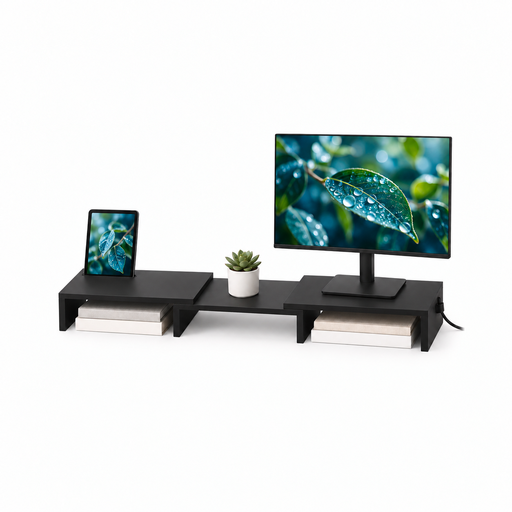
Floordirekt monitor stand for 2 monitors, MDF, black, 80–108 cm
Suitable if you don’t want to use a desk clamp and have room for a stand on your desktop.
The width adjusts from 80 to 108 cm, and the side platforms can swivel for an angled setup. The stand height is fixed at 10.4 cm.
Before buying, check that the weight and mounting points of both screens are compatible with the stand.
View at Joybuy
 No image available
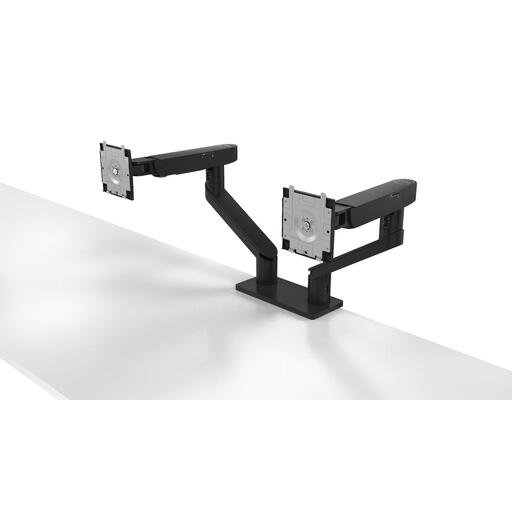
Dell MDA20 dual monitor arm
Suitable for compatible Dell UltraSharp and P Series monitors that Dell lists as supporting Quick Release.
The product description lists support for screens up to 27 inches, height and depth adjustment, and rotation, tilt and swivel. Dell Quick Release applies to the compatible Dell screens listed; check other screens separately.
View at Joybuy
 No image available
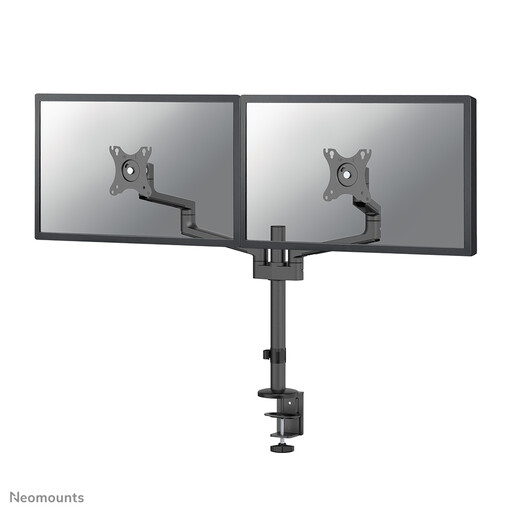
Neomounts DS60-425BL2 dual monitor arm, 17–27 inches
Suitable if you want to position two screens independently and place the mount close to a wall or partition.
The product description lists VESA 75 × 75 or 100 × 100 mm, manual height and depth adjustment, and rotation, tilt and swivel. Check that both screens are within the mounting and weight limits of this version.
View at Joybuy
 No image available
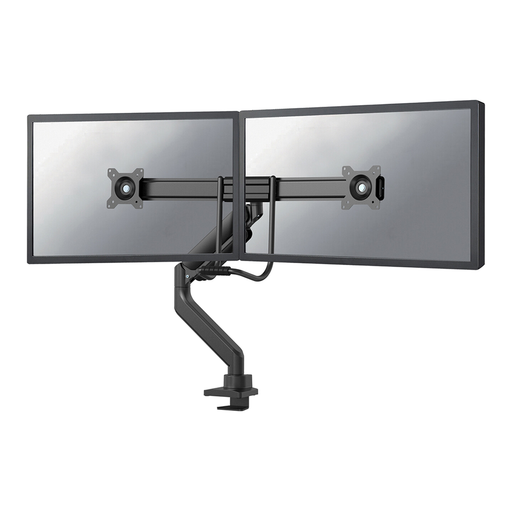
Neomounts DS75-450BL2 dual gas-spring arm, 17–32 inches
Suitable if you want to adjust screen height and depth and can use a clamp or grommet mount on your desk.
The product description lists screens up to 32 inches, VESA 75 × 75 or 100 × 100 mm and cable management. Height and depth adjust pneumatically, and the arm also offers rotation, tilt and pivot adjustment. Check the weight of both screens against the limits for the version you choose.
View at Joybuy
Frequently asked questions
How should I position email and my calendar across two screens?
According to TNO, place the active screen directly in front of you and put a screen you use less intensively beside it, angled slightly towards you. If you use both screens equally, TNO recommends a shallow V shape, with the gap between them directly in front of you. Adjust the height so you can look slightly downwards comfortably.
Can I use a dual monitor mount without a clamp?
Yes, a dual stand with a base may be an option if you don’t want to use a clamp. The ACT AC8320 is one example of this mounting method. Make room for it on your desktop and check the weight and VESA mounting points for both screens.
Do I have to buy a monitor arm for screen-based work in the Netherlands?
No, the regulations described for screen-based work don’t generally require you to buy a particular monitor arm. For employees doing screen-based work covered by the rules, Arboportaal describes requirements including an adjustable screen and the layout of the workstation. These employer obligations don’t automatically apply to every individual buying equipment for home use.
What warranty and cooling-off period apply when buying online?
The Dutch government states that there is no fixed term for the statutory guarantee in the Netherlands and that you’re entitled to a product that works properly if a fault develops; the seller is your point of contact. When you buy online from a business, a 14-day cooling-off period applies in many cases. Check the terms and exceptions that apply to your purchase.


