Use one well-profiled main monitor to make colour and tonal decisions when blending landscape exposures. A second screen can display source photos, your library or tools. If you also make colour-critical assessments on that screen, it needs profiling too. Adobe also distinguishes between merging exposures and assessing HDR output, so choose your display features to suit your final output.
Who is this setup for?
Photographers who assess prints
You want to assess colour and tone for a print after blending exposures, and are looking for a main monitor you can profile. The second screen does not necessarily need to be as specialised. Adobe explains why using the right monitor profile matters, while EIZO Netherlands covers colour modes and calibration software.
Photographers comparing two images
You want to keep the source exposures and the result in view at the same time, and make visual decisions on both screens. Adobe Lightroom Classic explains how to display a second window on a connected monitor.
Photographers using a second workspace
Alongside your existing main monitor, you mainly want more room for your library, selections or tools. Check that your computer can connect to both screens and that you have enough desk space.
What should you look for?
One colour-critical main monitor
Choose this if: you assess final colour and tone on one screen and mainly use the second for selections, layers or tools.
Bear in mind: the image on the second screen is not automatically a reliable colour reference.
Two colour-critical monitors
Choose this if: you assess source images and the result on both screens.
Bear in mind: both screens need profiling and an appropriate colour target; matching product specifications do not guarantee identical display.
First decide where you assess colour and tone, and whether your final output is SDR or HDR. Then check the connections and what you need for the complete setup.
| Consideration |
What to look for when buying |
Who is this important for? |
| Colour for your final output |
Check the colour modes and the available calibration and profiling methods, and see whether they suit your output requirements. |
If I assess colour and tone for a print on my main screen, I want to be able to profile it. Around 33% of consumers consider colour and print quality their top buying priority. |
| Highlights and shadows |
Decide whether you are producing SDR or HDR, then check the display features suited to that output. |
When I assess blended exposures for highlights and shadows, I want to match them to my intended output. Around 27% of consumers prioritise tone and HDR output. |
| Workspace and connections |
Check your computer’s video outputs, the inputs on both screens and whether you have room for two monitor stands. |
If I want to view source images and editing windows at the same time, my computer needs to connect to both screens. Around 20% of consumers give workspace and connections top priority. |
| The complete setup |
For each screen, check what you need for profiling, cables and positioning, especially if the second screen is only for extra workspace. |
If I assess colour only on my main screen, I want to know what else I need to make practical use of the second one. Around 20% of consumers prefer a practical second workspace. |
Common buying mistakes
-
Assuming an HDR logo proves a monitor suits every HDR workflow
Blending exposures is not the same as assessing HDR output. For an SDR result, a suitable profile and reliable tonal assessment still matter.
First decide whether you are producing SDR or HDR, then check which display features you need.
-
Using the same image on two unprofiled screens to check colour
Adobe warns that an incorrect monitor profile can lead to unnecessary adjustments.
Decide which screen you will use for your final assessment, and profile every screen you use for colour-critical work.
-
Assuming every USB-C port provides video and enough power for a laptop
For example, maximum USB-C power differs between the EIZO CS2740 and BenQ SW272U models reviewed. The connection also needs to be compatible with your laptop and the video signal you want to use.
Check the video function and cable for the exact monitor model, as well as your laptop’s charging requirements.
-
Assuming a nearly identical model number means it is the same product
A different full model designation may refer to a specific version, and important connection details can also vary.
Check the full model designation and confirm the specifications of the version you intend to buy.
Brands to consider
EIZO
The ColorEdge CS2740 is a 27-inch 4K example with Adobe RGB and sRGB modes. According to EIZO Netherlands, the CG2700X has an integrated sensor for self-calibration.
- The colour modes and sensor features mentioned may be useful if you are looking for a monitor for colour-critical work. These are specifications for individual models, not a claim about every EIZO screen.
- Do not assume the CS2740 has the integrated sensor found on the CG2700X. Check the CS2740’s calibration options and its stated maximum USB-C power of 60 W.
BenQ
According to BenQ, the PhotoVue SW272U is a 27-inch 4K model with stated Adobe RGB coverage and hardware calibration.
- BenQ lists HDR10/HLG, up to 90 W USB-C power and a supplied hood for this model.
- HDR support alone does not prove that every HDR scene can be assessed in full. Check that the connections are compatible with your computer.
ASUS
The ProArt PA279CRV is a 27-inch 4K example with Adobe RGB and USB-C, according to ASUS.
- For this model, ASUS lists 99% Adobe RGB, factory calibration with ΔE < 2 and up to 96 W USB-C power.
- A factory calibration claim does not replace profiling in your own workspace. Check the exact version and connection before buying.
Dell
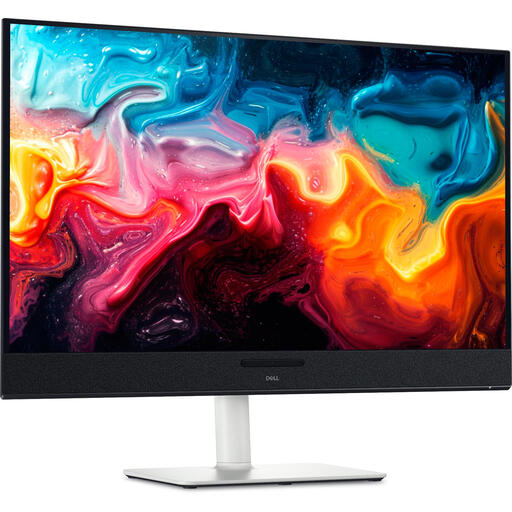
Dell describes the UltraSharp U2725QE as a 27-inch 4K hub monitor with IPS Black and 120 Hz.
- Its hub features may be useful if connectivity and multiple work windows are high on your list.
- These model features are not independent test results for photographic colour. Do not assume it has the same specialist calibration features as the ColorEdge or PhotoVue models mentioned above.
LG
According to LG, the UltraFine 27UP850K-W is a 27-inch 4K option with USB-C and an adjustable stand.
- LG lists support for calibration with LG Calibration Studio.
- LG states that the software is not included in the package. Check the full model designation of the version you intend to buy.
Joybuy products
These Joybuy products offer large 4K and ultrawide screens for extra workspace when editing landscapes. Check each model’s colour reproduction and calibration options to make sure they suit your colour-critical work.
 No image available
Dell UltraSharp U3226Q 32-inch 4K UHD 120Hz QD-OLED monitor
An option to consider if you are thinking about using two colour-critical screens. Check the profiling method and intended HDR use for the exact version.
The product name lists 32 inches, 4K UHD, 120 Hz and QD-OLED.
View at Joybuy
 No image available
INNOCN 40C1U 40-inch 5K ultrawide monitor
A good fit if you want to view source images and editing windows side by side. Check that the width and resolution suit your workspace.
The product name lists 40 inches, 5K, 5120 × 2160, IPS and 100 Hz. The product information lists 87% Adobe RGB; bear this in mind if you are specifically looking for wide Adobe RGB coverage.
View at Joybuy
 No image available
BenQ PD3225U 32-inch 4K UHD monitor
A 32-inch 4K option if you are looking for a generous workspace. Check separately whether its colour reproduction and calibration method suit your colour-critical work.
The product name lists 3840 × 2160 pixels, 4K UHD and LED.
View at Joybuy
 No image available
Dell Pro Plus P3225QE 31.5-inch 4K UHD monitor
A potential choice for extra workspace alongside a colour-critical main monitor. Check the connection and picture settings for your needs.
The product name lists 31.5 inches, 3840 × 2160 pixels and 4K UHD.
View at Joybuy
 No image available
Dell Plus S3225QC 31.6-inch 4K UHD QD-OLED monitor
A large 4K screen if you want to display images and editing panels together. Decide whether HDR display is actually part of your output workflow.
The product name lists 31.6 inches, 3840 × 2160 pixels, 4K UHD and QD-OLED.
View at Joybuy
Frequently asked questions
Do both screens need to be the same model?
No, not if you make your final colour and tonal assessment on one screen and use the other for work windows. If you make colour-critical assessments on both screens, profile each one separately; the same model name does not guarantee identical display.
Do I need an HDR monitor to blend exposure brackets?
Not just to blend exposures: Adobe distinguishes between Merge to HDR and editing and exporting for HDR display. Choose HDR display based on your intended output, not simply because you are combining multiple exposures.
How should I use and maintain colour settings?
Create a monitor profile for the screen you use to assess colour, and recalibrate it when needed. Adobe recommends using measuring equipment and keeping lighting conditions stable during calibration for colour-critical work. Check which software and sensor are needed for each model.
What if a monitor bought online is not right for your setup?
For online purchases by consumers in the Netherlands, ACM ConsuWijzer says there is generally a statutory 14-day cooling-off period from delivery, with some exceptions. Faulty products are covered by the statutory guarantee in addition to any manufacturer’s warranty; contact the seller for help.


