
Home presenter who uses notes
You use one screen as your main display and want to read notes alongside it without constantly changing your posture. Arboportaal recommends positioning the screen directly in front of you.


For presentations with notes alongside, choose a dual monitor arm based on the screen positions you need, the space available and how it attaches to your desk. A crossbar is a good fit if you usually keep both screens together; independently movable arms give you more freedom to reposition the presentation screen and notes screen separately. Check the weight and VESA pattern for both screens, and measure the desk edge and the space between the desk and the wall.
You use one screen as your main display and want to read notes alongside it without constantly changing your posture. Arboportaal recommends positioning the screen directly in front of you.
You want to set up two screens, but desk depth or the space behind the desk is limited. Remember to measure the space taken up by the arms and screens, too.
You regularly switch between presenting, reading and other screen-based tasks, and want more freedom of movement than a fixed setup offers.
A good fit if: you usually keep your presentation and notes side by side and mainly want to adjust both screens together. ACT specifies that the AC8322 supports two screens up to 27 inches and 7 kg per screen.
Bear in mind: the screens cannot be positioned completely independently. Also check the width and mounting points.
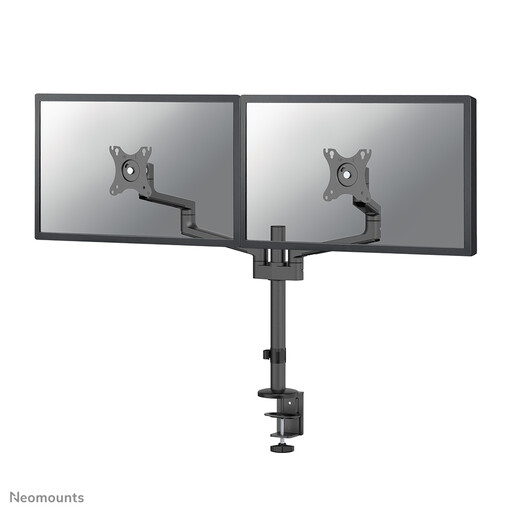
A good fit if: you want to position the presentation screen directly in front of you and turn or move the notes screen separately. Neomounts specifies a gas spring and a 180° stop for the DS70-810BL2.
Bear in mind: the arms need room to move, and each screen must fall within the specified load range.
A good fit if: you keep your screens side by side but regularly adjust their combined height and distance. ACT describes the AC8344 as having a gas spring.
Bear in mind: adjusting both screens together is not the same as positioning each one completely independently.
| What to consider | What to check before buying | Who is this relevant to? |
|---|---|---|
| Positioning presentations and notes | Decide which screen you look at most and check that you can achieve a suitable height, viewing distance and angle for both screens. | If you want the main display directly in front of you while keeping your notes readable alongside it, this is a priority for around 29% of consumers. |
| Compatibility and load capacity | For each screen, check its weight without the stand, its VESA pattern and the limits of the model you have chosen. | If you want to know in advance whether both screens will fit and can be securely mounted, this is a deciding factor for around 29% of consumers. |
| Mounting on a small desk | Measure the desk thickness, available edge or grommet hole, distance to the wall and the space the screens need. | If desk space is limited and the mount needs to fit the available space, this matters more to around 24% of consumers. |
| Frequently adjusting your screens | Decide whether you want to move the screens together or separately, and compare the adjustment mechanisms described. | If you regularly switch between presentations and other screen-based tasks, ease of adjustment is the deciding factor for around 18% of consumers. |
A suitable screen size doesn’t guarantee that an arm can support the screen or that the mount is compatible. Neomounts lists weight and VESA pattern as limits for the DS70-810BL2.
Check the weight without the stand, mounting pattern and specifications for the exact model you have chosen for each screen.
If a screen isn’t directly compatible, check whether your setup needs a separate VESA adapter.
The ACT AC8322 holds the screens side by side on a crossbar, while the Neomounts DS70-810BL2 has two movable arms. These designs don’t offer the same freedom to position each screen separately.
Sketch out where you want the presentation screen and notes screen to go, then choose the adjustment mechanism that suits your setup.
A clamp that fits doesn’t automatically mean the screens can move into the positions you want. The distance to the wall and the available desk depth matter, too.
Measure the desk edge and the clear space behind the desk with the screens in the positions you intend to use them.
ACT offers crossbar models with either height adjustment or a gas spring.
Worth considering if you want independently movable screens, including with the DS70-810BL2.
The ARMDUAL3 is an option with two movable arms and height adjustment along a pole.
The MDA20 is particularly relevant if your monitors are compatible with the specified Dell Quick Release mount.
The LX Dual Side-by-Side range is an alternative for two movable screens positioned next to each other.
These Joybuy products are designed for a two-screen setup, with different options for a stand or movable arms.
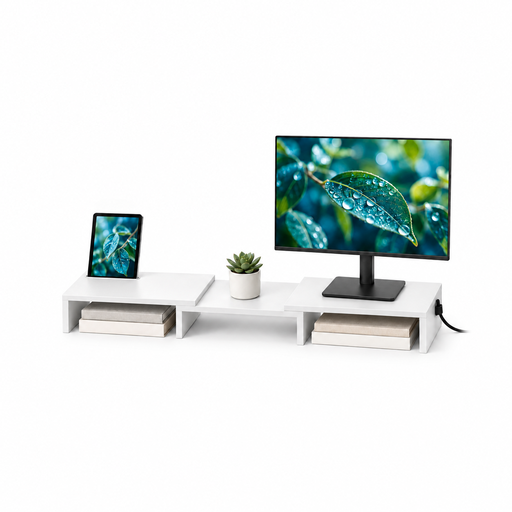 No image available
An option if you want to position two screens side by side and adjust their width and angle.
MDF; adjustable width and angle; white, 80–108 cm.
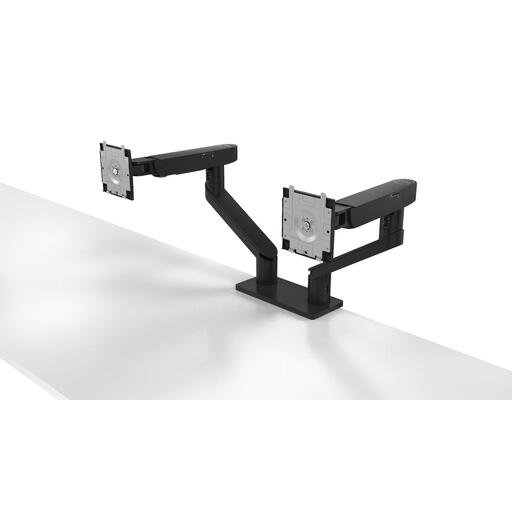 No image available
Suited to anyone who wants to position two screens on a desk and adjust their height and depth.
Dell specifies 2.2–10 kg per arm. Quick Release is designed for compatible UltraSharp and P Series monitors; for other screens, check the VESA adapter and compatibility.
The product description mentions cable management clips.
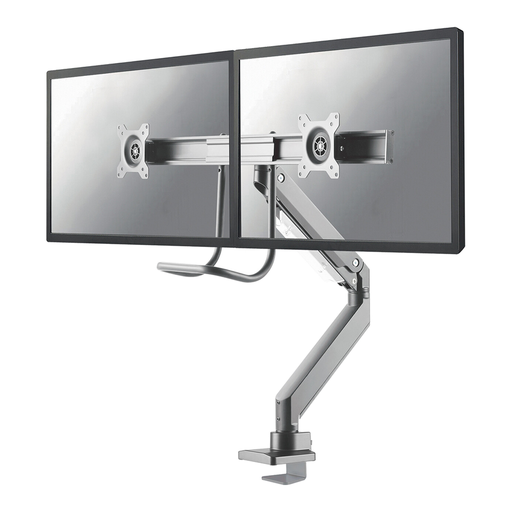 No image available
An option if you want to set your screens in different positions and are looking for an adjustable arm.
The product information specifies VESA 75×75 and 100×100 mm, a gas spring and a 180° stop. Check that your screens’ VESA patterns are compatible.
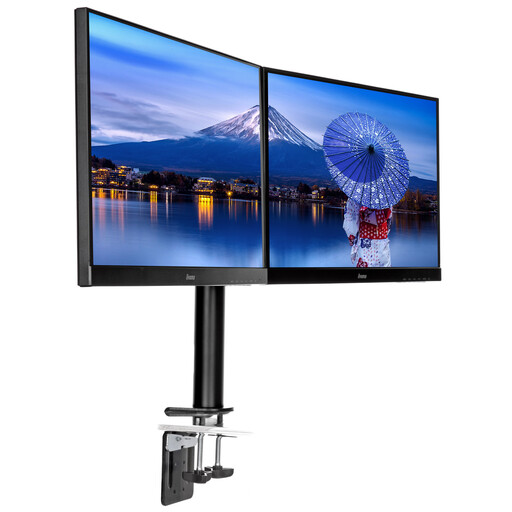 No image available
Suited to anyone who wants to position two screens side by side and adjust their viewing position.
The product information specifies a maximum of 10 kg per monitor and VESA 75×75 or 100×100 mm. The arm offers height adjustment, tilt and swivel.
 No image available
An option for positioning two screens close to a wall, where the short upper arm can help save space.
The product information specifies a maximum of 8 kg per screen, VESA 75×75 or 100×100 mm, and height and depth adjustment. Measure the available space before mounting the arm.
Position the screen you look at most during the task directly in front of you, and place the other so you can read your notes without turning unnecessarily. Arboportaal recommends positioning the screen directly in front of you; the layout depends on which display you use most.
Check the mounting method for the exact model and measure your desk. ACT specifies a clamp and grommet mount for the AC8322, with a maximum desk thickness of 88 mm; StarTech.com specifies a desk thickness of 40–85 mm for the ARMDUAL3 clamp. These measurements apply to different models and are not interchangeable.
Set the screens at a readable height and distance, and allow for movement and cables when repositioning them. Follow the instructions for your chosen model when mounting and adjusting it; Dell describes separate mounting steps and cable routing for the MDA20.
For a standard online consumer purchase, ACM ConsuWijzer says you generally have a statutory 14-day cooling-off period after delivery; check the applicable exceptions and returns policy. The seller is also responsible for the statutory guarantee if a product doesn’t meet reasonable expectations. A commercial manufacturer’s guarantee does not replace this right.
No, the official guidance does not require you to buy a specific type of monitor arm. Employers have responsibilities for safe screen-based work and workplace setup; what applies depends on the working situation. Ergonomic positioning advice is not product certification or a general requirement to buy a particular product.