
Someone working with a dashboard and a report
You want to view two work screens at once and position the one you use most comfortably.


Choose a dual monitor arm that suits both screens and the mounting options available on your shared desk. A compact arm can be useful when there’s little space behind the desk. For multiple users, independent adjustment matters, while heavier screens need an arm with a suitable weight capacity. Check the limits of the exact model before you choose.
You want to view two work screens at once and position the one you use most comfortably.
You move between desks or share one with someone else, and want to readjust the screen positions without removing the mount.
There’s little space behind your screens, so you need to account for the wall or panel when adjusting them.
First, check that the arm is compatible with both monitors and your desktop. Then consider your preferred screen positions, the space available and the mounting method.
| What to consider | What should you check? | Who should pay particular attention? |
|---|---|---|
| Position of both work screens | Check that the screens fit side by side and that you can position the main screen as you’d like. The range of adjustment varies by model. | If I use a dashboard alongside a report, I want to position the main screen directly in front of me and angle both screens to suit my working posture. Around 36% of consumers prioritise the viewing position of their two work screens. |
| Desk space and mounting | Measure the desktop thickness, the clearance at the edge and the distance to any wall or panel. Check whether the model requires a clamp or grommet mount. | If I’m using a shared desk with little space behind it, I want to know whether the arm can move without hitting the wall or panel. Around 29% of consumers put desk space and mounting first. |
| Compatibility with both monitors | Check the weight, dimensions and VESA mounting pattern of each screen. Different limits may apply to curved or ultrawide screens. | If my two monitors are different, I want to check each one’s weight and mounting points against the limits of the arm I’m considering. Around 21% of consumers start by checking compatibility with both screens. |
| Cables and support | Check that the model’s cable management suits your setup and that the cables have enough slack when you adjust the screens. Read the manufacturer’s warranty terms alongside your statutory rights. | If several people adjust the screens, I want to be able to route the cables neatly and know who to contact if there’s a problem. Around 14% of consumers prioritise cable management and support. |
The maximum screen size is a guide; each screen’s weight and VESA pattern must also be within the limits of the model you choose. A lower maximum may apply to curved or ultrawide screens.
Compare the weight and VESA pattern of each monitor separately with the specifications for the exact model.
A wall or partition can restrict the movement of the arm or screens. A compact arm or movement stop is specific to the model and doesn’t replace measuring your space.
Measure the desk depth, the clearance behind it and the screen width before deciding where to mount the arm.
According to the Dutch government, there’s no fixed time limit for the statutory guarantee in the Netherlands. A manufacturer’s warranty doesn’t replace your statutory rights.
Read the manufacturer’s warranty terms and contact the seller if a product is faulty.
The DS70-810BL2, DS70-250BL2 and DS70S-950BL2 offer different options for compact setups, mounting and screen weight.
The ARMDUALPIVOT is an alternative with two independently adjustable arms and mechanical springs.
The BE Flexible Dual is worth comparing if you’re looking for two mechanically sprung arms and top-down mounting.
The LX Dual Side-by-Side Arm is designed to position two screens side by side.
These product picks are suited to two screens on a shared desk, with a focus on adjustability, available space and compatibility with your monitors.
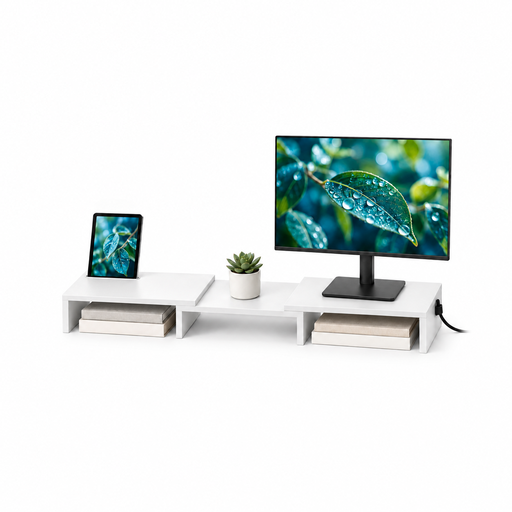 No image available
Worth a look if you’re after a stand for two monitors with adjustable width and angle.
The product name lists MDF and adjustable width and angle; this white version is listed as 80–108 cm.
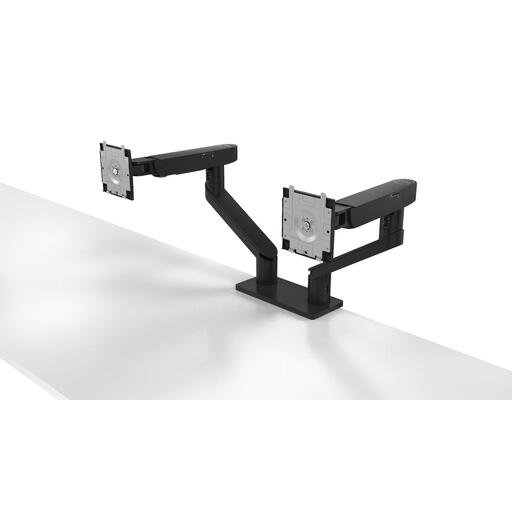 No image available
A dual arm to consider if you want to adjust the position of two screens for different users.
Check that the stated height and depth adjustment suits your setup and that your screens are within the listed maximum size of 27 inches.
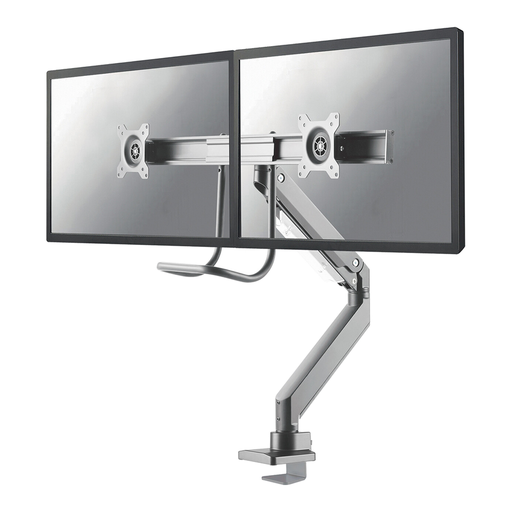 No image available
Worth comparing if you’re looking for a dual arm with a gas spring and top-fix mounting.
The product name lists a 180° stop. Before buying, check that the size and weight of each screen are within the stated limits, including the listed limit of 8 kg per screen.
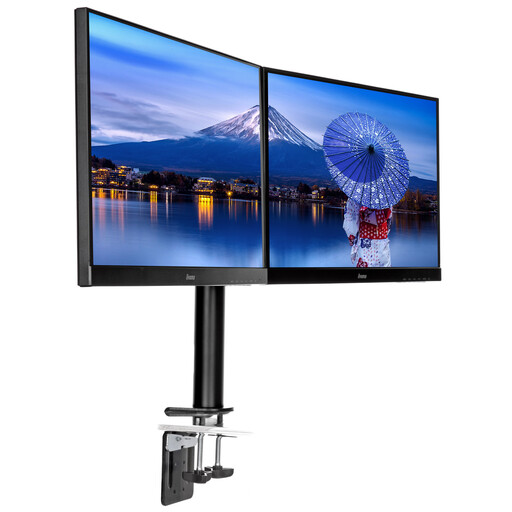 No image available
A dual desktop mount to consider if you want to position two screens and need to place the arm close to a wall or panel.
Check the stated screen size and weight limits beforehand, and make sure both monitors are compatible with VESA 75 × 75 or 100 × 100 mm.
 No image available
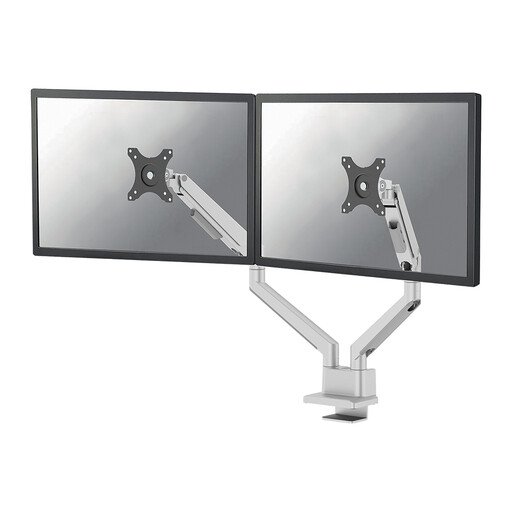
An option to compare if you’re looking for a dual arm with a gas spring, top-fix or grommet mounting, and a movement stop.
Check that each screen’s size and weight are within the stated limits; the product information lists a maximum of 9 kg per screen.
Position the screen you mainly work on directly in front of you, with the top just below eye level, then set up the second screen for the task at hand. Arboportaal recommends this for setting up a workstation; it isn’t evidence that a particular brand prevents complaints.
No, it depends on the desktop and the model’s mounting system. Measure the desktop and follow the instructions for the exact version. For example, the clamp configuration shown for the Neomounts DS70-810BL2 is designed for a desktop 10–50 mm thick. This range doesn’t automatically apply to other arms or mounting methods.
Route the cables through the designated cable management system, if the model has one, and check after installation that the arms can move without pulling on the cables. Neomounts lists cable clips for the DS70-810BL2.
No. According to the Dutch government, there’s no fixed time limit for the statutory guarantee in the Netherlands; a manufacturer’s or seller’s warranty is in addition to it. If a product is faulty, contact the seller to arrange a solution.
The official guidance consulted doesn’t require a specific type of dual monitor arm. Arboportaal does outline requirements for safe display screen workstations and additional rules for employees who work at a screen for more than two hours a day. Which workplace rules apply to an individual workstation depends on the working situation.