
Reading a script during video calls
If you want one screen for your call and the other for your script, an independently adjustable arm is worth considering. Neomounts and StarTech.com describe models that let you adjust the position of each screen.


A dual arm with independently adjustable screens is a good fit if you regularly want to reposition your script during calls. If your screens usually stay put, a mechanically adjustable arm may be all you need. A monitor arm doesn’t power your screens, so count the plugs you’ll need and check the power and video connections on your laptop and monitors. Before buying, check the weight and VESA pattern of each screen, and measure your desk to make sure the mount will fit.
If you want one screen for your call and the other for your script, an independently adjustable arm is worth considering. Neomounts and StarTech.com describe models that let you adjust the position of each screen.
Plan the power supply and video connections for both monitors and your laptop separately from the arm. A suitable USB-C monitor can charge a laptop, but it needs its own power too. Dell describes this feature for its S2722DC monitor.
An arm can attach your screens to the desk, but the clamp or grommet mount needs to fit. Also check that there’s enough room behind the desk to move the screens.
Choose this if: you regularly want to move your script screen higher, lower or closer during calls. Neomounts describes the DS70-250BL2 as offering gas spring height and depth adjustment.
Bear in mind: each screen has a weight limit. Neomounts specifies a lower limit for curved or ultrawide screens.
Choose this if: you mainly want to adjust the viewing angle and distance of two screens. ACT describes the AC8302 as having pivot points and a choice of clamp or grommet mounting.
Bear in mind: don’t expect independent gas spring height adjustment from this model.
Choose this if: your screens usually stay at the same height and manual adjustment is enough. StarTech.com describes the ARMDUAL3 as offering mechanical height adjustment and manual rotation into portrait orientation.
Bear in mind: according to StarTech.com, this model’s C-clamp is designed for desktops 4 to 8.5 cm thick.
Choose this if: you want USB-A ports within easy reach as well as a dual-screen setup. Fellowes lists two 0.5 A USB 3.0 Type-A ports on its Platinum Series.
Bear in mind: these USB ports don’t replace mains power for your monitors.
| What to consider | What should you look for? | Who might prioritise this? |
|---|---|---|
| Script position | Check whether each screen can be adjusted independently and whether you can set the rotation or portrait orientation you want. | If I want to move my script to a different height or closer to me during a call, being able to move each screen independently is helpful. Around 31% of shoppers in this decision-making group prioritise script position. |
| Power sockets | Count the plugs needed for both monitors and your laptop. A monitor arm or cable management doesn’t provide mains power; check the laptop and monitor connections separately. | If there aren’t many sockets, I want to know in advance which devices need power and whether my monitor can charge my laptop. Around 25% of this group put power supply first. |
| Screen compatibility | Check the weight and VESA pattern of each monitor against the exact model specifications. Neomounts specifies a maximum of 9 kg per screen for the DS70-250BL2, or 8 kg for curved or ultrawide screens, and VESA 75 × 75 or 100 × 100 mm. | If I want to keep using my existing screens, I check the weight and VESA pattern of each one separately. Around 25% of this group mainly want to know whether both screens will fit. |
| Desk mounting | Measure the desktop thickness and the free space behind the desk. StarTech.com specifies a desktop thickness of 4 to 8.5 cm for the ARMDUAL3 C-clamp. | If the edge of my desk is difficult to reach or close to a wall, I want to make sure the mount and available movement space will fit. Around 19% of this group prioritise desk mounting. |
Features such as cable management and USB-A ports don’t mean an arm can provide mains power to two monitors.
First, work out the power and video connections needed for both screens and your laptop. Then choose an arm based on how you want to position the screens.
Screen size alone doesn’t tell you whether a monitor is within the arm’s weight limit or has a compatible VESA pattern. Neomounts also specifies a lower weight limit for curved or ultrawide screens on the DS70-250BL2.
Check the details of each monitor against the specifications for the exact arm model.
Clamps and grommet mounts don’t automatically fit every desk. For example, StarTech.com specifies a desktop thickness of 4 to 8.5 cm for the ARMDUAL3 C-clamp.
Measure the desktop thickness and check that the edge is accessible, a grommet mount is possible and there’s enough free space behind the desk.
Worth considering if you want to position two screens independently, including when your desk is close to a wall.
The AC8302 is an option for two screens, with pivot points and a choice of clamp or grommet mounting.
The ARMDUAL3 suits a mostly fixed setup, with mechanical height adjustment and manual rotation.
The Platinum Series dual arm is worth considering if you want USB-A ports as well as adjustable screens.
These Joybuy products are dual monitor arms for a script-and-call setup. Check the adjustment options, screen limits and mounting method for each model.
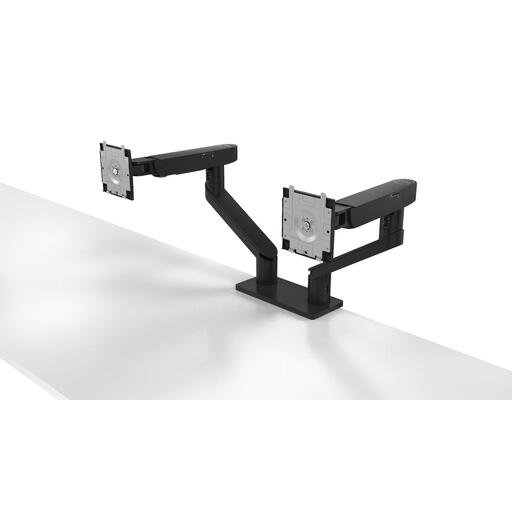 No image available
A dual arm with height and depth adjustment can help you position your call screen and script separately.
The description lists support for two screens up to 27 inches and cable management clips. Dell Quick Release is mentioned for compatible UltraSharp and P Series monitors.
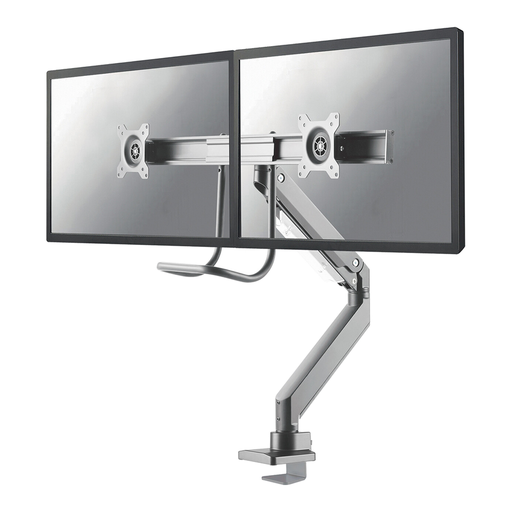 No image available
Gas spring and depth adjustment could suit you if you regularly want to reposition your script screen.
The description lists support for screens from 10 to 32 inches, a weight capacity of 2–8 kg per screen, and VESA 75 × 75 or 100 × 100 mm. The arm uses a desk clamp.
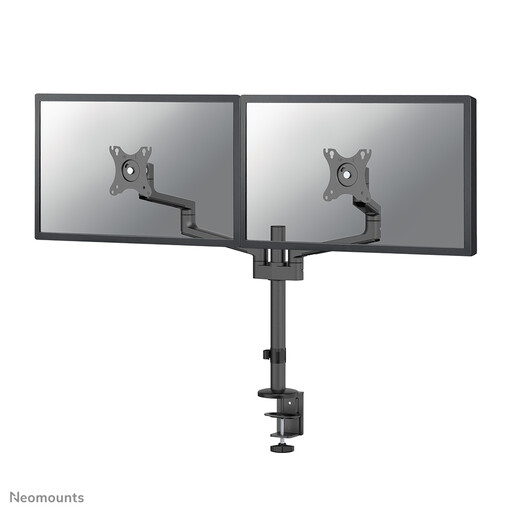 No image available
Manual adjustment is an option if your screens usually stay put and you want a setup close to a wall.
The description lists support for two screens up to 27 inches and a maximum of 8 kg per screen. Height and depth can be adjusted manually.
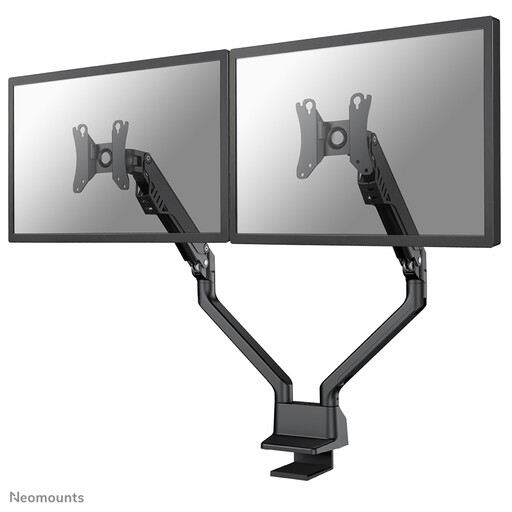 No image available
Height and depth adjustment can help you set one screen up for calls and the other for your script.
The description lists gas spring support for 2–8 kg per screen, with clamp or grommet mounting.
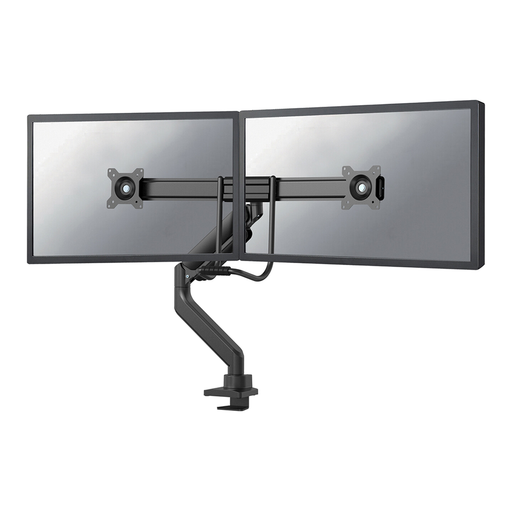 No image available
Pneumatic height and depth adjustment could suit you if you regularly want to reposition your script and call screen.
The description lists support for two screens up to 32 inches, VESA 75 × 75 or 100 × 100 mm, and clamp or grommet mounting.
No, don’t assume that. An arm can position screens or manage cables, but it doesn’t provide mains power for two monitors. A suitable USB-C monitor can charge a laptop; check the connections and power requirements of your own monitors and laptop.
Check the weight and VESA mounting pattern of each screen against the specifications for the exact model. Then measure your desktop and check whether a clamp or grommet mount will fit. For example, the StarTech.com ARMDUAL3 C-clamp is specified for desktop thicknesses of 4 to 8.5 cm.
When moving the screens, check that the cables have enough slack and follow the fitting and adjustment instructions for your chosen model. Product specifications aren’t a universal maintenance schedule.
For employees who spend more than two hours a day working at a screen, Arboportaal states that the screen and keyboard must not be attached to one another. This doesn’t mean every private buyer needs a dual monitor arm. For eligible online consumer purchases, the Dutch government generally specifies a 14-day cooling-off period. The legal guarantee gives you the right to a product that works as it should; in the Netherlands, there’s no fixed statutory guarantee period.