
Sketchers with limited desk space
You use an existing computer and want to put your drawing equipment away easily after use. A compact pen tablet uses an external screen: Coolblue Netherlands explains that this is where you see what you are drawing.


For sketching at a shared desk, your main choice is between a compact pen tablet that uses a computer and external screen, a pen display that lets you draw directly on the screen, and a standalone device. A pen display needs enough space and a compatible connection; a standalone device lets you get started without a work computer, but check that its drawing app and file-sharing options suit your workflow. None of these devices, by itself, guarantees that a floor plan is to scale or suitable for CAD.
You use an existing computer and want to put your drawing equipment away easily after use. A compact pen tablet uses an external screen: Coolblue Netherlands explains that this is where you see what you are drawing.
You want to see walls and layouts beneath your pen, and can make room for a pen display and the connections it needs. Wacom sets out the connection requirements for the Wacom One 12; Huion confirms that the Kamvas 13 (Gen 3) does not support multi-touch.
You want to get started at the shared desk without first connecting a pen display to a work computer. XPPen describes the Magic Drawing Pad as a standalone Android device; Apple lists Pencil support for the iPad Air. Also check that the app and file-sharing options suit your work.
Choose this option: if you already have a suitable computer screen and want to clear the desk after sketching. Wacom lists the Intuos Pro Small as measuring 215 × 163 mm externally, with an active drawing area of 187 × 105 mm.
Bear in mind: you look at the external screen while drawing on the tablet; Coolblue Netherlands describes this as a feature of the screenless Intuos Pro Small.
Choose this option: if you want to see the line directly beneath your pen and have room for the screen and its connections. Wacom Support lists the active area of the Wacom One 12 as 11.6 inches; Huion gives the Kamvas 13 (Gen 3) a 13.3-inch screen diagonal.
Bear in mind: a pen display is not automatically standalone. For a single USB-C connection to the One 12, Wacom specifies 15 W Power Delivery from the computer.
Choose this option: if you want to sketch without connecting a work computer and can use a suitable drawing app for a mobile device. XPPen describes the Magic Drawing Pad as a standalone Android device; Apple lists support for Apple Pencil Pro and Apple Pencil (USB-C) for the iPad Air.
Bear in mind: check app and file compatibility. Apple does not list an Apple Pencil among the items included as standard with the iPad Air.
When sketching floor plans at a shared desk, your choice mainly comes down to space, drawing on the screen, connections and standalone use. The table links each consideration to what you should check.
| Consideration | What should you check? | Who is this important for? |
|---|---|---|
| Desk space and storage | Compare the overall dimensions and active drawing area; also leave room for your computer, cables and pen. | If I want to clear the desk after sketching, I’m looking for a tablet that takes up little space and is easy to put away. Around 30% of this group prioritise desk space and easy storage. |
| Drawing directly on the screen | Check the screen size, the full device dimensions and whether the model supports touch input. | I want to see the line directly beneath my pen, even if a screen takes up more space and needs extra connections. Around 30% of this group want to draw directly on the screen. |
| Connections and drawing workflow | Check the computer port’s video and power capabilities, as well as the cables, driver and preferred app or file format. | If I want to use the device with my existing computer, I want to know in advance whether the connection and drawing app will work with my setup. Around 20% of this group prioritise connections and workflow. |
| Working without a computer | Check the operating system, drawing app, import and export options, and whether the pen you want is included. | I want to sketch at the shared desk without connecting a work computer, so the app and file transfer options need to suit my needs. Around 20% of this group want to work independently. |
According to its manual, the XPPen Artist 12 3rd is not standalone and needs to be connected to another device. Wacom also specifies a power requirement for a single USB-C connection to the Wacom One 12.
First decide whether you want to work with or without a connected computer. Then check the ports, power requirements and box contents for the exact model.
The screen size doesn’t tell you how large the entire device is. At a shared desk, the rest of the workspace also needs to remain usable.
Compare both the overall dimensions and the active drawing area, and mark out the available desk space if necessary.
Apple lists Pencil support for the iPad Air, but the standard items listed by Apple include the iPad Air and a USB-C charge cable.
Check what’s included with the version you’ve chosen and whether the pen you want is compatible.
You may need to buy the pen separately.
This comparison includes both the screenless Intuos Pro Small and the Wacom One 12 pen display.
The Kamvas 13 (Gen 3) is a pen display for anyone who wants to sketch directly on a screen.
The models mentioned range from the screenless Deco 01 V3 to pen displays and the standalone Magic Drawing Pad.
The iPad Air featured on Apple’s Dutch site is a standalone tablet option for sketching with a compatible Apple Pencil and app.
This selection includes a compact pen tablet for use with a computer and standalone tablets for sketching directly on the device.
 No image available
Suitable for sketching with an existing computer: draw on the pen tablet and view your work on an external screen.
Screenless pen tablet; the product name specifies the Small version.
 No image available
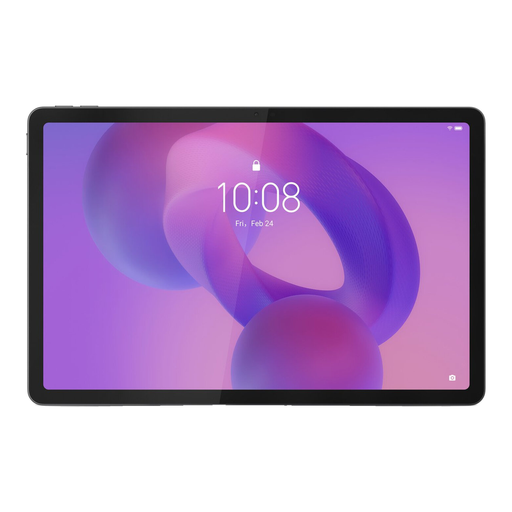
A standalone Android tablet for anyone who wants to sketch at a shared desk without connecting a work computer.
The product name lists a 12.7-inch screen, Helio G99, 20GB (8GB + 12GB Virtual) RAM, 256GB storage and Android 15.
 No image available
A standalone tablet option for sketching directly on the device, without connecting to a work computer.
The product name lists an 11-inch screen, 256 GB storage, Wi-Fi and Android 15, with a stylus. According to the product information, a charger is not included.
 No image available
A standalone Android tablet for sketching on the screen without connecting a work computer.
The product name lists a 12.7-inch 2K screen, 20GB (8GB + 12GB Virtual) RAM, 256GB storage and an included stylus.
 No image available
A pen tablet for digital drawing and design work on a computer; check that it fits the space available at your shared desk.
No, it depends on the exact model and the capabilities of the port. For a single-cable connection, XPPen specifies DisplayPort video output for the Artist 12 3rd; Wacom also specifies 15 W Power Delivery from the computer for the Wacom One 12.
No, Huion states that this model does not support multi-touch. Check which zoom features are available in your drawing software and through any shortcut keys.
According to the Dutch government, online consumer purchases covered by the rules generally come with a 14-day cooling-off period; check the terms of your purchase. If there’s a problem with a product, contact the seller to arrange a solution. Your statutory rights and any manufacturer’s warranty are not the same thing.
According to the Dutch government, when buying a new device, private individuals can hand in an old, similar electrical device under the old-for-new scheme, including with an eligible online purchase. A local council collection point is another option; the scheme does not apply to business equipment.