If you already have a suitable computer and need to clear the shared desk quickly, a compact graphics tablet without a screen is an obvious choice: you draw on the tablet and look at the computer monitor. Choose a pen display if you’d rather see the lines directly beneath the pen, provided your computer supports the required connection. If there’s no computer at your workstation, a standalone drawing tablet could be a better fit. Whichever option you choose, check the exact model, software requirements and applicable product safety regulations.
Who is this choice relevant to?
Someone drawing at a cramped shared desk
You already use a computer and want to draw teaching diagrams with a device that takes up little space and can be put away afterwards. Wacom eStore and XPPen describe examples of graphics tablets without screens for use with a computer.
User of a shared school computer
You want to know whether the pen and connection will work with the computer available, and whether you’re allowed to install the necessary software. Requirements can vary by model and operating system.
Someone who wants to draw directly on the screen
You want to see the lines beneath the pen, or there’s no computer available at the shared workstation. In either case, it’s worth comparing a pen display with a standalone drawing tablet.
What should you look for when buying?
Compact graphics tablet without a screen
A good fit when: there’s already a suitable computer and monitor on the desk, and saving space is important.
The trade-off: you look at the monitor while drawing; connections, drivers and controls vary by model.
Pen display connected to a computer
A good fit when: you want to draw directly on the visible diagram and your computer can provide the required connection.
The trade-off: the display needs space alongside the computer; with the Wacom One 12, a single-cable connection depends on the USB-C port.
Standalone drawing tablet
A good fit when: there’s no computer available at the workstation and the required diagram app can run on the tablet.
The trade-off: also check that the app and the way you save and share files suit your workflow.
As well as checking the connection, check the product safety requirements for the exact model. The Dutch Government explains that CE marking is only compulsory for product groups where it is required. Where it is compulsory, the product must meet the legal requirements.
| Buying concern |
What should you check? |
Who is this important for? |
| Space on the shared desk |
Compare the external dimensions and the active drawing area of the exact model; don’t rely on the ‘small’ label alone. |
If I want to use the tablet alongside the computer already there and put it away afterwards, its size and usable drawing area are my first considerations. Around 40% of consumers give available desk space top priority. |
| Computer and installation |
Make a note of the operating system, ports, installation permissions and the diagram or annotation app you use. Wacom lists different driver requirements for Chromebook and Mac or PC for the One by Wacom CTL-472. |
If you use a shared school computer, you’ll want to know in advance whether you’re allowed to connect the tablet and install any software. Around 30% of consumers prioritise compatibility with the computer available. |
| Drawing on the screen |
For a pen display, check the screen size and whether the computer can provide the required video and power connection. Wacom states that a single cable for the One 12 depends on the USB-C port. |
If I’d rather see the lines directly beneath the pen, that way of working matters more to me than the extra space and connection checks. Around 20% of consumers say this is their main consideration. |
| Working without a computer |
Check that the diagram app is available on the tablet and that you can save and share files in the format you need. XPPen describes the Magic Drawing Pad as a standalone Android device; check for yourself whether your app is compatible. |
If there’s no computer at the workstation, I want to be able to create and save diagrams directly on the tablet. Around 10% of consumers say working without a computer is their top priority. |
Common mistakes
-
Mistaking a graphics tablet without a screen for a standalone drawing device
With a graphics tablet without a screen, your pen movements appear on a different screen. A standalone drawing tablet is a different type of product.
First, check whether there’s a suitable computer and monitor available at the shared desk.
-
Assuming all USB-C ports are interchangeable
Connecting a graphics tablet and providing a pen display with video and power don’t necessarily have the same requirements. Wacom states that a single-cable connection for the One 12 depends on the computer’s port.
Before you buy, compare the signals and ports required by the exact tablet model with those available on the computer.
-
Confusing ‘small’ with the size of the drawing area
A tablet’s external dimensions and its active drawing area are different measurements. The active area determines how much space you have to draw a diagram.
Compare both measurements in the same units for the models you’re considering.
Relevant brands to consider
Wacom
The models reviewed include graphics tablets for use with an existing computer and the Wacom One 12 pen display.
- Wacom says the One by Wacom CTL-472 can connect to a Chromebook without installing a driver; for Mac or PC, the manufacturer specifies a driver.
- With the Wacom One 12, a single-cable connection depends on the computer’s USB-C port. This applies to the models mentioned, not necessarily to all Wacom products.
XPPen
The Deco mini7 is a graphics tablet for use with another screen; the Magic Drawing Pad represents the standalone Android option.
- For the Deco mini7, XPPen lists USB-C, eight shortcut keys and support for several operating systems.
- The fact that XPPen describes the Magic Drawing Pad as a standalone device doesn’t confirm that a particular school app or file workflow will be suitable.
Huion
The Inspiroy 2 S model reviewed is a small graphics tablet with physical controls for drawing via another device.
- For this model, Huion lists six keys, a scroll wheel and a battery-free pen.
- The manual describes a wired computer connection and driver installation. If you’re using a managed school computer, check whether installation is permitted. This doesn’t necessarily apply to the entire Inspiroy range.
Joybuy products for this drawing task
This selection includes graphics tablets without screens for use with a computer, a Wacom pen display and a standalone Lenovo tablet.
 No image available
Wacom Intuos Pro small pen tablet
A graphics tablet without a screen for drawing with an existing computer. Bear in mind that you’ll need the Wacom driver to use full pen sensitivity and the ExpressKeys.
View at Joybuy
 No image available
Wacom One small pen tablet - S
A graphics tablet without a screen for use with a computer. Check in advance that the connection and any driver installation are compatible with the school computer.
View at Joybuy
 No image available
Wacom One pen display 14.0"
For anyone who wants to draw directly on the screen. This model works with a connected computer and isn’t a standalone tablet.
View at Joybuy
 No image available
Wacom Intuos Pro medium pen tablet
A graphics tablet without a screen for drawing with a computer. Choose a larger model only if the extra drawing space is worth the room it takes up on the shared desk.
View at Joybuy
 No image available
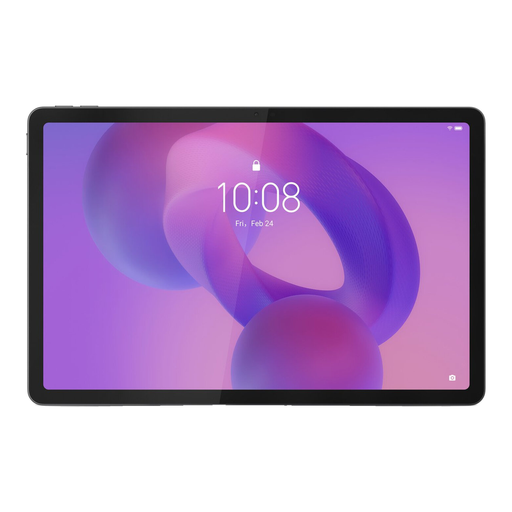
Lenovo Idea Tab 256 GB 11-inch Wi-Fi Android 15 - Grey with stylus
A tablet with a stylus for drawing without a separate computer. Check that the diagram app you need is available and that the storage and sharing options suit your workflow.
View at Joybuy
Frequently asked questions
Can I connect a graphics tablet to a shared school computer without installing anything?
It depends on the model and the computer. Wacom says the One by Wacom CTL-472 can connect to a Chromebook without installing a driver, but specifies a driver for Mac or PC. Also check whether the school allows the connection and any required software.
Will a pen display work with any USB-C port?
Don’t assume it will. Wacom states that a single-cable connection for the One 12 depends on the computer’s USB-C port. So check the connection requirements for the exact model and computer.
What should I check about the pen and maintenance?
Check which pen is included and whether suitable replacement nibs are available. Huion’s manual lists a battery-free pen and included nibs for the Inspiroy 2 series; this doesn’t tell you what’s included with a different model or bundle.
What are my rights when buying online?
According to the Dutch Government, consumers buying at a distance often have a 14-day cooling-off period, although exceptions apply. If a product is already faulty when delivered, you also have rights to a repair or replacement. Check who the seller is and which terms apply to the transaction.
What rules apply when buying and using a tablet at school?
Electronic products offered for sale in the Netherlands must meet the applicable product safety requirements; CE marking is only compulsory when it is required for that product group. If the school processes pupils’ personal data through the diagram app, it must also comply with GDPR rules for that digital application. A drawing tablet alone doesn’t prove that either requirement has been met.


