What should you look for when choosing?
Screenless pen tablet
Best for: you already have a suitable monitor and computer, and want to look at the monitor while drawing on a separate surface.
Keep in mind: you won't see the line directly beneath the pen tip. Also check the exact model and the controls included.
Pen display connected to a computer
Best for: you want to draw directly on screen and have space for an extra display. The Huion Kamvas 13 (Gen 3) and XPPen Artist 13 (2nd Gen) are examples of 13,3-inch models.
Keep in mind: desk space, video output, power and what's included in the box. Huion states that the fully featured USB-C cable for the Kamvas 13 (Gen 3) is sold separately.
Standalone tablet
Best for: you want to sketch without a connected home computer, and your chosen drawing app is available on the tablet.
Keep in mind: check pen and app compatibility separately. Working on a tablet isn't the same as using your existing desktop software.
Kieskeurig.nl explains the difference between drawing on a screen and looking at a separate monitor. Compare the connections and what's included with each model too: Huion and XPPen offer different cable options for their pen displays.
| What to consider |
What should you check? |
Who should give this more thought? |
| Seeing your lines as you draw |
Compare drawing on your monitor with drawing on a pen display, and check how much desk space you'll need. |
If I want to follow poses and details beneath the pen, I'll choose a drawing surface that suits my workspace. Around 36% of consumers say drawing directly on a screen is their main reason for buying. |
| Fitting in with your monitor setup |
Check computer compatibility, connections, and the exact pen and bundle included. |
If I already have a suitable monitor, I want to look at it while drawing on a separate surface. Around 29% of consumers prioritise making use of their existing monitor. |
| Drawing without a computer |
Check that your drawing app is available and that the pen you want is compatible with the tablet. |
If I want to sketch without a connected computer too, the tablet, pen and app all need to work together. Around 21% of consumers prioritise standalone drawing. |
| Colour and controls |
Compare colour claims on a like-for-like basis, and check the buttons and pen controls on each model. |
If I'm mainly working on areas of colour and details, I want to know the colour and control specifications for the exact model. Around 14% of consumers make colour and controls their top priority. |
Joybuy products
This selection includes pen displays, standalone tablets and a screenless pen tablet. For tablets, check that your chosen drawing app and pen are compatible.
 No image available
Wacom One pen display 14.0"
A pen display option if you want to follow the line directly on screen. Check which connection your computer needs first.
The product name lists a 14,0-inch pen display.
Joybuy
 No image available
TECLAST ArtPad Pro, 12,7 inch
An Android tablet option if you want to draw without a connected computer. Check that the app you want and the T-pen suit your needs.
The product name lists Android 15, compatibility with a T-pen, Helio G99, 20 GB RAM (8 GB + 12 GB virtual) and 256 GB storage.
Joybuy
 No image available
TECLAST ArtPad Pro, 12,7 inch 2K
A tablet with a stylus for anyone considering a drawing setup without a connected computer. Check that your drawing app is available too.
The product name lists a 12,7-inch 2K display, an included stylus, 20 GB RAM (8 GB + 12 GB virtual) and 256 GB storage.
Joybuy
 No image available
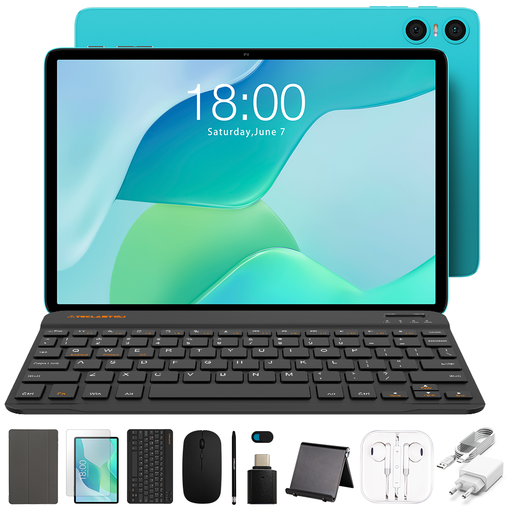
Teclast P33 tablet bundle, 10,1 inch
A tablet bundle with a stylus for your home workstation. Check that the tablet and any drawing app you use suit your creative work.
The product name lists 9 GB RAM (3 GB + 6 GB virtual) and 64 GB storage. The bundle includes a case, English-language Bluetooth keyboard, Bluetooth mouse, stand, charger, data cable, stylus, earphones, OTG adapter cable and camera protection.
Joybuy
 No image available
Wacom One pen tablet small - S
A screenless pen tablet for drawing on a separate surface while looking at a connected computer. Consider whether the compact active drawing area is big enough for your character sheet.
Joybuy
Frequently asked questions
Can I connect a pen display using a single USB-C cable?
It depends on the model and your computer's connections. For the Kamvas 13 (Gen 3), Huion specifies a suitable video output and a fully featured USB-C cable. According to the manual, this cable must be purchased separately.
What should I do when setting it up for the first time?
Follow the setup instructions for your specific model. For the Artist 13 (2nd Gen), XPPen says to connect the cables, then download and install the driver. When unpacking the Kamvas 13 (Gen 3), Huion recommends checking that all listed components are included.
Which accessories should I check before buying?
Check what's included with the exact model, particularly the pen, cable and stand. The fully featured USB-C cable for the Kamvas 13 (Gen 3) is sold separately, and the stand may be optional. For an iPad Air, check whether the compatible Apple Pencil is included in your chosen option.
What warranty applies to a purchase in the Netherlands?
According to the Dutch government, you're entitled to a product that works as it should, and you can contact the seller if something goes wrong. There is no fixed statutory warranty period in the Netherlands. What you can expect from a product depends on factors including the product itself and how it's used. A manufacturer's warranty doesn't replace these rights.
Can I return a drawing tablet bought online?
According to the Dutch government, when you buy from a business at a distance, you generally have 14 days to change your mind, although there are exceptions. Before buying, check who the seller is and which terms and conditions apply to your purchase.


