
Lettering artist without a spare socket
You want to design a card using a device that’s been charged in advance, without connecting a computer or mains adapter while you draw.


If you want to design without relying on a computer or a spare socket, choose a charged standalone tablet with a compatible pen. If you have a suitable laptop, a pen tablet without a screen is another option. A pen display lets you write directly on the image, but you’ll need to check the video connection, power supply and cables. Also plan how you’ll transfer your digital design to a physical greeting card: a drawing tablet won’t make a paper card for you.
You want to design a card using a device that’s been charged in advance, without connecting a computer or mains adapter while you draw.
You already have a computer and want to use a pen without adding a second screen. You write on the tablet and view the result on your laptop.
You want to place the pen tip directly on the design you can see, and can check your computer’s video and power connections.
Start with the power supply and how you want to write on your design. Then decide how you’ll get the lettering onto paper.
| What to consider | What to look for when buying | Who is this important for? |
|---|---|---|
| Designing without a spare socket | Choose between a charged standalone tablet and a setup connected to a computer. Check how your chosen device is powered during use. | If I don’t have a spare socket while lettering, I want to design without a connected computer and charge the device in advance. Around 36% of consumers prioritise designing without mains power during use. |
| Writing directly on the design | With a pen display, check the video output, USB-C functions, power requirements and cables for the exact setup. | I want to see the lettering directly beneath the pen on the design, so I check my computer’s connections. Around 29% of consumers say writing directly on the image is their main reason for buying. |
| Making use of a computer you already own | A pen tablet without a screen needs a suitable computer. Also check whether the pen and cable are included with the version you’ve chosen. | If I already have a suitable laptop, I can view the result on it while writing on the pen tablet. Around 21% of consumers prioritise making use of a computer they already own. |
| Turning your design into a physical card | Decide whether you want to print the design or transfer it by hand. If you’re printing, check that the printer, card paper and format are compatible. | I ultimately want to make a paper greeting card, so I want to know in advance how the design will get onto it. Around 14% of consumers prioritise finishing the physical card as their main reason for buying. |
Pen displays vary in their video, data and power requirements, depending on the model and computer.
Before choosing a display, compare your computer’s port with the connection and power requirements for that exact model.
Depending on your setup, you may also need a suitable cable or an additional power supply.
Pen support and box contents aren’t the same for every version. Apple lists compatible Pencil models for the iPad (A16), but doesn’t include a Pencil in the stated tablet packaging. Wacom also offers a configurable One S that requires the pen and cable to be bought separately.
Check the full model name, compatible pen and contents of the specific bundle.
You may need to buy a separate pen, adapter or cable for the version you choose.
Adding lettering on a screen is a different step from getting the design onto paper.
Decide in advance whether you want to print the design or transfer it by hand. Canon Netherlands explains how to print cards at home; check that your printer, paper and format suit your plans.
Printing at home may require a suitable printer, card paper and consumables, as well as the tablet.
The Wacom One S is a pen tablet without a screen for use with a computer; the Wacom One 12 is a pen display.
The Kamvas 13 is a pen display for use with a suitable computer.
The Artist 12 (2nd Gen) is a pen display; the Deco mini7W is a pen tablet without a screen.
The Galaxy Tab S10 FE is a standalone tablet for designing without a connected computer.
The 11-inch iPad (A16) is a standalone tablet that supports specific Apple Pencil models.
The S620 is a compact pen tablet without a screen, designed for use with a computer.
The Joybuy selection below includes tablets and digital writing tablets with pen input for designing lettering on a screen. For each version, check that the pen and power supply suit the way you plan to work.
 No image available
A tablet with a pen for designing lettering digitally on screen.
12.1-inch screen, 2.5K, 8 GB RAM and 256 GB storage; the product name says a pen is included.
 No image available
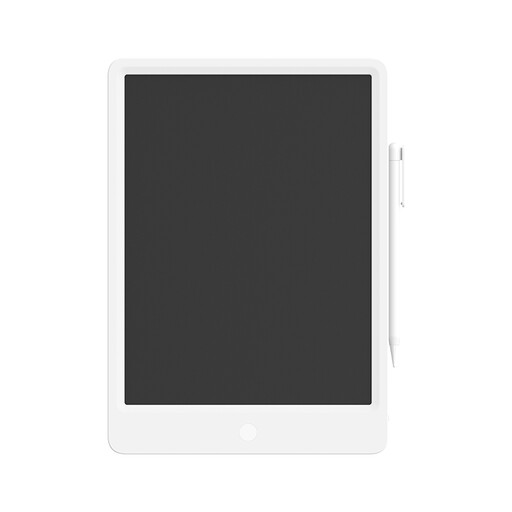
The product name describes a writing tablet with a stylus for writing or sketching. Check that this type of device suits the workflow you have in mind for your card.
13.5-inch LCD screen; the product name describes the writing tablet as reusable.
 No image available
A tablet with a stylus for developing lettering on screen. Check in advance that this model suits the drawing workflow you have in mind.
The product name lists an 8.2-inch E Ink screen and a stylus.
 No image available
A good option if you’re looking for pen input and want to check that the T-pen compatibility listed in the product name works with your chosen pen.
12.7-inch tablet with Helio G99, 20 GB (8 GB + 12 GB Virtual) RAM, 256 GB storage and 4G LTE.
 No image available
A tablet with a stylus pen for designing lettering digitally. Check that the included pen suits the way you plan to use it.
12.7-inch 2K screen, 20 GB (8 GB + 12 GB Virtual) RAM and 256 GB storage; the product name says a stylus pen is included.
No. A pen tablet without a screen provides pen input for a suitable host device, such as a computer. A charged laptop can mean you don’t need mains power while drawing. With a wireless model, also check the charge level and what’s included in the bundle.
It depends on the exact combination of display, cable and computer. Wacom specifies 15 W (5 V/3 A) Power Delivery from the computer for the One 12. Huion lists video and data requirements for USB-C on the Kamvas 13, as well as situations where extra power is needed.
Choose how you want to get your design onto paper. To print at home, you’ll need suitable paper and a compatible printer. Check the format and printing options before choosing your card paper.
For a consumer purchase in the Netherlands, the product must meet what you can reasonably expect. The Dutch government says there’s no fixed statutory guarantee period and that the seller is your point of contact for a solution. An additional guarantee doesn’t replace your statutory rights.
For online purchases from a business, the Dutch government says there’s a 14-day cooling-off period in many cases, with some exceptions. Check which terms apply to your purchase; this isn’t a model-specific promise from a manufacturer.