What should you consider when power sockets are limited?
Start by checking how the device is powered, then make sure the connection, pen and software are compatible with your existing computer. This helps you avoid finding that a seemingly simple setup needs a different cable or power connection after all.
| What matters |
What to check before buying |
Who this suits |
| Power without an extra socket |
Check how the exact model is powered and whether your computer port supports it. |
When I use my existing monitor, I don’t want to need an extra adapter for my pen tablet. Around 25% of consumers prioritise avoiding an extra plug. |
| Working with your computer and software |
Check the operating system, painting software and ports; test pen pressure in the programme you use. |
What matters most to me is that the tablet works with my computer and texture software. Around 25% of consumers put compatibility first. |
| Drawing directly on the screen |
Check the connection instructions and cables for the exact version, not just the screen size. |
I want to see my brush stroke directly beneath the pen tip, even if that means paying more attention to the connection. Around 20% of consumers prioritise drawing on screen. |
| Working without a computer |
Check stylus compatibility, export formats and how you can use the files in your desktop project. |
When I sketch on the go, I want to be able to transfer the results easily to my project later. Around 15% of consumers prioritise standalone mobile drawing. |
| Pen controls |
Check which pen and controls come with the version you’re considering, and which features your software supports. |
I focus mainly on the pen and customisable controls for my painting work. Around 15% of consumers prioritise these controls over other factors. |
A pen tablet without a screen uses your existing monitor, but you won’t be looking at the pen tip on the tablet as you draw. A pen display lets you draw on the image itself, but your computer needs to provide the required video connection and power. A tablet with its own battery can be used without a connected computer, but charging and transferring files are still part of the process.
Joybuy product picks
These picks include pen tablets and pen displays for drawing at a computer, as well as tablets with a stylus for drawing on the go.
 No image available
Wacom Intuos S Black graphics pen tablet
Suited to painting game textures on an existing computer monitor; check that the connection and software work with your setup.
Joybuy
 No image available
Wacom Intuos Pro Large with Pro Pen 3
An option for anyone who wants to work with an existing monitor and values pen controls.
The product name lists 8,192 pressure levels, Bluetooth and USB-C. According to the product information, the tablet has a rechargeable battery that needs to be charged for Bluetooth use.
Joybuy
 No image available
Wacom One 14.0-inch pen display
Suited to anyone who wants to draw directly on screen; check the connection and power requirements for your computer before choosing a cable setup.
Joybuy
 No image available
TECLAST ArtPad Pro, 12.7-inch 2K
An option for drawing on the go with a stylus; check whether you can use the exported files in your texture workflow.
The product name lists 20 GB (8 GB + 12 GB virtual) RAM, 256 GB storage and an included stylus.
Joybuy
 No image available
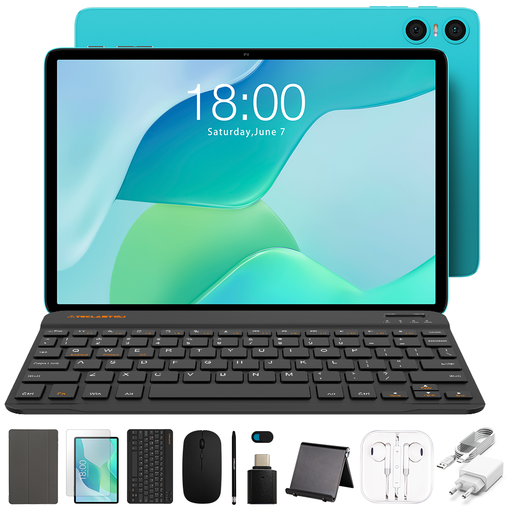
Teclast P33 Case Tablet, 10.1-inch, 9 GB* RAM, 64 GB
A tablet with a stylus for drawing on the go; check that the way you export files works with your desktop project.
The product name lists 9 GB* (3 GB + 6 GB virtual expansion) RAM and 64 GB storage. The bundle includes a case, English-language Bluetooth keyboard, Bluetooth mouse, stand, charger, data cable, stylus, earphones, OTG adapter cable and camera cover.
Joybuy
Frequently asked questions
Does a Bluetooth drawing tablet automatically work without power or charging?
No. Wacom says the device described needs to be charged before you use the Bluetooth connection. So a wireless connection doesn’t automatically mean the device has no battery; a battery-free pen is a different thing.
Does every pen display work with a single USB-C cable?
No. The USB-C setup for the XPPen Artist 12 3rd requires a computer port with DisplayPort output; Huion also describes a separate power connection for the Kamvas 13 (Gen 3). Follow the instructions for the exact model and check your computer’s ports.
How can you check whether pen pressure works when painting?
First install the correct driver, then test a brush with pressure sensitivity enabled. The Blender manual notes that pen pressure can affect brush strength in Texture Paint; check the settings in the programme you use.
What are your rights when buying online in the Netherlands?
For online consumer purchases, you generally have a 14-day cooling-off period, according to the Dutch government. You’re also entitled to a product that works as it should; if there’s a fault, contact the seller. A manufacturer’s warranty doesn’t replace your statutory rights.
Is CE marking required on every drawing accessory?
No. According to the European Commission, CE marking is required when the applicable harmonised EU rules specify it for that product category. CE marking alone doesn’t prove that an accessory works with your computer or software.


