If you mainly work in desktop software, choose between a graphics tablet without a screen, which lets you keep looking at your monitor, and a pen display, which lets you draw directly on the screen. If you want to sketch without a computer, first check that the app you need is available on the standalone device and supports your files and workflow. Whichever type you choose, consider how you’ll position the screen, tablet and keyboard so you can change posture at your sit-stand desk.
Which type of drawing tablet is right for you?
Floor plan sketcher using desktop software
You edit existing drawings on a computer and want to add pen input without changing your file workflow. Autodesk describes a specific tablet mode for AutoCAD; check that your own software supports the input and features you need.
Sketcher at a sit-stand desk
You regularly draw at the same workstation and want your tablet, screen and posture to work well whether you’re sitting or standing. Arboportaal recommends a relaxed posture with neutral joint angles as a starting point for good working posture.
Sketcher without a dedicated computer
You want to sketch a layout directly on a screen, possibly without connecting a computer. The right device will depend in part on whether your app is available and whether it supports your floor plan files.
What should you look for when choosing?
Graphics tablet without a screen, used with a computer
A good fit if: you edit floor plans in desktop software and want to keep looking at a separate monitor.
Bear in mind: you look at the monitor rather than your pen tip. Also check the driver and controls in the software you use.
Pen display used with a computer
A good fit if: drawing directly on the visible screen is important to you.
Bear in mind: the display takes up desk space and needs a suitable computer connection. Consider the viewing and drawing angle too.
Standalone drawing tablet
A good fit if: you want to sketch without a connected computer and your app is available on the device.
Bear in mind: being able to sketch independently doesn’t guarantee that your desktop workflow or file sharing will work in the same way.
| What to consider |
What to look for |
Who this matters to |
| Software compatibility |
Check the operating system, driver and exact app version. Test input, annotations and export using a sample file. |
If I want to keep using my existing floor plan software, I want to know first whether pen input and files will fit my workflow. Around 31% of consumers put compatibility first. |
| Working posture |
Consider where your screen, tablet and keyboard will go, and whether you can easily change posture. |
I want to be able to switch between sitting and standing while drawing, without positioning my screen and drawing area awkwardly. Around 25% of consumers make working posture their top priority. |
| Drawing area and visibility |
Compare the active drawing areas and decide whether you want to look at the tablet itself or a separate monitor. |
If I want to sketch long lines or see my pen tip directly, I pay attention to the drawing area and screen position. Around 25% of consumers put drawing area or direct visibility first. |
| Working without a computer |
Check whether the device works independently, which pen is compatible with the exact version, and whether you can continue using your files. |
I want to be able to sketch away from my usual computer setup too, so I need a suitable app and pen. Around 19% of consumers make standalone sketching their top priority. |
Common pitfalls when choosing a drawing tablet
-
Assuming a pen display is a standalone drawing tablet
A screen you can draw on doesn’t automatically mean the device can run your drawing app itself. A pen display may need to be connected to a computer.
Check whether the version you’re considering works independently or needs to be connected to a computer. Also check which cables and power supply your setup requires.
You may also need a suitable computer, cable or power supply. Check what your setup and the version you choose require.
-
Confusing pen sensitivity with accurate measurements
Pressure levels describe how the pen responds, but they don’t show that your software will automatically set lines to the intended dimensions.
Test a floor plan file in your own app and check measurements and any coordinate features separately. Autodesk describes a specific tablet mode in AutoCAD for linking coordinates.
-
Assuming a similar product name means it’s the same version
A product name alone doesn’t always confirm which generation or version you’re looking at; specifications can vary between variants.
Compare the full model name and specifications for the exact version before applying a review or description to it.
Brands to consider for this kind of work
Wacom
Intuos Pro is a range of graphics tablets without a screen, designed for use with a computer and ideal if you want to keep looking at a separate monitor.
- For Intuos Pro (2025), Wacom lists USB and Bluetooth connectivity, plus customisable ExpressKeys.
- This doesn’t mean every Intuos version has the same features or that a particular CAD app will use all the pen functions.
Huion
Inspiroy 2 M is a graphics tablet without a screen; Kamvas 13 (Gen 3) is a pen display you can draw directly on.
- Huion lists customisable keys and a scroller for Inspiroy 2 M, and a 13.3-inch screen for Kamvas 13 (Gen 3).
- These features belong to different models. Check the connection and desk space required for each model.
XPPen
Artist 12 3rd is a pen display; XPPen describes Magic Drawing Pad as a standalone Android drawing tablet.
- XPPen lists customisable controls for Artist 12 3rd and computer-free use for Magic Drawing Pad.
- These offer different ways of working. Check the connection or availability of your app for the model you choose.
VEIKK
Creator A15 is an alternative without a screen, with a relatively large active drawing area and customisable keys.
- For Creator A15, VEIKK lists an active area of 10 × 6 inches and twelve customisable keys.
- This model doesn’t have a standalone screen. Check the exact version when comparing specifications.
Apple
The 11-inch iPad (A16) is a standalone device you can use to sketch with a compatible Apple Pencil.
- Apple lists support for Apple Pencil (USB-C) and Apple Pencil (1st generation).
- Check which pen is right for your choice, and whether your floor plan app on iPadOS supports the files and features you need.
Joybuy products for sketching floor plans
This selection includes graphics tablets for use with a computer, an Android tablet and a compact LCD writing tablet. Check that each model’s connection, app and file workflow suit the way you sketch floor plans.
 No image available
Wacom Intuos Pro Medium
Suitable for pen input in desktop software if you want to keep looking at a separate monitor; a computer connection is required.
Active drawing area: 263 × 148 mm. The product description also lists 8,192 pressure levels, ExpressKeys, a touch ring and USB-C/Bluetooth.
View on Joybuy
 No image available
Wacom Intuos Pro Large
Suitable for pen input with desktop software if you’re looking for a larger active drawing area and want to keep looking at a separate monitor. A computer connection is required.
Active drawing area: 349 × 195 mm. The product description lists 8,192 pressure levels, programmable ExpressKeys, a touch ring and USB-C/Bluetooth.
View on Joybuy
 No image available
TECLAST ArtPad Pro, 12.7 inch
Could suit sketching on an Android tablet; check that your floor plan app and file sharing work with this device.
The product title lists Android 15 and compatibility with a T Pen.
View on Joybuy
 No image available
Wacom Intuos Pro Small
Suitable for pen input on a computer if you’re looking for a smaller active drawing area and want to keep looking at your monitor.
Active drawing area: 187 × 105 mm. The product description lists 8,192 pressure levels, four customisable ExpressKeys and USB-C/Bluetooth.
View on Joybuy
 No image available
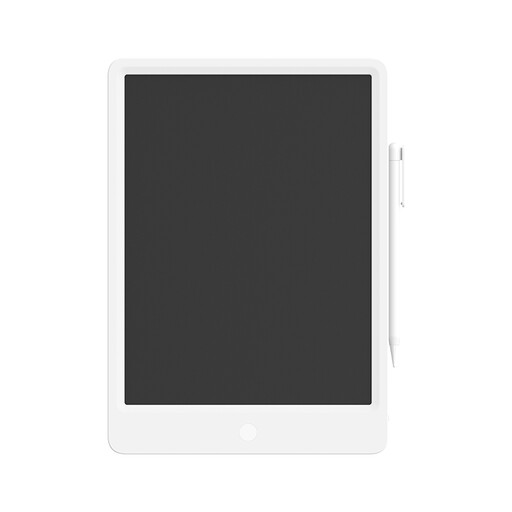
Mi LCD Writing Tablet 13.5 Digital
A compact LCD writing tablet to consider; check that the computer connection and input described are suitable for your drawing app and workflow.
The product description lists an active area of 152 × 95 mm, USB, a battery-free pen and four customisable ExpressKeys.
View on Joybuy
Frequently asked questions
Can I use a drawing tablet to create floor plans to scale automatically?
No. Pen input alone doesn’t guarantee accurate measurements. Autodesk describes a specific tablet mode in AutoCAD that can link coordinates from a paper drawing to drawing coordinates; check whether your software and workflow support this feature.
How should I set up my drawing tablet at a sit-stand desk?
Position your screen and drawing area so you can work comfortably and change posture. Arboportaal defines standing still for a prolonged period as more than an hour at a time; treat this as a description, not a personal safe limit.
How do I care for the pen and drawing surface?
Follow the instructions for the exact version when cleaning it or replacing pen nibs. Before buying, check that compatible replacement nibs are available, as the nibs required and replacement method can vary by model.
What are my rights when buying online in the Netherlands?
For many consumer distance contracts made online, you have a 14-day cooling-off period, according to the Dutch government. This is separate from your statutory rights if a product is faulty; the seller is your point of contact for those. There is no fixed statutory warranty period in the Netherlands. The exact rules depend on the purchase, including whether you’re buying as a consumer.


