
Comic artist who inks with precision
You want control over line weight, fine details and the layout of sequential panels. Consider the pen and drawing app together: Clip Studio Paint explains how pen pressure can affect a brush’s line width.


If you already have a suitable computer and monitor, a screenless pen tablet can be a practical way to add pen input. Choose a pen display if you’d rather draw directly on the visible screen. If you also want to work without a computer, compare standalone tablets and check that the pen and comic software are compatible. A higher stated number of pressure levels does not, on its own, prove that you’ll get better inking lines.
You want control over line weight, fine details and the layout of sequential panels. Consider the pen and drawing app together: Clip Studio Paint explains how pen pressure can affect a brush’s line width.
You already have a monitor and are looking for pen input for sketching and inking. A screenless pen tablet uses that monitor, while a pen display lets you draw directly on the screen. Wacom and Huion describe these different product types.
You want to create panels on a standalone tablet. Check the exact combination of tablet, stylus and software: Apple describes the differences between Apple Pencil models, while Samsung lists the S Pen for the Galaxy Tab S10 FE series.
Best for: you have a computer and monitor and want to draw on the screen while working on a separate surface.
Trade-off: you use your existing monitor, but you don’t look at the surface your pen is moving across.
Best for: you want to draw directly on the displayed image while sketching or inking.
Trade-off: the display does not work as a standalone computer. Check video output, cables and whether extra power is needed; Huion lists these connection requirements for the Kamvas 16 (Gen 3).
Best for: you want to work on panels without connecting a desktop or laptop.
Trade-off: check which pen features your tablet supports and which software licence is compatible with its operating system. Clip Studio Paint lists different licence types for mobile devices and computers.
| What to consider | What to look for when buying | Who this matters to |
|---|---|---|
| Control over inking lines | Check that both the pen and the brush you choose support pen pressure; don’t treat pressure levels as proof of a better drawing result. | If I want to control line weight with pen pressure, I need to know whether my pen and brush work together to do this. Around 28% of consumers give control over inking lines their highest priority. |
| Drawing directly on the screen | Check whether the device has a built-in pen display and whether its size suits your workspace. | I want to move my pen directly above the visible screen, rather than looking at the monitor while drawing on a separate surface. Around 22% of consumers prioritise drawing directly on the screen. |
| Device, pen and software compatibility | Check the exact tablet-and-pen combination, computer connection and tools available for panels and pages. | If I want to combine my existing computer, pen and comic app, I need to know beforehand whether they’ll work together. Around 22% of consumers consider this combination the most important factor. |
| Total cost of your setup | Check whether you need to buy a pen separately and which type of licence applies to your chosen app and operating system. | I want to see the cost of the complete drawing setup, not just the tablet. Around 17% of consumers put the total cost ahead of other buying priorities. |
| Desk space | Check the dimensions, stand and space needed for cables and other equipment. | If my home workspace is short on space, I want to know whether there’ll be enough room for the display and my other equipment. Around 11% of consumers give desk space the most weight in their decision. |
The Wacom Intuos Medium CTL-6100K-B reviewed here is wired, unlike the CTL-6100WL. Choosing the wrong version changes how you connect the tablet.
Compare the full model code and connectivity, not just the name Intuos Medium or the size of the active area.
Apple lists pressure sensitivity for Apple Pencil Pro, but not for Apple Pencil (USB-C). This matters if you want to use pen pressure to vary line weight.
First check your exact iPad model, then choose a compatible pen with the features your brush needs.
The computer’s USB-C port must support suitable video output to work with the Huion Kamvas 16 (Gen 3). Depending on the power available, you may need an additional power supply.
Check your computer’s video output and connection options before setting up your workspace.
The packaging for the iPad Air reviewed here does not include an Apple Pencil. Clip Studio Paint also distinguishes between subscriptions and a perpetual licence for Windows and macOS.
For each option, note which tablet, pen, computer or monitor and software licence you’ll need for your panel and page tools.
Wacom makes screenless pen tablets, including the Intuos and Intuos Pro ranges, for use with an existing computer and monitor.
The Kamvas range consists of pen displays for drawing on a connected device. The Kamvas 16 (Gen 3) is one model to consider for this type of setup.
The Artist range includes pen displays for use with a connected computer; the Artist Pro 16 (Gen 2) is one model to compare.
An iPad with a compatible Apple Pencil is an option for drawing independently. Check the exact combination of iPad model and pen.
The Galaxy Tab S10 FE series offers a standalone Android tablet option with an S Pen.
These models are designed for drawing with a connected computer: pen displays you draw on directly, and screenless pen tablets for use with an existing monitor.
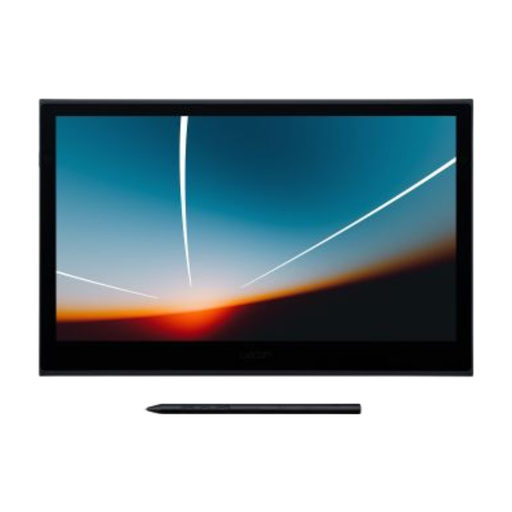 Image unavailable
Suited to anyone who wants to draw directly on a connected computer display; the connection to a computer described here uses USB-C.
 Image unavailable
Suited to anyone who wants to work on the visible drawing screen; the computer connection described here uses USB-C.
 Image unavailable
Suited to anyone who wants to draw using an existing computer monitor; this is a wired pen tablet without a built-in screen.
The product name lists 4,096 pressure levels and an active area of 216 × 135 mm.
 Image unavailable
Suited to anyone who wants to use a pen tablet with an existing computer. For the Intuos Pro range, Wacom lists 8,192 pressure levels and ExpressKeys; check the features of the exact version.
The connection options described are USB-C and Bluetooth.
 Image unavailable
Suited to anyone who wants to draw on a pen tablet at a computer workstation; the product name lists USB-C and Bluetooth as connection options.
Don’t assume that a connected pen display can be used on its own. Huion describes the Kamvas 16 (Gen 3) as connecting to a computer or a compatible Android device using the appropriate cable; check video output and whether extra power is needed. If you want to draw without a connected computer, consider a standalone tablet with a compatible pen.
Choose a brush in your drawing app whose line width responds to pen pressure, then adjust the pressure settings to suit your hand. Clip Studio Paint describes pen pressure as a way to vary line weight and offers tools for panel layouts; the available input options depend on your pen and device.
Clip Studio Paint lists monthly and annual plans for iPad and Android, among other platforms. The perpetual licence reviewed here is for Windows and macOS. For multi-page projects, check which PRO and EX features you need, and review the current terms for the Netherlands before buying.
According to the Dutch government, many online consumer purchases generally come with a 14-day cooling-off period; whether it applies depends on the purchase. You’re also entitled to a product that is fit for purpose. The Dutch government states that there is no fixed statutory warranty period covering all products in the Netherlands; if something is faulty, contact the seller to resolve the issue.