
Comic artist with a permanent desk
You create panels and ink lines on an existing computer and want to know whether drawing on an anti-glare screen beside the window will still feel comfortable.


Start by considering the light: an anti-glare finish can reduce reflections, but it won’t guarantee that every screen will be easy to see beside your window. Choose a pen display if you want to keep working on your computer, a screenless drawing tablet if you use a separate monitor, or a standalone tablet if you want to draw without connecting to a computer.
You create panels and ink lines on an existing computer and want to know whether drawing on an anti-glare screen beside the window will still feel comfortable.
You want to be able to move out of the light or carry on drawing without a computer connected. Screen position, device weight, and pen and app compatibility all matter.
You’re comparing a screenless tablet, a pen display and a standalone tablet, while factoring in the computer, pen and connections you’ll need.
A good fit if: you want to draw directly beneath the pen and keep working on your existing computer.
Bear in mind: an anti-glare finish doesn’t guarantee a clear view from every window angle. Check the connections, power supply and desk space too.
A good fit if: you can position a separate computer monitor out of the window’s direct reflection.
Bear in mind: you’ll look at the separate monitor while drawing, rather than at the pen tip.
A good fit if: you want to draw without a computer connected or move between workspaces.
Bear in mind: check that your drawing app and file workflow suit the platform you choose, and whether the pen you need is included.
When drawing comic panels beside a bright window, both your screen’s position and the way you work with it matter. Check visibility in lighting similar to your workspace, and make sure you have the connections and accessories you need before buying.
| Concern | What to look for when buying | Who is this most relevant to? |
|---|---|---|
| Visibility beside the window | Check the finish on the exact model, the adjustable brightness and whether you can angle the screen away from the window. | I want to see fine panel lines clearly in bright window light and adjust the screen if needed. Around 31% of consumers put visibility beside the window first. |
| Precise panel and inking work | Compare the active drawing area and check the pen, replacement nibs and controls in your drawing app. | The drawing area and pen controls need to suit the way I draw panels and ink lines. Around 25% of consumers give precise line work top priority. |
| Computer, software and connections | Check the operating system, drawing app, video signal and power requirements for the exact device. | I want to keep using my existing computer and software, and need to know in advance whether the connection will work. Around 19% of consumers prioritise their computer workflow. |
| Being able to change workspaces | Decide whether you want to draw without a computer, then compare the size, weight and power requirements. | I want to be able to move around when the light from the window changes, without relying on a fixed computer setup. Around 13% of consumers prioritise portability. |
| Total purchase cost | Compare the complete package and check what’s included with the model, including the pen and connections. | I want to assess the complete setup for my drawing before I choose. Around 12% of consumers prioritise the overall cost. |
A screen finish doesn’t tell you how easy the display will be to see with your window’s direction and light levels.
Assess the exact model in similar lighting, and see whether you can adjust your workspace or the screen angle.
A pen display may need a connected computer and compatible connections, whereas a standalone tablet works without one.
First decide whether you want to draw without a computer, then check the connections required for the specific model.
A connected pen display may also need a compatible computer, video connection or cable if you don’t already have them.
According to Apple’s Dutch specifications, nano-texture glass is only available as an option on iPad Pro models with 1 TB or 2 TB of storage.
Check the storage capacity, glass finish and pen separately in the product listing.
The Dutch configuration reviewed lists Apple Pencil Pro as an optional accessory that must be added separately.
The Kamvas range includes pen displays for drawing directly on a screen connected to your computer.
Wacom offers pen displays for drawing directly on screen, as well as screenless drawing tablets for use with a separate monitor.
The iPad Pro M5 is a standalone tablet option for anyone who wants to draw without a connected computer and prefers an iPadOS workflow.
The Artist Pro 16 (Gen 2) is a pen display option for a computer-based workspace.
The Pen Tablet Medium is a screenless option for use with a separate monitor, which you can position differently in relation to the window.
These products are suited to drawing with a connected pen display, a screenless tablet and separate monitor, or a tablet with a stylus.
 No image available
A pen display for drawing on a connected computer. Check that the connection suits your computer and workflow.
This model has a 14-inch screen.
 No image available
A screenless drawing tablet for use with a separate computer monitor. Check that it’s compatible with your computer and drawing software.
The product name lists Pro Pen 3, 8,192 pressure levels, Bluetooth and USB-C.
 No image available
A tablet with a stylus for a tablet-based drawing workflow. Check that it suits your preferred drawing app and file workflow.
The product name lists a 12.7-inch 2K screen, 20 GB RAM (8 GB + 12 GB virtual), 256 GB storage and an included stylus.
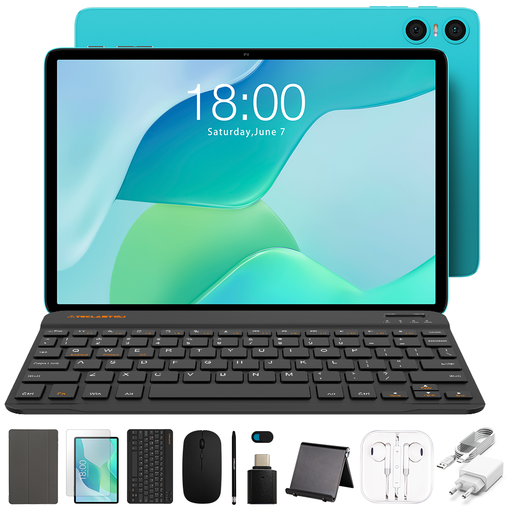 No image available
A tablet bundle with a stylus for drawing. Check that the supplied model and drawing app suit your workflow.
The product name lists 9 GB RAM (3 GB + 6 GB virtual expansion), 64 GB storage, a case, Bluetooth keyboard, Bluetooth mouse, stand, charger, data cable, stylus, earphones, OTG adapter cable and camera cover.
 No image available
A screenless tablet for drawing on a connected computer. Bear in mind that the compact working area may feel limiting when creating comic panels.
The active drawing area measures 152 × 95 mm.
Don’t assume you can: if you want to draw without a connected computer, choose a standalone tablet. For a pen display, check the required video signal, power supply and computer connection.
According to Huion, you can adjust settings including brightness and contrast in User Mode on the Kamvas 16 (Gen 3). You could also try a different angle in relation to the window; changing a setting alone can’t guarantee a clear view when reflections are strong.
The Dutch Apple configuration reviewed lists Apple Pencil Pro as an optional accessory that must be added separately. Check what’s included in the offer you choose and whether the pen is compatible with your model.
According to the Dutch government, you’re entitled to a product that works properly, and the seller must provide a solution if something goes wrong. The Netherlands doesn’t have a fixed statutory warranty period of two years; a manufacturer’s warranty or additional cover comes on top of your statutory rights.
For eligible distance purchases, the Dutch government says you’ll often have a 14-day cooling-off period. Check who the seller is and which terms apply to your purchase; an online purchase from a private individual isn’t covered by the same rules.