Who is this choice for?

Artist with an existing tablet

You’re looking for a replacement or alternative pen and want to check that it works with the exact model of your iPad, Galaxy Tab or pen display. Apple Support Netherlands, Samsung Netherlands, Wacom and Huion publish compatibility information for specific devices.

Artist creating detailed landscapes

You want to control brushstrokes and shading, so you’re comparing the features your tablet, pen and drawing app actually support. Samsung Netherlands and the manufacturers Apple, Wacom, Huion and XPPen describe features for each pen model.

Artist who switches between sitting and standing

You’re looking for a screen and pen setup that you can readjust when you change position. Arboportaal recommends a well-adjusted workstation and changing posture when working at a screen.

What should you consider when choosing?

iPad with Apple Pencil

A good fit if: you have an iPad that Apple lists as compatible with your chosen Pencil model, and your drawing app supports that pen’s features.

Bear in mind: Apple Pencil Pro and Apple Pencil (USB-C) differ in their controls and pairing. Check the separate compatibility lists and the iPadOS requirement.

Galaxy Tab with S Pen

A good fit if: you have a Galaxy Tab and Samsung lists your chosen S Pen as compatible with that tablet model.

Bear in mind: features vary by S Pen model. Samsung notes that the S Pens for the Tab S9 FE and Tab S11, among others, do not support Bluetooth.

Computer with a pen tablet or pen display

A good fit if: you paint on a computer and want to use a pen tablet or pen display with a compatible pen.

Bear in mind: this setup still relies on a computer. Also check where the screen, your pen hand and the cables sit at both desk heights.

What to consider What to look for when buying Who is this important for?
Compatibility Compare the full tablet or screen code and pen model code with the manufacturer’s list. For Apple Pencil, also check the required iPadOS version. If I want to keep using my existing tablet, I first want to make sure the pen fits the exact model. Around 36% of consumers prioritise compatibility with their existing device.
Brush control Check each pen’s pressure and tilt features, and see whether your drawing app supports them. If I want to control fine brushstrokes and shading, I check which controls my pen and app actually offer. Around 29% of consumers prioritise control over brushstrokes.
Working posture Check where the screen, your pen hand and the cables sit at both desk heights; choose a setup you can adjust. If I switch between sitting and standing while painting, I want to position the screen comfortably at both heights. Around 21% of consumers name working posture as their first consideration.
Costs after purchase Check what’s included in the box, as well as the replacement nibs and charging method for the exact model. If I want to keep track of costs after purchase, I also check whether I’ll need suitable nibs or charging accessories. Around 14% of consumers prioritise costs after purchase.

Common buying mistakes

  • Choosing a pen by brand name without checking the exact model

    Compatible devices and pen models vary, even within the same brand. A pen that doesn’t work with your screen won’t be suitable for your painting.

    Before buying, compare the full model codes with the manufacturer’s compatibility information.

  • Confusing tilt sensitivity with pressure sensitivity

    Apple Pencil (USB-C) specifications list tilt sensitivity, but do not confirm pressure sensitivity. This difference matters if you want to use pressure-sensitive brushes.

    Check pressure and tilt separately, and see which features your drawing app supports.

  • Expecting every S Pen to have Bluetooth features

    Samsung notes that the S Pen for the Galaxy Tab S9 FE, among others, does not support Bluetooth. So don’t rely on the general S Pen name alone to confirm this feature.

    Check the features of the exact Samsung pen model with Samsung, especially if you need remote control.

  • Comparing only the pen itself

    Charging methods vary by model. Suitable replacement nibs may also be important for some pens.

    Check the charging method, what’s included in the box and the code for any replacement nibs. When comparing warranties, distinguish between your statutory rights and the manufacturer’s warranty.

    Depending on the model you choose, you may need suitable replacement nibs or charging accessories.

Brands to compare

Apple

Apple Pencil models for specific iPad models, for anyone painting on an iPad.

  • For Pencil Pro, Apple lists features including squeeze and barrel roll controls. Apple Pencil (USB-C) supports tilt and pairs and charges via USB-C.
  • Compatibility lists vary by model. Check the exact iPad model and iPadOS requirement; don’t assume compatibility with iPad mini (A20 Pro) without model-specific confirmation.

Samsung

S Pen models for compatible Galaxy Tabs, including replacement pens for specific models.

  • Samsung describes pressure sensitivity for the pen included with the Tab S11 series.
  • Features vary by model. Samsung notes that the S Pens for the Tab S9 FE and Tab S11, among others, do not support Bluetooth.

Wacom

Separate pens for Wacom pen displays and pen tablets whose model codes are explicitly listed.

  • For the One Standard Pen CP92303B2Z, Wacom lists battery-free operation, 4,096 pressure levels and side buttons for the specified Wacom One models.
  • Compatibility doesn’t automatically extend to other pens or devices. Wacom notes, for example, that Pro Pen 3 doesn’t work with older devices.

Huion

PW550S and other pens for the specifically listed Kamvas and Inspiroy models.

  • Huion lists battery-free operation, tilt functionality and replaceable nibs for the PW550S.
  • Other pen generations have their own compatibility groups; check the code for your screen or pen tablet.

XPPen

X3 Pro Smart Chip Stylus for the Artist Pro and Deco Pro product lines listed by XPPen.

  • XPPen lists battery-free EMR operation and 16,384 pressure levels as product specifications.
  • Check that your specific screen or tablet model is compatible. The stated pressure levels alone don’t provide a comparison with other pens.

Joybuy products for drawing on a computer

This product selection focuses on Wacom pen tablets and pen displays for digital drawing and painting on a computer. For each model, check which pen features, connections and computer requirements apply to your setup.

Wacom One pen display 14.0"

Wacom One pen display 14.0"

The description lists an included battery-free pen with pressure levels and tilt support, for anyone who wants to paint directly on a pen display.

The pen display connects to a computer via USB-C.

View at Joybuy

Wacom Intuos Pro Large Pen Tablet with Pro Pen 3

Wacom Intuos Pro Large Pen Tablet – Pro Pen 3

This pen tablet is designed for drawing on a computer; the description lists customisable ExpressKeys and a touch ring.

According to the product specifications, the pen has 8,192 pressure levels and tilt recognition. A Wacom driver is listed for full pen functionality; check that Pro Pen 3 is compatible with your device.

View at Joybuy

Wacom Intuos Pro Pen Tablet Small

Wacom Intuos Pro Pen Tablet Small

According to the description, this compact pen tablet is designed for drawing and painting on a computer.

Listed features include 8,192 pressure levels, tilt recognition and an active drawing area of 187 × 105 mm. A Wacom driver is listed for full pen functionality.

View at Joybuy
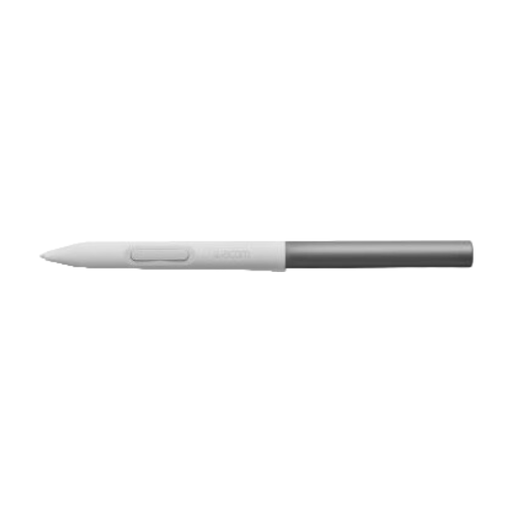
Wacom One Standard Pen White-Gray

Wacom One Standard Pen White-Gray

A separate drawing pen for anyone looking for a replacement for the specified Wacom One DTC133 model.

Before buying, check that your tablet exactly matches the compatible model listed.

View at Joybuy

Wacom One pen tablet small - S

Wacom One pen tablet small - S

This pen tablet is designed for drawing or sketching on a computer; the description lists a battery-free, pressure-sensitive pen.

The listed size is A6. According to the description, it can connect via Bluetooth or USB-C; a Wacom driver is listed for full pen functionality.

View at Joybuy

Frequently asked questions

Will any stylus work with your tablet?

No. Look up the full device name and compare it with the compatibility information for that exact pen. For Apple Pencil, also check the specified iPadOS version.

Do you need to pair or charge a separate drawing pen?

It depends on the model. Apple says that Pencil (USB-C) pairs and charges via a USB-C cable; Wacom lists the One Standard Pen as battery-free. Follow the instructions for your exact pen.

What can you do if the pen nib wears down?

Check whether replacement nibs are available for your specific pen. Apple lists nibs for the specified Apple Pencil models; Samsung explains how to replace the nib on the S Pen for the Tab S11 series.

What are your rights when buying a pen online in the Netherlands?

As a consumer, you generally have up to 14 days after delivery to change your mind about an online purchase, although exceptions may apply. You also have statutory rights if the product does not perform as you could reasonably expect under normal use. ACM ConsuWijzer makes clear that a manufacturer’s warranty period does not automatically limit those statutory rights.

Do you have to keep standing while painting at a sit-stand desk?

No. Arboportaal recommends an adjustable workstation and changing posture when working at a screen. Information about employers’ obligations for standing work is not automatically a personal buying requirement for a hobbyist.
