Who is this guide for?

Landscape painter using a tablet

You draw directly on an iPad or Galaxy tablet you already own and want to build up brush strokes. The exact device determines which pen is compatible; Apple and Samsung publish compatibility information for each model.

Computer artist at a shared desk

You work on a computer and want a pen tablet that you can put away after use. With a pen tablet without a screen, you look at a different screen while drawing, as Wacom explains for its tablets.

Sketcher who also paints

You mainly sketch or add light shading and want to decide whether you need pressure sensitivity and extra pen controls. Apple’s comparison shows that the Pencil (USB-C) is tilt-sensitive, but not pressure-sensitive.

What should you consider when choosing?

What to consider What should you check? Who is this important for?
Compatibility Check the full device model and any software requirements. Only buy a separate pen for a pen tablet if it’s designed for your drawing surface. If I want to keep using my existing tablet or pen tablet, I first check that the pen is compatible. Around 33% of consumers prioritise compatibility.
Brush control Compare the pen and device’s pressure and tilt support, and check whether your drawing app uses those inputs. If I want brush strokes to respond to pen pressure, I check for that feature separately from tilt sensitivity. Around 27% of consumers prioritise brush control.
Workspace Measure the space available and consider how you’ll put away the tablet, pen and any cables after use. If I share a desk, I want to be able to clear my drawing setup easily afterwards. Around 20% of consumers prioritise space and tidying away their equipment.
Replacement parts Check which replacement nibs are compatible and whether you already have the tablet or pen tablet you need. If I want to avoid buying an extra device or unsuitable replacement nibs, I check what my chosen pen needs beforehand. Around 20% of consumers prioritise total running costs and replacement parts.

How to avoid common buying mistakes

  • Choosing a pen by brand name without checking your exact device

    Compatibility varies between pens and devices. A pen that isn’t supported won’t work with your existing drawing setup.

    Before buying, compare the full model names and check any software requirements.

  • Confusing tilt sensitivity with pressure sensitivity

    Apple lists tilt sensitivity for the Pencil (USB-C), but not pressure sensitivity; Apple’s comparison shows that the Pencil Pro does have pressure sensitivity.

    Decide whether your brushwork needs to respond to pen pressure, and check for this feature separately.

  • Assuming a separate pen for a pen tablet is a universal touchscreen pen

    A replacement pen may be designed for specific drawing surfaces. With a pen tablet without a screen, you draw on the tablet while the image appears on another screen.

    Only buy a replacement pen for a drawing surface confirmed to be compatible, and consider whether this way of working suits you.

  • Assuming there is a fixed statutory guarantee period in the Netherlands

    The Dutch government explains that the Netherlands has no fixed statutory guarantee period, and that your legal rights are different from a commercial guarantee.

    Keep your proof of purchase and report any fault to the retailer. If you’re offered an additional guarantee, check what extra rights it actually provides.

Brands to consider

Apple

Apple Pencil models are designed for specific supported iPads. They’re worth considering if you draw directly on an iPad.

  • According to Apple’s own comparison, the Pencil Pro has pressure sensitivity and extra controls. The Pencil (USB-C) is tilt-sensitive, but not pressure-sensitive.
  • Check compatibility for the exact iPad and Pencil models; this varies by model.

Samsung

Samsung S Pen variants are designed for supported Galaxy devices, including models suited to drawing.

  • Samsung says the Creator Edition has improved tilt sensitivity.
  • Not every S Pen works with every Galaxy device. Samsung says the Creator Edition isn’t compatible with the Galaxy Z Fold series.

Huion

Huion makes pen tablets and replacement pens for specific Huion models, among other products.

  • Huion says the PW100 is battery-free and pressure-sensitive.
  • Compatibility depends on the model; Huion says the H640P doesn’t support tilt with this pen.

XPPen

XPPen offers compact pen tablets for use with a computer, among other products.

  • XPPen says the Deco mini7 comes with a battery-free P05D pen and supports pressure and tilt.
  • The Deco mini7 is a drawing surface without a built-in screen and needs a compatible connected device.

Wacom

Wacom describes its screen-free Intuos models as pen tablets for drawing on a computer.

  • A tablet without a screen can take up little desk space; you draw on the tablet while looking at another screen.
  • This information about the product range doesn’t prove a specific benefit for every Wacom pen or tablet model.

Products for drawing and painting

The products below include pen tablets for use with a computer and pens designed for specific tablets. Check that each pen is compatible with your device.

Wacom Intuos Pro Pen Tablet Small

Wacom Intuos Pro Pen Tablet Small

For painting on a computer with a pen tablet; check beforehand that the tablet is compatible with your computer and drawing app.

According to the product information, you’ll need to install the Wacom driver to use full pen pressure and shortcut keys.

Joybuy

Wacom One pen tablet small - S

Wacom One pen tablet small - S

For drawing on a computer with a pen tablet; check that your computer and drawing app work with this tablet.

The product information says you’ll need to install the Wacom driver to use full pen pressure.

Joybuy

Apple Pencil Pro 2024

Apple Pencil Pro 2024

For painting on a compatible iPad when pressure and tilt sensitivity matter; check compatibility with your exact iPad model.

The product information lists compatibility with iPad Pro M4, iPad Air M2 and iPad mini (A17 Pro).

Joybuy
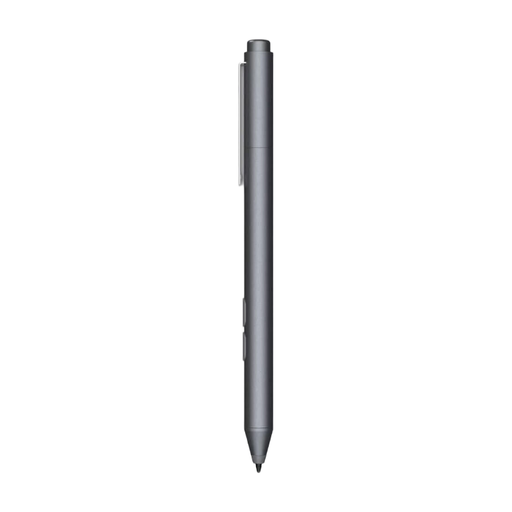
HP MPP 1.51 Stylus Pen

HP MPP 1.51 Stylus Pen

For drawing on a compatible device; the product information lists MPP-compatible HP laptops and selected Microsoft devices.

According to the product information, the pen uses an AAAA battery.

Joybuy

Samsung EJ-PX510 Stylus Pen, 8.7 g, beige

Samsung EJ-PX510 Stylus Pen 8.7g Beige

For drawing on a Galaxy Tab S9 FE or Tab S9 FE+; check that your tablet is compatible with this pen.

The product information lists magnetic attachment to the tablet.

Joybuy

Frequently asked questions

How do I find a pen that works with my tablet?

First, find your exact tablet model and compare it with the compatibility information for the specific Apple Pencil or S Pen. For Apple, also check the required iPadOS version. A separate pen for a pen tablet must be compatible with that particular drawing surface.

Can I create pressure-controlled brush strokes with Apple Pencil (USB-C)?

Apple’s product comparison doesn’t list pressure sensitivity for the Pencil (USB-C), but it does for the Pencil Pro. Apple says the Pencil (USB-C) is tilt-sensitive, so don’t assume it registers pen pressure.

What do I need to connect or charge before I start?

Apple says the Pencil Pro pairs magnetically with a compatible iPad and charges there; you’ll need a USB-C cable for the Pencil (USB-C). Huion says the PW100 is battery-free, but it needs a compatible pen tablet. If you’re using a pen tablet, also check that your computer and connection are supported.

What should I do if the pen nib wears out?

Check the exact type of replacement nib for your pen. Apple lists replacement nibs for specific Pencil models, Huion lists the PN04 for the PW100, and Samsung includes nibs and a replacement tool with the Creator Edition.

What are my rights in the Netherlands if a pen I’ve bought is faulty?

According to the Dutch government, you have statutory rights if a product is faulty and the retailer must provide a solution; the Netherlands has no fixed statutory guarantee period. For online purchases from a business, you’ll generally have a 14-day cooling-off period. Check the relevant terms and exceptions.
