
Artist with an existing iPad
You want to draw album illustrations directly on screen. Check which Pencil works with your iPad and drawing app before choosing a version.


Start with the tablet and drawing app you use: a pen is only useful if it works with your exact device. For pressure-sensitive brush strokes, both the pen and the app need to support the input you want. If you mainly work on a computer, compare a graphics tablet with a pen against a standalone stylus for a tablet you already own.
You want to draw album illustrations directly on screen. Check which Pencil works with your iPad and drawing app before choosing a version.
You’re looking for an S Pen for your tablet, or a replacement. Different versions may vary in device compatibility and features.
You create artwork at a fixed computer workstation and are considering a graphics tablet with an included pen instead of a stylus for a mobile tablet.
A good fit if: you already draw on an iPad and your model and software version support the exact Pencil version.
Bear in mind: compatibility varies by version. Apple lists pressure and tilt sensitivity for Pencil Pro; for Pencil (USB-C), Apple lists tilt sensitivity.
A good fit if: you draw on a supported Galaxy Tab and want a pen made for that specific tablet model.
Bear in mind: Samsung distinguishes between S Pen versions and their features, so don’t rely on the general name S Pen alone.
A good fit if: you create most of your artwork on a computer and want to use a separate drawing surface.
Bear in mind: check the connection, the driver for your computer and support in your drawing app. Drawing on a tablet without a screen feels different from drawing directly on a display.
| What to consider | What should you check? | Who is this for? |
|---|---|---|
| Device compatibility | Compare the exact tablet model and, where relevant, the software version with the compatibility information for the specific pen. For a graphics tablet, also check the connection and driver. | I want to keep using my existing iPad, Galaxy Tab or computer and first check whether the pen works with it. Around 36% of consumers put compatibility with their current device first. |
| Line and brush control | Check separately whether the pen offers pressure and tilt sensitivity, and whether your drawing app supports the feature you want. | If I need variation in lines, lettering or brush strokes, I want to know what input both my pen and app can handle. Around 29% of consumers give line and brush control top priority. |
| Working on a computer | Compare a graphics tablet with a pen against drawing on a tablet screen. Check the connection and driver you’ll need, as well as the space available on your desk. | I want to create album artwork on my desktop computer and need a drawing surface that suits the way I work. Around 21% of consumers prioritise their computer workflow. |
| Pen tips and replacements | Check which replacement tips or pens are suitable for your exact version and what’s included with the product. | If I need spare tips or a replacement pen, I want to know in advance which part fits my version. Around 14% of consumers make replaceability their first buying consideration. |
Apple and Samsung publish compatibility information for each pen version and device. A similar product name doesn’t mean the pen will work with your tablet.
Make a note of your exact tablet model and compare it with the compatibility information for the pen you’re considering.
Apple lists tilt sensitivity for Pencil (USB-C) and pressure sensitivity for Pencil Pro. For pressure-sensitive brush strokes, both the pen’s features and the app settings matter.
Check the specifications for the exact pen and make sure your drawing app uses the input you want.
Drawing on a computer may require a separate graphics tablet with a pen. You’ll also need a suitable connection and driver.
First decide whether you want to draw on an existing tablet screen or on a computer. Then check support for the graphics tablet and app.
Manufacturers match replacement parts to specific versions. A part that looks similar to one for another pen won’t necessarily be suitable.
Check the part number and list of supported models before ordering a replacement.
Apple Pencil versions are designed for specific iPads. They’re worth considering if you want to draw your artwork directly on an iPad.
S Pen versions are designed for supported Galaxy devices and may be a good option if you already use a Galaxy Tab.
Wacom graphics tablets with a pen offer a different option from a standalone screen stylus, for those working on a computer.
Inspiroy 2 graphics tablets are designed for computer workstations and are available in different sizes.
Deco graphics tablets and model-specific replacement pens are worth considering if you use a separate drawing surface or need a replacement pen.
This selection of Joybuy products includes pens for drawing on a compatible iPad, a graphics tablet for computer use and a stylus for capacitive screens. Check that your device and drawing app are supported for each version.
 No image available
A graphics tablet with an included pen for creating artwork on a computer. The product name mentions Bluetooth and USB-C; check the connection, driver and support in your drawing app.
To use all the pen, ExpressKeys and touch features, the product description says you’ll need to install the Wacom driver.
 No image available
A standalone pen for drawing on a compatible iPad. Apple lists pressure and tilt sensitivity; check that your iPad and drawing app support this version.
It’s compatible with specific iPad models, not automatically with every iPad.
 No image available
A standalone pen for drawing and sketching on a compatible iPad. Apple lists tilt sensitivity; check pressure support separately if you need pressure-sensitive brush strokes.
The product description lists support for specific iPad models. Check compatibility with your version and drawing app.
 No image available
A standalone pen for drawing on the iPad models compatible with this version. The product name lists compatibility with specific iPad Pro, iPad Air and iPad mini models; check whether your exact model is included.
The product description mentions magnetic pairing and charging, plus a double-tap function for switching tools.
 No image available
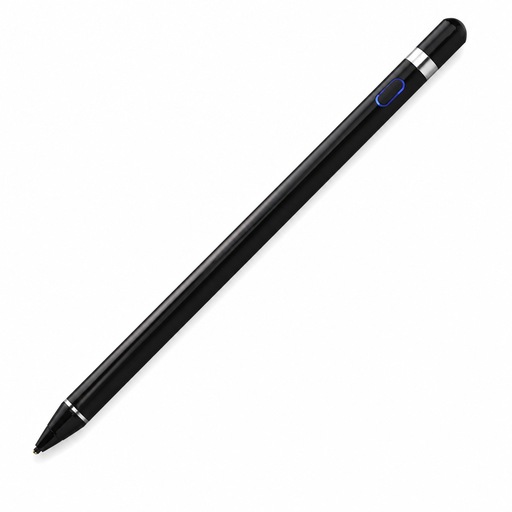
The product name lists use with iOS, iPad, Android and PC. The product description mentions a capacitive screen, Bluetooth and a pressure-sensitive tip; check that it works with your exact device and drawing app.
The product description also mentions a companion app. Check that it suits how you plan to use the stylus.
First, find your exact iPad model and compare it with the compatibility list for the Pencil you’re considering. Apple lists iPadOS 17.5 or later for Pencil Pro and iPadOS 17.1.1 or later for Pencil (USB-C); check the latest compatibility information before choosing.
According to Huion, connect the Inspiroy 2 using the USB-C cable supplied and install the driver for the correct model. Beforehand, check that your computer supports the connection and a suitable driver.
Yes. Apple sells replacement tips and lists them as compatible with Pencil Pro, Pencil (USB-C), and first- and second-generation Pencil. Check that the tips fit your version.
For consumer purchases in the Netherlands, statutory guarantees apply if a product doesn’t do what you could reasonably expect under normal use. The seller must then resolve the problem in line with the applicable terms. Online purchases also generally come with a cooling-off period of up to 14 days after delivery, subject to legal exceptions.
No. The Dutch government describes the CE mark as indicating that applicable European product safety requirements have been met, not as proof of compatibility with your tablet. Check device support separately with the manufacturer.