A portable SSD is a better fit if you want to edit directly from the drive or regularly transfer large files. An external HDD may suit you if you mainly need storage for a project copy and speed is less important. Work out the capacity you need for the complete project, check your computers’ ports and formatting, and test the copy before your review. An external drive is not a separate backup: the NCSC recommends keeping multiple versions of important business data, across different media and storage locations.
Who is this guide for?
Editor working directly from the drive
You want to open your edit or large media files from an external drive during preparation and review. Your computer’s port and how complete the project is will help determine which drive is right for you. Adobe describes a project transfer feature in Premiere that gathers and copies the media used.
Creator with lots of source footage
You want to store or transfer your recordings, project files and exports together. Before you buy, work out how much space the complete package will need. An edit file does not necessarily contain all the media used.
Creator taking a secure copy
You want to avoid losing a drive or missing project media disrupting your review. Keep important files in a separate location too, and test that the copy opens. The NCSC gives this advice for important business data.
What should you consider when choosing?
Portable SSD
Choose this option: if you want to edit directly from the external drive or regularly transfer large media files.
Bear in mind: your port and computer will affect the speed you can achieve; advertised maximum speeds are not guaranteed for your workload.
External HDD
Choose this option: if the drive is mainly for storing project files and exports, and editing speed is less of a priority.
Bear in mind: allow time to copy and check your files.
| What to consider |
What to look for when buying |
Who is this important for? |
| Recoverable copy |
As well as your transfer drive, plan a separate backup and check that the copied files open. |
If I mainly want a recoverable project copy before my review, I prefer to have a separate copy. Around 28% of consumers make backup their top purchasing priority. |
| Carry on editing |
Check your computer’s port speed and compare it with the specifications of the exact drive variant. |
If you want to work directly from the drive after copying, focus on transfer speed and connectivity. Around 22% of consumers put working speed first. |
| Space for your project |
Calculate the size of your project, the media used and the exports you want, then compare the total with the capacity of your chosen variant. |
If I want to store my recordings, project files and exports together, the capacity needs to cover the whole package. Around 22% of consumers give storage space top priority. |
| Transfer between computers |
Check the file system and available ports, then test the drive on the computer you’ll use for your review. Apple says exFAT is compatible with Windows. |
If you need to open your edit on another computer, the key thing is whether the files can be accessed on it. Around 17% of consumers name computer compatibility as their top priority. |
| Confidential material |
Check that the drive and receiving computer support your preferred encryption, and test that you can unlock it before you leave. |
If I’m taking sensitive footage with me, I want to know in advance how to protect the files and open them. Around 11% of consumers put confidentiality first. |
Common mistakes
-
Transferring only the edit file
A project may refer to media that isn’t automatically included in the project file. As a result, the edit may be missing files when opened on another computer.
Use your editing software’s project transfer feature to gather and copy the media used. Then open the copy to check it works; Adobe describes this process for Premiere.
Allow time to gather the media files and check the copy.
-
Expecting the highest MB/s on the box
A fast interface won’t automatically deliver that speed on your computer. Your host port and the conditions of the transfer also play a part.
Before buying, check your computer’s port and cable, and compare the advertised speed with the specifications for the exact drive variant.
-
Using your transfer drive as your only backup
If all your project data is stored only on that drive, you won’t have a separate copy to fall back on. The NCSC recommends keeping multiple versions of important business data in different storage locations.
Keep a separate copy and check that you can open the files on it.
-
Assuming the drive is compatible just because the USB plug fits
The connector doesn’t tell you whether both computers can write to the drive’s file system. Apple warns that a Mac may be able to read NTFS but not write to it.
Check the file system and ports, and test the drive on the computer you’ll use for your review. If you reformat the drive, make a copy of any existing files first.
Allow time to make a new copy if reformatting is needed.
Brands to consider
Samsung
Portable SSDs such as the T7 Shield are worth considering if you’re looking for a compact drive to take with you.
- Samsung Netherlands lists USB 3.2 Gen 2, sequential speeds of up to 1.050/1.000 MB/s and IP65 for the 2 TB T7 Shield.
- The stated speeds are manufacturer maximums for this model, not a guarantee for every computer. IP65 does not mean the drive can be submerged.
LaCie
The Rugged SSD4 is an option for transferring project files on the go, provided your computer supports the connection you need.
- Seagate lists USB 40 Gbps, IP54 and variants up to 4 TB for the Rugged SSD4.
- The higher interface speed only matters if your host can make use of it. Conditions in a laboratory test won’t automatically apply to every computer.
SanDisk
The Extreme PRO with USB4 is designed for transferring large media files with a suitable USB4 host.
- SanDisk lists maximum speeds of up to 3.800 MB/s read and 3.700 MB/s write for the USB4 version, as well as backwards USB compatibility.
- These are manufacturer maximums for the USB4 version. Check the full model variant and your computer’s port.
Crucial
The X10 is a portable SSD option to consider when both project size and connectivity matter.
- Crucial lists read speeds of up to 2.100 MB/s and IP65 for the X10.
- The manufacturer says performance and compatibility depend on the host and formatting. Check the capacity and full model code of the variant.
Seagate
The Expansion Portable is an HDD range for storing large amounts of material when working from a fast SSD isn’t essential.
- Seagate lists variants up to 5 TB and USB 3.0.
- Capacity alone says nothing about editing speed or the reliability of a single drive.
Joybuy products
This selection includes portable SSDs for active editing or file transfers, and external HDDs for project storage.
 Image unavailable
Western Digital My Passport 2TB Black
A portable HDD option for storing project files when you mainly need extra storage space.
2 TB; USB 3.2 Gen 1; bus-powered; 256-bit AES hardware encryption.
The product information lists compatibility with Windows and macOS.
View at Joybuy
 Image unavailable
Toshiba Canvio Basics 4TB
A portable HDD for anyone who needs space for a large project and has worked out the capacity required in advance.
4 TB; 2.5-inch; USB 3.2 Gen 1.
This variant is pre-formatted for Windows; according to the product information, the drive needs to be reformatted for macOS.
View at Joybuy
 Image unavailable
Samsung Portable SSD T7 2TB Blue
A portable SSD for transferring large files or working with project files directly from an SSD.
2 TB; USB 3.2 Gen 2; sequential speeds of up to 1.050/1.000 MB/s; 256-bit AES hardware encryption.
The product information lists Windows and macOS compatibility, as well as USB-C to USB-C and USB-C to USB-A cables.
View at Joybuy
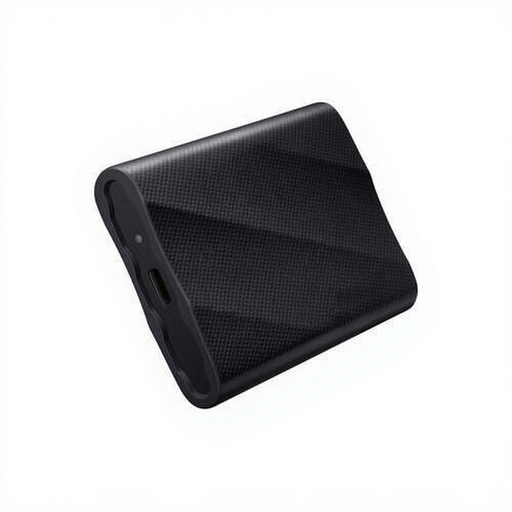 Image unavailable
Samsung Portable SSD T9 1TB Black
A portable SSD option for project files when 1 TB is enough for the project size you’ve calculated.
1 TB; the product description lists read and write speeds of up to 2.000 MB/s.
The product information lists Windows and macOS compatibility, as well as USB-C to USB-C and USB-C to USB-A cables.
View at Joybuy
 Image unavailable
Samsung T7 Shield 2TB Blue
A portable SSD for carrying and transferring large project files.
2 TB; USB 3.2 Gen 2; sequential speeds of up to 1.050/1.000 MB/s; IP65.
IP65 does not protect against submersion. The product information lists compatibility with Macs, PCs and Android devices.
View at Joybuy
Frequently asked questions
How can you make sure the edit on the drive really opens?
Gather the media used as well as the project file, then test the copy on the computer you’ll be using. For Premiere, Adobe describes the ‘Collect Files and Copy to New Location’ feature, which gathers and copies the media used. For other editing software, check its own project transfer options.
Which format is useful if the drive needs to work with both a Mac and a Windows PC?
Apple says exFAT is compatible with Windows and warns that a Mac may be able to read NTFS but not write to it. Check the existing file system and copy your files before reformatting, if needed.
Is one external drive enough for a backup?
Not if it contains your only remaining project copy. For important business data, the NCSC recommends the 3-2-1 approach: multiple versions, different media and a copy in another location. This is backup guidance, not a legal product requirement.
What does a warranty mean when buying an external drive in the Netherlands?
When you buy as a consumer, a product must last as long as you can reasonably expect it to; there is no standard general legal warranty period of two years. ACM ConsuWijzer notes that the seller is your point of contact for an appropriate solution if a product is faulty. Any commercial warranty is separate from this.
Is encryption legally required for every documentary edit?
Not in the same way for every edit. When an organisation processes personal data, the GDPR requires appropriate security measures. The Dutch Data Protection Authority lists disk encryption as one possible measure to limit harm if a device is lost. Consider the content and use of your material, and test that you can unlock the drive on the receiving computer.


