If you often edit directly from an external drive, a compact SSD makes a suitable working drive; just check that your computer and cable support the connection you need. For source footage you use less often, a portable HDD could work well as an archive drive. A fast SSD plus separate storage gives you both, but takes up more space and uses additional ports.
Who is this choice relevant to?
Editor who works directly from a drive
You want to access project media while editing and have limited space beside your computer. Adobe recommends fast storage for video media, so check your computer’s connection too, along with how much space you need for media and cache.
Creator with lots of original footage
You need space for source footage and a separate copy, even when not all your footage is on the fast working drive at once. Treat storage for originals and a backup as separate needs.
Editor with a cluttered, small desk
You want a portable drive that doesn’t need a separate power adapter and uses as few cables as possible, but the capacity you need still matters. Seagate says its Expansion Portable is powered via the USB cable.
What should you look for when choosing?
Compact SSD as a working drive
A good fit if: you often open project media directly from the drive and have limited desk space.
Bear in mind: the connection and cable help determine the speed your computer can make use of.
Portable HDD for archiving
A good fit if: storage for original footage you use less often is your priority.
Bear in mind: Adobe recommends fast SSD or NVMe storage for active editing, so an HDD is better suited to archiving than as a fast working drive.
SSD with a separate archive drive
A good fit if: you want to edit smoothly and keep originals or project files stored separately.
Bear in mind: two drives take up extra space and ports on a compact desk.
When editing documentaries at a small desk, your priorities depend on factors such as active editing, archiving, the space available and the computers you work with.
| What to consider |
What should you check? |
Who might find this important? |
| Editing speed |
Check USB or Thunderbolt support on your computer, drive and cable. Don’t compare stated maximum speeds unless they were measured under the same conditions. |
If I often edit directly from the drive, I want it to work well with my computer and connection. Around 31% of consumers prioritise editing speed. |
| Space for originals and copies |
Allow for footage, project files and any proxy files; plan to keep a backup on separate storage. |
If I keep lots of original footage, I need space for those files and a separate copy. Around 25% of consumers put this storage need first. |
| Desk space |
Check the drive’s dimensions, cable and power requirements: does it run via USB, or does it need a separate adapter? |
With a cluttered desk, I want to know how much room the drive takes up and how many cables I’ll need. Around 19% of consumers make a more compact set-up their top priority. |
| Connecting between computers |
Check the ports, cables, operating systems and file system before moving or formatting files. |
If I work across different computers, I want to check in advance that the connection and file sharing will work with both. Around 13% of consumers prioritise this compatibility. |
| Protecting footage |
Consider who has access and what security your workflow requires; check the encryption options for the specific drive and how you’ll use it. |
If I have footage I don’t want to share widely, I want to manage access and security carefully. Around 12% of consumers prioritise protecting their footage. |
Common buying pitfalls
-
Assuming the highest MB/s figure guarantees editing speed
The stated top speed doesn’t automatically tell you what transfer speed your computer will achieve: the host port and cable matter too.
Check the ports and cable on your own computer, and compare maximum speeds only when they were measured under the same conditions.
-
Keeping your only copy on the working drive
A fast working drive doesn’t, by itself, give you a separate backup of your footage and project files.
Plan to keep a separate copy alongside the drive you use every day.
-
Formatting without first securing your files
Formatting erases files on the drive. This matters if you want to reformat it for use with Mac and Windows.
Check the file system first and copy the contents before formatting. Apple describes exFAT as a formatting option for drives larger than 32 GB used with both systems.
Brands to consider
Samsung
The T7 Shield is a compact SSD range; the T9 is a separate model.
- Samsung specifies 1, 2 and 4 TB versions of the T7 Shield, measuring 59 × 88 × 13 mm, with maximum speeds of up to 1.050 MB/s read and 1.000 MB/s write.
- These are manufacturer maximums for the T7 Shield range; measured performance and connection requirements don’t automatically apply to every Samsung drive.
Crucial
The X9 Pro is a compact external SSD; the X10 is a separate model.
- Crucial lists the X9 Pro as measuring 65 × 50 mm, with read and write speeds of up to 1.050 MB/s under the manufacturer’s specified test conditions.
- Crucial notes that performance and compatibility also depend on the host device and cable; X9 Pro specifications don’t describe the X10.
Seagate
Expansion Portable is a USB-powered HDD range for extra storage and project material you use less often.
- Seagate says it is powered via a single USB cable. For versions from 4 TB upwards, the manufacturer lists dimensions of 115,3 × 80 × 20,9 mm.
- This information doesn’t make the range a proven replacement for fast storage during active editing. Seagate says the availability of included recovery services varies by country.
WD
WD Elements Portable is a portable HDD option for source footage or archiving.
- Western Digital identifies a 4 TB version as a portable hard drive.
- The product information doesn’t give a measured editing speed for this version; don’t draw conclusions about other WD ranges from it.
LaCie
The Rugged SSD4 is a USB4 model for use with a compatible host.
- StorageReview reports laboratory measurements for the Rugged SSD4.
- The results don’t guarantee the same speed on every computer and don’t automatically apply to other LaCie models.
Joybuy drives for work and archiving
This selection includes portable external SSDs for project media and a 4 TB portable HDD for source footage or archiving. Choose the option that suits how often you use the files, and check that the connection works with your computer.
 No image available
SanDisk Portable SSD 1TB
A portable SSD to keep project media close at hand in a compact workspace. Check that the connection and cable work with the computer you use for editing.
View at Joybuy
 No image available
SanDisk Extreme Pro Portable SSD 1TB, up to 2000 MB/s
A portable SSD for active project media when your computer supports the connection.
The stated read speed of up to 2000 MB/s requires a compatible USB 3.2 Gen 2x2 host device; the write speed is lower.
View at Joybuy
 No image available
Portable SSD 1TB, up to 1000 MB/s
An external SSD for portable storage of project files. Check that the USB connections on the drive, cable and computer are compatible.
View at Joybuy
 No image available
Samsung Portable SSD T7 2TB USB Type-C 3.2 Gen 2, blue
A 2 TB portable SSD for project media in a compact workspace.
For the stated performance, the product information specifies USB 3.2 Gen 2 support; check your computer’s connection and cable.
View at Joybuy
 No image available
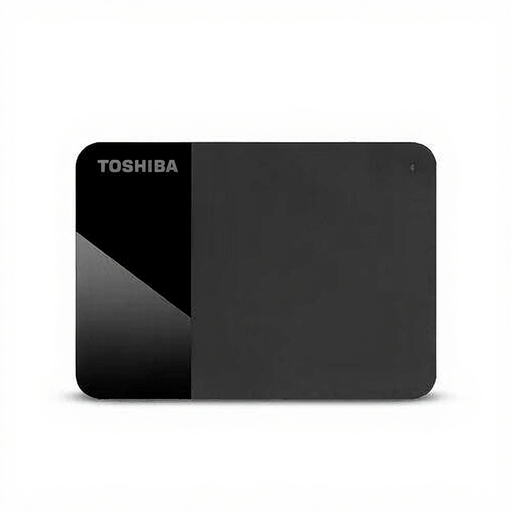
Toshiba Canvio Ready 4TB external hard drive, 2.5 inch
A 4 TB portable HDD for source footage you use less often or for archiving. Adobe recommends fast SSD or NVMe storage for active editing, so consider this drive for archiving instead.
The product information states that it is powered via USB, with no external power supply required.
View at Joybuy
Frequently asked questions
Can I edit directly from a portable HDD?
For active work with HD and UHD media, Adobe recommends fast SSD or NVMe storage in Premiere. A portable HDD is better suited to original footage you use less often or a separate copy. Your experience also depends on your software and footage.
Can proxy files help if my original footage is demanding?
Yes. Premiere can use lighter proxy copies while you edit, then switch back to the originals for the final export. Keep the original files and check where both the proxies and originals are stored.
How can you use a drive with both Mac and Windows?
Apple describes exFAT as a formatting option for a drive larger than 32 GB used with both systems. Copy any existing files first: formatting erases the contents of the drive.
Do I need a second drive if my working drive has enough capacity?
Having enough capacity isn’t the same as having a backup. The Consumers’ Association recommends making regular backups, so don’t keep important footage only on the drive you work from.


