
Administrator handling confidential letters
You’re setting up a shared scanning station for appointment letters containing personal data, and want to control who can use the files and scan destinations.


Start by deciding where scans should be stored securely and who should be able to access them. Then consider whether staff will share one connected computer or need to scan directly from the scanner. A compact USB scanner suits a fixed computer and smaller batches, while network features and scan presets can be useful for different users. A larger document feeder is most useful when you regularly scan batches of letters.
You’re setting up a shared scanning station for appointment letters containing personal data, and want to control who can use the files and scan destinations.
Several members of staff scan at the same desk. You want straightforward controls and a pre-set destination, without having to reconnect a computer each time.
You sometimes scan batches of letters and want to weigh up feeder capacity, duplex scanning and the desk space required.
First, decide which scan destinations are permitted and who can access them. The Dutch Data Protection Authority stresses that organisations must protect personal data properly and prevent unauthorised access. Then choose a connection and feeder capacity suited to the work at your desk.
| What to consider | What to look for | Especially useful for |
|---|---|---|
| Secure scan destination | Check who can use the destination folder, email route or cloud service. A scan preset does not automatically manage access permissions. | If I have appointment letters containing personal data scanned, I want to know in advance who can open the files. Secure access is the top priority for around 33% of consumers. |
| Use by multiple members of staff | Compare connecting to a computer with scanning directly to a pre-set destination. Also check how profiles or presets are managed. | When different members of staff use the same device, I don’t want to keep switching the computer connection. Independent use by a team is the top priority for around 27% of consumers. |
| Batches and double-sided letters | Compare the automatic document feeder (ADF) capacity with your usual batch size, and check that duplex scanning is available on the exact model. | If letters often arrive in batches or are double-sided, I want to spend less time feeding in individual sheets. Batch processing is the top priority for around 20% of consumers. |
| Space and connection | Measure the space available with the input and output trays in use. Check whether USB power is sufficient or whether you’ll need a mains socket. | At a shared desk, I want the scanner to fit and be easy to connect. Workspace and connection are the top priority for around 20% of consumers. |
The scanner doesn’t determine who can open a file after it’s sent. For appointment letters containing personal data, you need to assess access permissions and the chosen storage route separately.
Before setting up scan profiles, specify which destinations staff may use and who can access them.
Canon lists separate speeds in pages per minute and images per minute for the imageFORMULA R30. The stated speed may also depend on settings and the computer environment.
Only compare speeds when the units and conditions match, and check the document feeder’s capacity too.
Be cautious about automatic duplex scanning on the Dutch Epson ES-C380W: information about a different regional product code doesn’t confirm that this version has the same feature.
Ask the supplier to confirm automatic duplex scanning for the exact Dutch model before making it a deciding factor.
The ADS-1300 and ADS-1800W offer a choice between a compact USB setup and a compact wireless setup.
The ES-C380W is worth considering when space at the scanning station is limited and staff want to scan directly to a pre-set destination.
The imageFORMULA R30 is a USB desktop option for processing larger batches from a connected computer.
The iX1600 is worth looking at for a small team seeking Wi-Fi and user-profile controls.
The eScan A355 Pro is a standalone network scanner for a more extensive shared scanning workflow.
These Joybuy products include compact models for shared use and scanners for batches of appointment letters. Check that each model’s connection and scan destination suit your workplace.
 Image unavailable
An option for batches when you also need to scan books or delicate originals on the flatbed.
50-sheet ADF; automatic duplex scanning; flatbed; USB 2.0; 600 × 600 dpi; A4.
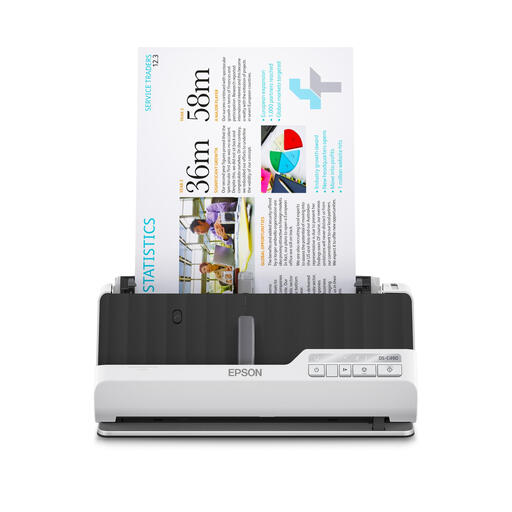 Image unavailable
A compact document feeder option for scanning double-sided letters and using different scan destinations.
10-sheet ADF capacity; automatic duplex scanning; Ethernet; U-turn paper path; 600 × 600 dpi; A4.
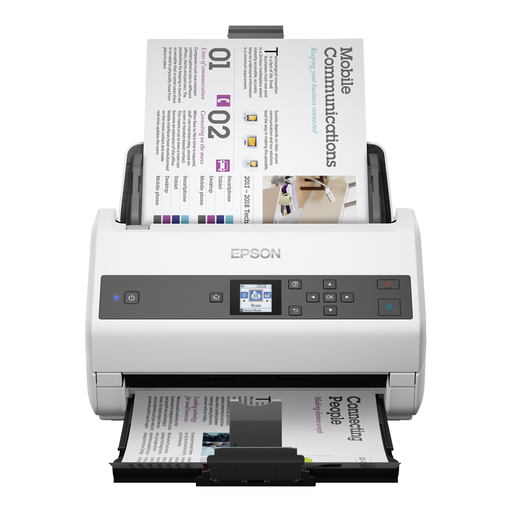 Image unavailable
A model to consider if you want to feed larger batches from a connected computer.
100-sheet ADF; automatic duplex scanning. The network interface is listed as optional, so it’s not confirmed as an included feature.
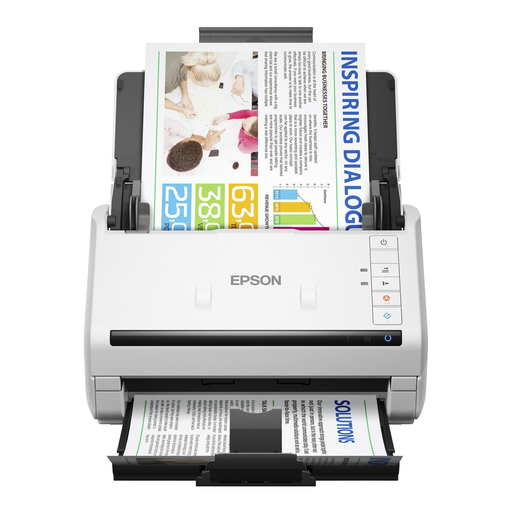 Image unavailable
An option for scanning batches of double-sided letters from a connected computer.
50-sheet ADF; automatic duplex scanning; USB 3.0.
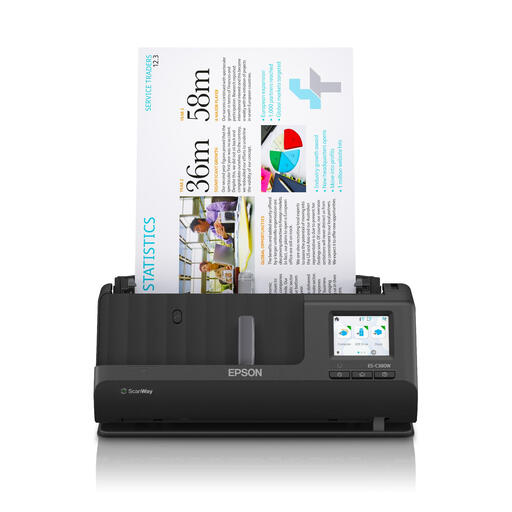 Image unavailable
A compact option for staff who take turns using the scanner and want to scan to a pre-set destination without a PC.
U-turn paper path; touchscreen; PC-free scanning to destinations including network, email and USB; 600 × 600 dpi; A4. According to the product description, automatic duplex scanning isn’t available.
Using a scanner isn’t prohibited in itself. Organisations must ensure that the security of personal data is appropriate to the risks and prevent unauthorised access. If a letter contains health data, additional protection rules apply; not every appointment letter contains this type of data.
First, decide which storage destinations are permitted and who can access them. Then set up shortcuts or scan profiles, and use a test document to check that the scan reaches the intended location.
No. You need to assess the destination and access permissions separately. The Dutch Data Protection Authority advises organisations that process health data in the cloud, or are considering doing so, to assess the risks and the service provider in advance. If an external party actually processes personal data as a processor, the Dutch Data Protection Authority says a data processing agreement is required.
The Dutch Data Protection Authority states that personal data must not be kept for longer than necessary. The GDPR doesn’t set a specific general retention period, although other applicable laws may prescribe one. Set a retention period based on the purpose and the rules that apply to your organisation.