What should you look for when choosing?
First decide whether the scanner mainly needs to take up little desk space, handle batches or share scans with others. Then choose a feed and storage setup that suits your daily routine.
| Consideration |
What to look for |
Who it matters to |
| Space while in use |
Compare the setup with the paper guides open, and consider how the paper path affects the available workspace. |
If the scanner must not obstruct a shared workstation, the space it needs while scanning is especially important. Consumers who want to keep their workspace clear make up around 33% of this group. |
| Batches and double-sided sheets |
Compare the feeder capacity in sheets and check separately whether you need double-sided scanning. |
If you regularly scan several delivery notes in succession, you’ll want to feed in fewer sheets by hand. Double-sided scanning also matters if the reverse side is printed. Consumers who prioritise batch processing make up around 27% of this group. |
| Shared storage |
Decide who can open the scans and whether a connected computer or a managed network folder is a better fit. |
If several authorised team members need the same files, an agreed destination with suitable access permissions is important. Consumers who prioritise secure shared storage make up around 20% of this group. |
| Connecting and getting started |
Check the connection, computer and preferred file and storage workflow for the exact model. |
If you want to get started on the available computer without a complicated setup, look for a scanning routine that suits that workstation. Consumers who prioritise straightforward connection and use make up around 20% of this group. |
Joybuy products
This selection includes document scanners for compact workspaces, batch processing and portable use. The right option depends on the space available, the feed you need and how you store your scans.
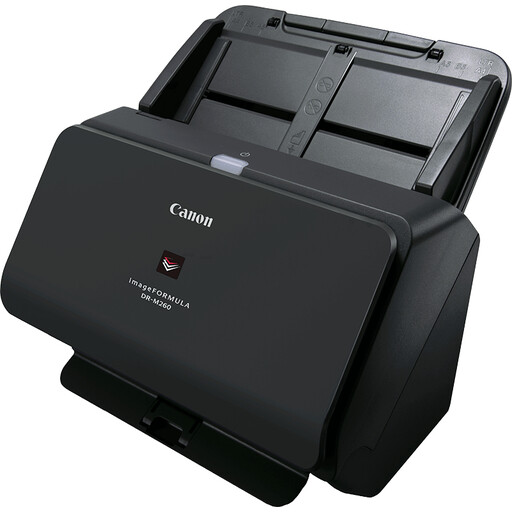 Image unavailable
Canon imageFORMULA DR-M260
An option to consider if you want to process delivery notes on A4 and other listed media.
The product information mentions network and SharePoint support. Check whether these scan destinations suit your access controls.
View at Joybuy
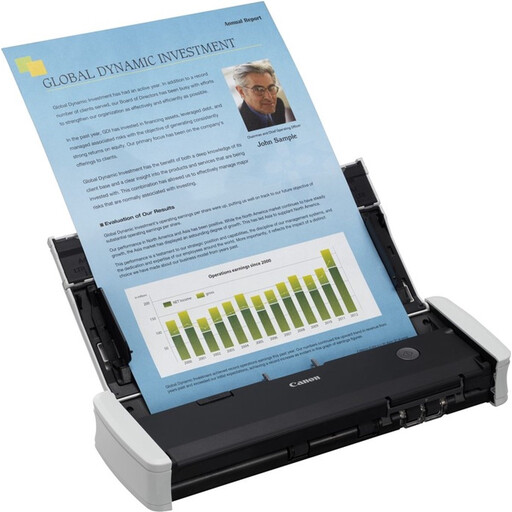 Image unavailable
Canon imageFORMULA R10
Suited to anyone who wants to process delivery notes on a connected computer at different workstations.
Canon Netherlands lists USB power, double-sided scanning and a 20-sheet automatic feeder.
View at Joybuy
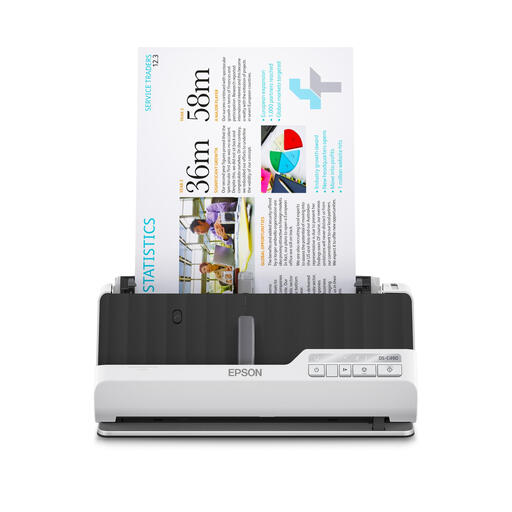 Image unavailable
Epson DS-C490
An option to consider if you want to process double-sided delivery notes and small batches.
Check which paper path suits your documents and available workspace for the exact product.
View at Joybuy
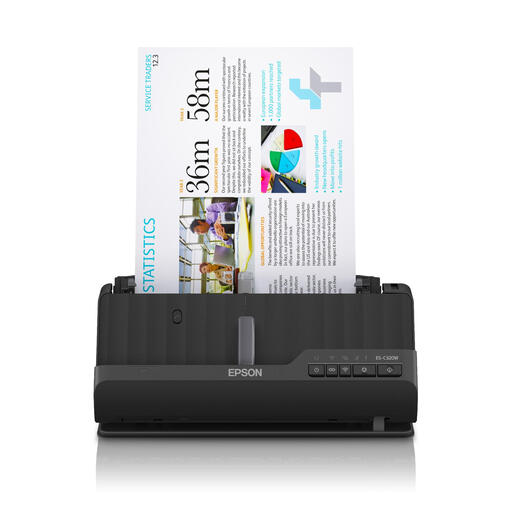 Image unavailable
Epson ES-C320W
Suited to a cramped workspace where you want to scan delivery notes while keeping the space needed during use to a minimum.
Check that the stated paper path and the double-sided scanning feature you need are suitable for your documents.
View at Joybuy
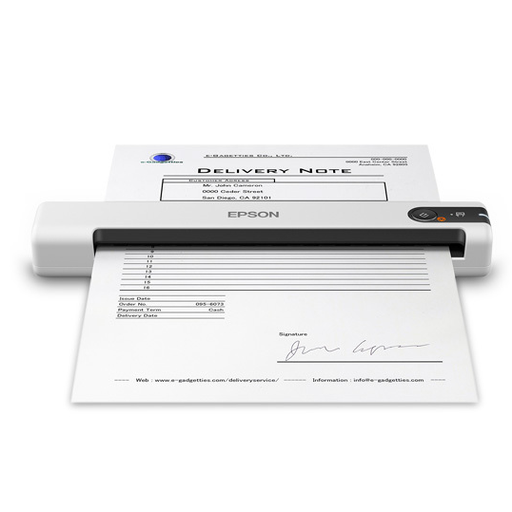 Image unavailable
Epson WorkForce DS-70
An option to consider if you want to scan delivery notes one at a time in a cramped or changing workspace.
Check that the feed and storage routine you need suits the way you process your documents.
View at Joybuy
Frequently asked questions
Do you need an automatic document feeder for delivery notes?
Not if you scan one sheet at a time. For regular batches, an automatic feeder is more practical. Brother Netherlands lists a 20-sheet capacity for the ADS-1300, Canon Netherlands lists 20 sheets for the R10 and 10 sheets for the P-208II.
What should you check before using a scanner?
Check that the connection, computer and scan destination are suitable for the exact model. If you have problems feeding documents, consult the manual for that model. A stated feeder capacity doesn’t guarantee that every creased or unusual sheet will feed smoothly.
What should you check about software, power and servicing?
Check that the software and power supply included—or the ones you want to use—suit your setup, and whether you need additional servicing. Brother lists a separately available adapter kit for the ADS-1300, while Epson offers an extended warranty for the ES-C380W. The terms and whether you need these depend on your purchase and how you use the scanner.
Can you scan delivery notes containing personal data to a shared folder or cloud service?
Only if the processing and access arrangements are appropriate. The Dutch Data Protection Authority stresses that organisations must protect personal data properly and prevent unauthorised access. If an external service provider processes data on an organisation’s behalf, the Dutch Data Protection Authority says a data processing agreement is required.
Can you throw away a paper business document after scanning it?
Don’t assume that you can. The Dutch Tax and Customs Administration says that accounting records must be kept in their original form, either digitally or on paper. Whether a particular delivery note is part of records subject to this requirement depends on the document’s purpose.


