For a shared registration desk, a network scanner with configurable scan jobs is a good fit when staff need to scan to a pre-selected, secure destination. If everyone uses one managed computer, a USB model may also be enough. Match the input capacity to the volume and type of forms you handle. No scanner feature replaces appropriate access controls and a retention policy for members’ data.
Who is this choice relevant to?
Team sharing a registration desk
Several staff members use the same scanner and need a consistent destination for members’ forms. The Dutch Data Protection Authority stresses the importance of appropriate security and access controls for systems containing personal data.
Volunteer processing batches of forms
If you regularly scan individual forms, consider automatic feeding and capturing any information on the reverse. Brother and Epson describe automatic document feeders for their respective models; check the capacity and paper compatibility of the model you’re considering.
Administrator with limited space or varied documents
If desk space is limited or forms vary, the scanner’s footprint and paper path can be deciding factors. Epson describes the ES-C380W as having a compact design with both a U-turn path and a straight-through path.
What should you look for when buying?
First decide how staff will send scans to the right destination. Then match the feeder, paper path and software to your forms and workspace.
| What to consider |
What to look for |
Who is this most relevant to? |
| Shared operation |
Check the network connection, configurable scan jobs and access controls for the chosen storage destination. |
If several staff members scan at one desk, I want files to end up in the agreed location. Around 27% of consumers give shared operation and a set scan destination top priority. |
| Batch processing |
Compare the feeder capacity and check whether double-sided scanning suits your forms. |
When processing recurring batches, I don’t want to feed in every sheet individually, and I want to capture any relevant information on the reverse. Around 27% of consumers prioritise batch processing over other purchasing considerations. |
| Protection and retention |
Consider who can access the storage, where scans are kept and how long copies are needed for. |
When handling members’ data, I want to know in advance who can open scans and when files and paper originals can be disposed of. Around 27% of consumers prioritise protecting and managing the retention of members’ data. |
| Paper path and space |
Compare the desk space required and the media supported by the chosen paper path. |
If my desk has limited space or the forms vary, I want to know whether the paper path is suitable for the originals. Around 13% of consumers make paper handling or available space their top priority. |
| Searchable scans |
Check that the OCR software and PDF output work with the computer and workflow you use. |
If forms need to be found by text later, I want to know whether the software can create searchable files. Around 6% of consumers prioritise searchability over other purchasing considerations; Epson describes this capability in ScanSmart. |
Common pitfalls
-
Assuming a network feature guarantees privacy
A scanner can send documents to different destinations, but that doesn’t automatically control who has access or how long data is retained. The Dutch Data Protection Authority stresses the importance of appropriate security and setting access controls.
Before scanning for the first time, decide who will have access and where files will be stored.
Allow time to set up destinations, access controls and a retention policy.
-
Looking only at scan speed
Feeder capacity, double-sided processing and paper compatibility all affect how much handling your forms require. A quoted speed alone doesn’t tell you how long the complete workflow will take.
Test the scanner with a representative batch, including forms with text on the reverse.
Preparing, reloading and checking batches can involve extra steps.
-
Using a compact paper path for every unusual original
Manufacturers may specify different document types and paper weights for each paper path. A compact design doesn’t automatically mean every original is suitable.
Check the media specifications for the exact model and chosen paper path.
Some originals may need to be fed separately using a suitable paper path.
-
Treating a discontinued model as the current standard choice
Epson says that the ES-580W has been discontinued. This doesn’t, by itself, tell you whether another model is available.
Check the model number, support and delivery terms; don’t assume different models are identical.
Brands to compare
Brother
The ADS-4700W suits a shared network workspace; the ADS-1800W is worth considering if a smaller feeder and portability matter more.
- Brother NL lists network connections and an 80-sheet feeder for the ADS-4700W. For the ADS-1800W, Brother specifies a 20-sheet feeder and USB-C power.
- Features vary by model. A network connection doesn’t prove that access controls and storage have been set up appropriately.
Epson
The ES-590W is designed for larger batches and scanning to destinations without a PC; the ES-C380W is worth considering if a compact design or an alternative paper path is important.
- Epson Netherlands lists a 100-sheet feeder for the ES-590W and direct scanning to destinations including network folders. For the ES-C380W, Epson describes a compact design with both a U-turn path and a straight-through path.
- Epson says that the ES-580W has been discontinued. The status of this model doesn’t determine whether another model is available.
Canon
The imageFORMULA R40 is a USB desktop option for use with a managed computer; the DR-C225 II may be worth considering if the paper path needs special attention.
- Canon Netherlands specifies double-sided scanning and a 60-sheet feeder at 80 g/m² for the R40.
- The R40’s USB connection doesn’t provide a standalone network connection. Canon specifies different paper weights for the DR-C225 II depending on the paper path; check which path suits your originals.
Joybuy product picks
These Joybuy picks are document scanners for digitising forms. Compare them by the volume you process, the workspace available and how scans are sent to the right place.
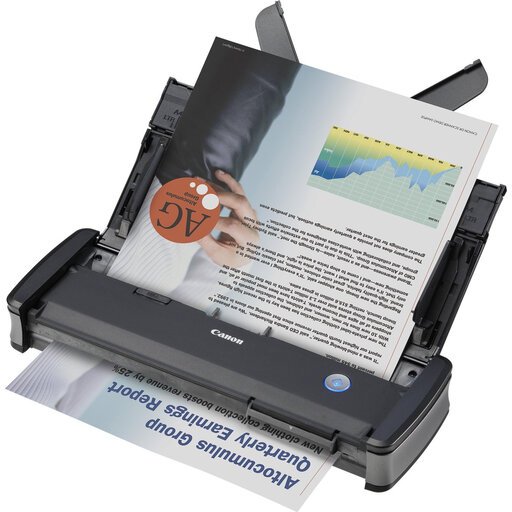 Image unavailable
Canon imageFORMULA P-215II sheet-fed scanner
Suits anyone processing a smaller number of forms who also needs to capture the reverse.
Wireless scanning requires the optional WU10 Wi-Fi unit.
View at Joybuy
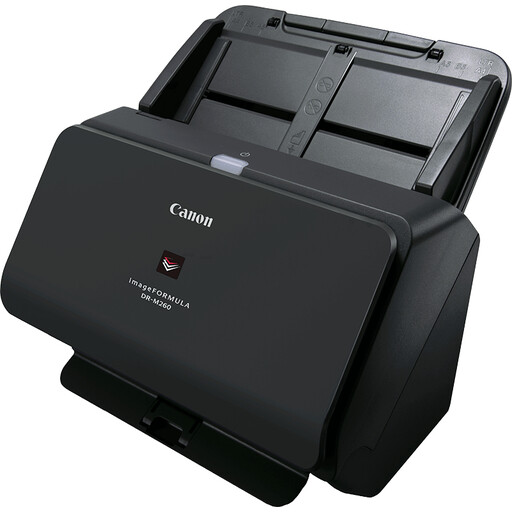 Image unavailable
Canon imageFORMULA DR-M260 sheet-fed scanner
Suits a workplace that regularly receives individual forms; check that the scan destination fits your shared workflow.
View at Joybuy
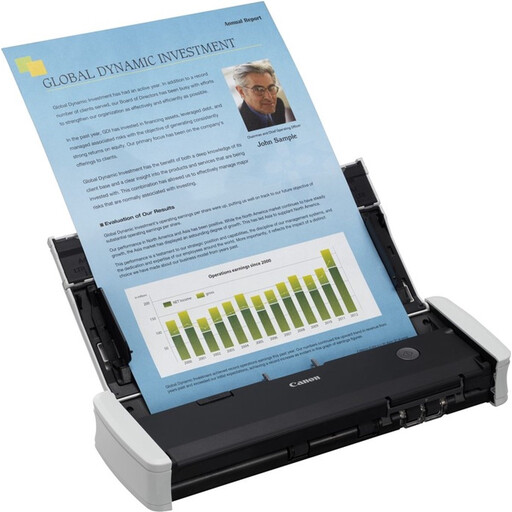 Image unavailable
Canon imageFORMULA R10 sheet-fed scanner
Suits a small number of forms processed using one dedicated computer.
This model connects via USB, so the computer is part of the scanning workflow.
View at Joybuy
 Image unavailable
Epson DS-C330 ADF sheet-fed scanner
Suits limited desk space or a variety of documents; check that the chosen paper path is suitable for each original.
View at Joybuy
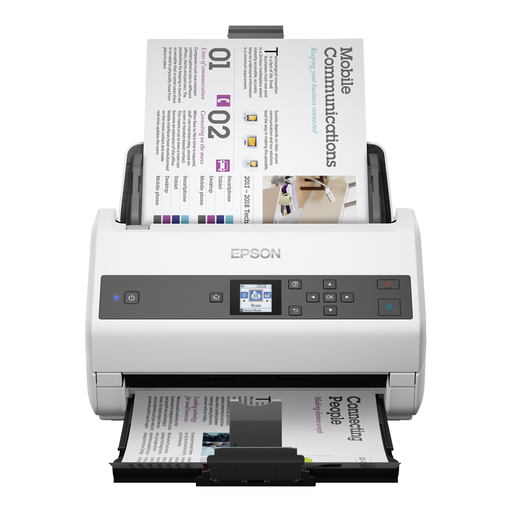 Image unavailable
Epson WorkForce DS-970 sheet-fed scanner
Suits a workflow that regularly involves processing larger batches of forms.
Sharing over a network depends on the optional network interface.
View at Joybuy
Frequently asked questions
Do we need a network scanner for a shared reception desk?
No, a USB model may be suitable if everyone uses the same managed computer. If staff need to scan to a configured destination without using that computer, compare the network connection and scan jobs offered by the exact model; manufacturers describe these features for each model.
How can we handle the scanning of members’ forms responsibly?
Before putting the scanner into use, establish the lawful basis for processing and protect data in proportion to the risks. The Dutch Data Protection Authority also stresses the need to manage access controls; a scan-to-cloud or scan-to-USB feature doesn’t, by itself, prove that your process is appropriate.
Should we destroy paper forms as soon as they’ve been scanned?
Not automatically: the Dutch Data Protection Authority says personal data must not be kept for longer than necessary. Other laws may set specific time limits, so establish which retention policy applies to the forms and any originals.
What service arrangements should we check as well as the device?
Check the software, replaceable feed rollers, and the seller’s and manufacturer’s terms. Ondernemersplein distinguishes between consumer purchases and business sales, and advises businesses to set out warranty arrangements in the contract; the exact terms for a purchase on behalf of an association depend on the agreement.
How can we keep scans usable and easy to find?
Make a test scan and check that all the required front and reverse sides are present and legible. Epson describes ScanSmart features for viewing and rearranging pages and saving scans as searchable PDFs; check that the software works with the model you choose and the computer you use.


