
Team using a shared scanning point
Several employees use the same scanner and want to send records to the right, access-restricted destination.


At a shared scanning point, configurable scan destinations and appropriate access permissions are important. For regular batches, input capacity and duplex scanning matter more. A compact model can fit on a desk with limited space, but you may need to refill it more often when scanning larger batches. Test it with your own documents to check that scans are complete, legible and saved in the right place.
Several employees use the same scanner and want to send records to the right, access-restricted destination.
You regularly scan loose sheets and want to check both sides and the page order.
You scan smaller quantities at a desk that’s also used for other work.
First, decide whether colleagues need to scan independently to agreed destinations or whether one computer will manage the workflow. Then choose a model to suit your batch size and available desk space.
Suitable when: several colleagues scan from the same desk to set locations for records.
Keep in mind: scan destinations don’t replace the access permissions for the storage location receiving the files.
Suitable when: service records often consist of many loose, double-sided sheets.
Keep in mind: a larger input capacity doesn’t guarantee that mixed records will be scanned completely or in the right order.
Suitable when: there’s little space at the scanning point and batches are generally small.
Keep in mind: you’ll need to refill the input tray more often when scanning larger batches.
Suitable when: one designated Mac or Windows computer manages the scanning workflow and storage.
Keep in mind: check where the connected computer saves files; USB isn’t a standalone network connection.
| Consideration | What to check before buying | Who is this for? |
|---|---|---|
| Destination and access | Compare user settings and scan destinations; also check the permissions for the folder receiving the files. | I want to avoid a record being saved in the wrong folder from the shared desk or being visible to unauthorised people. Around 40% of consumers prioritise storage and access management. |
| Double-sided batches | Compare duplex scanning and ADF capacity with your usual batch size; check test scans for missing or out-of-order pages. | If I regularly process batches of loose record documents, I want to be able to check both sides and every sheet. Around 30% of consumers prioritise processing complete batches. |
| Checking and retrieving files | Test with your own documents to see whether OCR produces searchable text and whether file names, page order and destination folder are useful. | I want to be able to link scans to the right record later and check their contents. Around 20% of consumers prioritise being able to retrieve files easily. |
| Space and portability | Measure the space available and allow for the room taken up by input and output trays; also check the input capacity. | At a desk that’s also needed for other work, the space available and the option to move the scanner matter to me. Around 10% of consumers prioritise space and portability. |
A scanner can send files to a destination, but permissions for the storage location also determine who can view them. If records contain personal data, the organisation must prevent unauthorised access.
For each intended user, test both the scan destination and access to the saved file.
Allow time to set up and manage destinations and access permissions.
The stated input capacity doesn’t tell you whether a scanner will handle your mix of paper without errors. A missing reverse side, double feed or incorrect page order can leave a record incomplete.
Try your usual paper sizes and check both sides and the page order after a test batch.
According to Canon, the Canon imageFORMULA R30 uses USB 2.0, while the separate DR-S250N has Ethernet. These are different connection options, not interchangeable ways of describing a network workflow.
Decide in advance whether one dedicated computer will manage scans or whether the scanner needs to connect directly to the network.
A computer-based workflow also requires a designated computer and management of the storage path.
Epson has models for shared scanning points and for scanning via software.
Brother offers a desktop model for larger batches and a more compact option for smaller ones.
The Canon imageFORMULA R30 is designed for a computer-based workflow; the DR-S250N is a separate model with Ethernet.
Ricoh describes business document scanners and PaperStream software for document processing.
This selection includes ADF scanners for loose record documents, with models for duplex scanning, limited desk space and larger batches; one model combines an ADF with a flatbed. Check that each model’s connection and scan destination suit your shared workspace.
 No image available
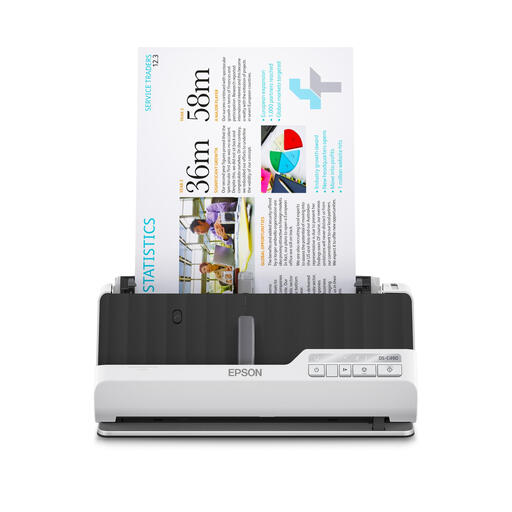
The combination of an ADF and flatbed gives you two ways to scan documents.
Automatic duplex scanning; 600 × 600 DPI; A4.
The product description mentions saving files as editable PDFs.
 No image available
Its compact design and U-turn paper path are intended for a scanning area with limited space.
The product description mentions ADF feeding and a USB connection to a computer.
The software is described as being for scanning receipts and invoices.
 No image available
Automatic duplex scanning can be useful for loose documents where you need both sides.
The product description mentions paper protection and an ultrasonic sensor.
The compact design offers a U-shaped or straight paper path for different media.
 No image available
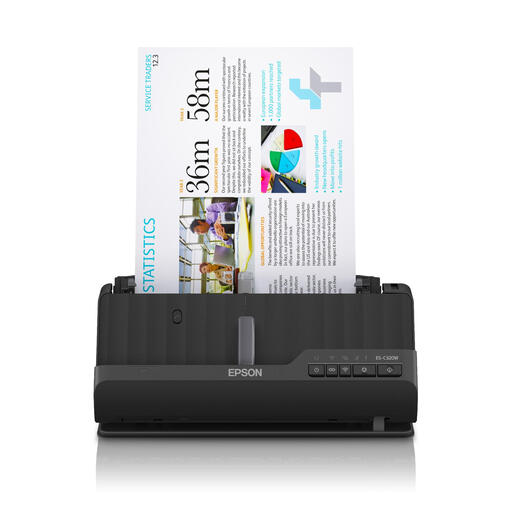
The product description mentions Wi-Fi and scanning to email or a network, as well as automatic duplex scanning.
600 × 600 DPI; A4.
Check that the network destination is accessible and set up correctly in your shared workspace.
 No image available
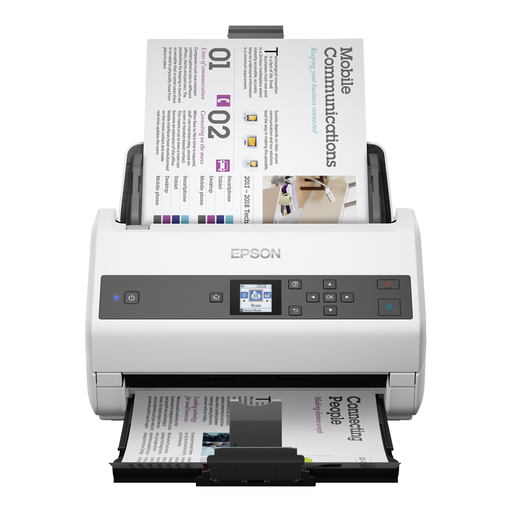
The stated 100-sheet ADF capacity and automatic duplex scanning make it suitable for larger batches of double-sided documents.
The product description mentions 85 ppm and a USB connection.
The network interface is listed as optional, so network use depends on this option.
No. If records contain personal data, the organisation must put appropriate security measures in place and prevent unauthorised access. The Dutch Data Protection Authority stresses that permissions on the receiving systems also matter; the right measures depend on the processing involved and the risks.
Make a test scan using representative single- and double-sided documents, then check both sides, page order, legibility, file name and destination folder. The stated input capacity or OCR function doesn’t replace these checks.
That depends on the type of document and the rules that apply to it; buying a scanner doesn’t give you blanket permission to do so. The Dutch Tax and Customs Administration allows invoices and receipts to be kept digitally under certain conditions, including an accurate and complete reproduction and the retention of authenticity features.
According to the Dutch Data Protection Authority, the GDPR doesn’t set a specific general retention period for personal data: it must not be kept for longer than necessary. Other laws may specify a period, so the right retention time depends on the contents and context of the record.
Choose a network workflow if colleagues need to scan from the same point to agreed destinations; a USB model is suitable for a workflow managed through one designated computer. Check the supported connections and where files are stored for the model you choose.