
Someone processing stacks of questionnaires
You scan several completed forms one after another after a session and don’t want to keep reloading the feeder.


Choose based on the size of your document stack, where you want scans saved and whether answers appear on both sides. A compact scanner can save space, while a larger automatic document feeder means less frequent reloading. Brother, Canon and Epson describe different options for computer and network use; wireless connectivity doesn’t automatically mean a scanner can save directly to a network folder. Check completed answers in the scan itself: Microsoft warns that handwriting is rarely recognised by text recognition software.
You scan several completed forms one after another after a session and don’t want to keep reloading the feeder.
You share the scanner with colleagues and need to choose between scanning via a connected computer and using a configured network destination.
You want to save the front and back, handwriting and ticked answers as clear images, then check that everything is complete.
Start with the size of your usual stack and where you want files saved. Then check whether the scanner captures both sides and produces images that make it easy to review answers.
| What to consider | What should you check? | Who is this important for? |
|---|---|---|
| Processing a stack | Compare the number of individual sheets you scan per session with the feeder capacity of the exact model. Also check which types of paper it supports. | If you scan lots of forms one after another after a session, you’ll want to reload less often. Around 29% of consumers give stack processing top priority. |
| Shared scan destination | Test with your own computers and accounts to make sure each user can scan to the intended folder. | If several colleagues use the scanner, you’ll want files to reach a destination they can use. Around 22% of consumers put this shared workflow first. |
| Complete answers | Scan a sample of your own forms and check both sides, page order, handwriting and ticked boxes. | If you need to review completed answers, you’ll want to be able to compare them with the paper form. Around 21% of consumers prioritise this check. |
| Data access | Decide whether the forms contain identifiable information and who needs access to the storage location. | If answers can be linked to individuals, you’ll want a destination that meets your organisation’s access requirements. Around 14% of consumers prioritise controlled access. |
| Space and maintenance | Measure the space needed, including the paper input and output areas. Check what support and model-specific replacement parts are available. | If you use a small or shared desk, you’ll want to leave enough working space without having to reload paper unnecessarily often. Around 14% of consumers give space and a practical setup top priority. |
Microsoft warns that handwriting is rarely recognised by text recognition software when scanning documents. A searchable file therefore won’t necessarily represent the answers accurately.
Use your own forms to assess both the scanned image and any recognised text. Check ticked boxes separately.
For the WorkForce ES-550W, Epson describes a process for scanning to network folders via a computer running ScanSmart. This is not the same as scanning directly from the scanner to a network folder.
Check how scans reach your chosen destination on the exact model, and whether that process works with the computers and accounts used at your shared desk.
Canon specifies a feeder capacity of 60 sheets at 80 g/m² for the imageFORMULA R30. This condition applies to the stated capacity.
Check the weight, size and condition of your forms, and try a representative stack before relying on the feeder capacity.
Questionnaires may contain information that can be linked to individuals. A convenient destination isn’t necessarily suitable for every organisation.
Decide who needs access and ask the person responsible in your organisation to approve the destination and access permissions before setting up your scanning workflow.
The ADS-1800W and ADS-4700W offer different feeder capacities and scanning options for shared use.
The imageFORMULA R30 is a USB desktop scanner worth comparing if users at a shared desk connect it to a computer.
The WorkForce ES-550W is an option to compare if you have larger stacks and use a computer-based scanning workflow.
This selection includes Epson scanners for compact scanning areas, manual feeding and models with document feeders. For each model, check whether its feeding method suits the size of your questionnaire stacks and how you need to check them.
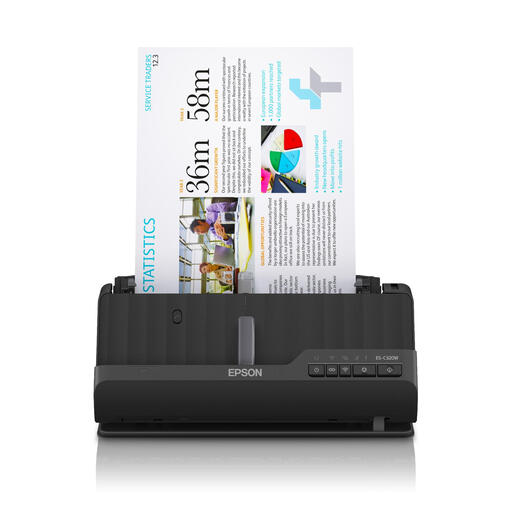 Image unavailable
Compare this model if you need a compact scanning area and your forms contain information on both sides. Scan a sample to check that the feeder and saved pages work with your forms.
The product name specifies A4 and 600 x 600 DPI.
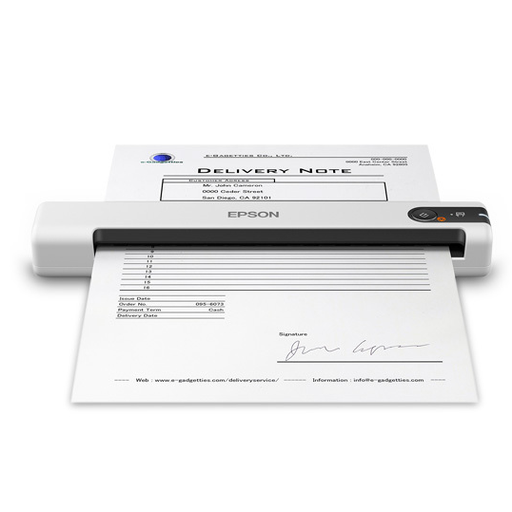 Image unavailable
A handheld scanner is worth comparing if you scan individual documents to a computer. If you’re scanning a stack of forms, consider whether manual feeding suits the way you work.
The product name specifies A4 and 600 x 600 DPI.
 Image unavailable
Compare this flatbed scanner if you want to scan forms and are considering a shared computer-based or wireless workflow. Use your own accounts and forms to check which workflow and scan destinations are available.
The product name specifies A4 and 1200 x 1200 DPI.
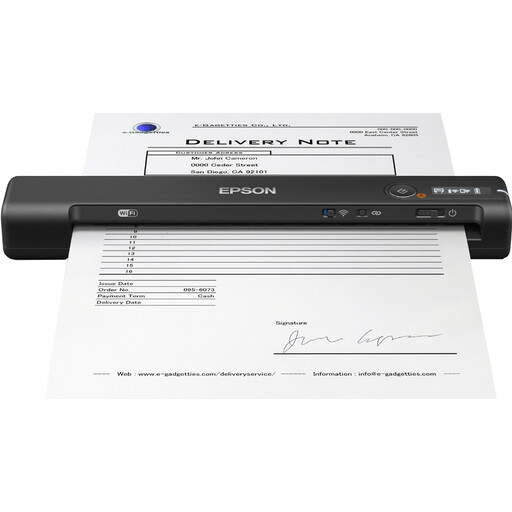 Image unavailable
Compare this handheld model if you scan in different locations. First, decide whether manual feeding suits the number of completed forms you process.
The product name specifies A4 and 600 x 600 DPI.
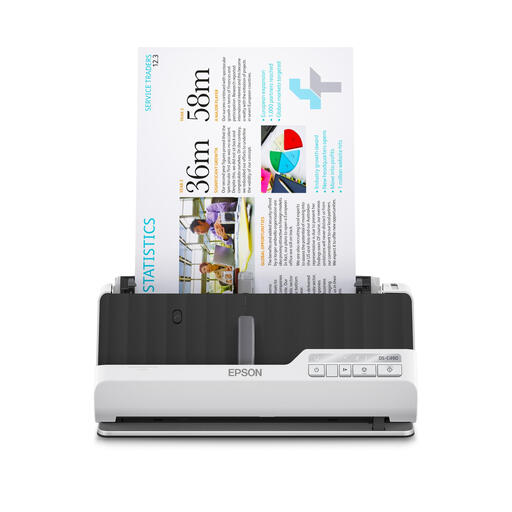 Image unavailable
Compare this model if you scan forms with answers on both sides and have a compact scanning area. Check the feeder capacity of the exact version using a representative stack.
The product name specifies A4 and 600 x 600 DPI.
Yes, if answers also appear on the back, choose a model that scans both sides through the document feeder. Scan a sample stack to check that both sides are saved in full and in the correct order.
Don’t assume so: Microsoft warns that handwriting is rarely recognised by text recognition software when scanning documents. Keep a legible scan, and check any recognised text and ticked answers against your own forms.
First choose where you want files saved, then test it with the computers and accounts people will actually use. Canon describes connecting the imageFORMULA R30 to a Windows or Mac computer; Brother says the ADS-4700W can scan to destinations including a network folder. If answers can be linked to individuals, manage access in line with your organisation’s policies.
Check what support and replacement parts are available for the exact model. For example, Brother lists a separate feeder roller kit for the ADS-4700W; check whether it suits your usage and maintenance plan.
That depends on the contents and whether the answers can be linked to individuals. The Dutch Data Protection Authority points out that pseudonymised data can still be personal data, and that organisations must decide for themselves which security measures are needed. A scanner’s network or cloud feature alone doesn’t prove that your chosen setup is suitable.