Start by matching the scanner to the size of your batches and where volunteers will be working. A larger automatic feeder may suit regular batches, while a compact model with a smaller feeder could be more convenient for smaller jobs at different locations. Check whether both sides of forms are scanned automatically, and run a test scan to check completed fields and the reverse sides. You’ll also need to decide separately where scans are stored and who can access them; a scanner or scan profile won’t take care of this for you.
Who is this choice relevant to?
Volunteer handling piles of forms
Processes regular batches and wants to refill the feeder less often. Check the capacity of the automatic document feeder (ADF), duplex scanning and the types of paper it can handle. Epson specifies a 50-sheet feeder for the WorkForce DS-410, while Canon specifies a 60-sheet feeder for the imageFORMULA R30.
Coordinator organising shared scanning
Arranges scanning for several authorised volunteers and needs to organise suitable file destinations and access permissions. The Dutch Data Protection Authority emphasises that security should be appropriate to the risks of the processing; shared scan profiles do not replace access controls.
Volunteer working at different locations
Usually scans small numbers of forms beside a laptop or at another location, and prioritises portability over a large input tray. Brother and Canon each specify a 20-sheet automatic feeder for the ADS-1800W and imageFORMULA R10.
What should you look for when choosing?
First compare the size of your usual batch with the feeder capacity. Then decide where scanning will take place and who will do it, before checking how files will be stored and whether they’ll be easy to read.
| What to consider |
What to look for when buying |
Who is this important for? |
| Regular batches |
Compare the number of individual sheets with the ADF capacity; also check the supported paper weight and the condition of the forms. |
If I often process a pile of forms, I want to refill the feeder less often and know that the sheets will feed through properly; around 31% of consumers prioritise batch processing. |
| Shared membership records |
Check the scan destination and who will have access. If using an external processor, also assess whether a data processing agreement is needed. |
When several volunteers manage scans, I want appropriate access controls and a destination that suits the way we work; around 31% of consumers prioritise responsible sharing and storage. |
| Scanning on the go |
Check the connection and power supply for your laptop, and bear in mind the ADF capacity of the specific model. |
If I scan small batches in different places, I want a set-up I can use there; around 15% of consumers prioritise mobile scanning. |
| Finding and checking files |
Check which software and output formats come with the model, and run a test scan of forms with completed fields and information on the reverse. |
When I want to find scans later, I need readable files and a way to check that every field and both sides have been captured; around 23% of consumers prioritise finding and checking files. |
Common buying mistakes
-
Assuming a cloud button means membership records are secure
A scan destination partly determines where personal data ends up, but it doesn’t tell you who can view those files. The Dutch Data Protection Authority says organisations must protect personal data appropriately.
Before you start, agree where scans will be stored and which volunteers will have access. Assess any external processor separately.
Allow time to set up storage and access permissions, and to agree any necessary arrangements with an external processor.
-
Confusing scan speed with the time needed to complete an archiving session
A quoted maximum scan speed doesn’t reflect the full process for completed forms, which includes sorting, refilling the feeder and checking the files.
Compare your usual batch size with the ADF capacity and run a test scan of your own forms.
Remember to allow time for sorting, refilling the feeder and checking the files.
-
Confusing a searchable file with form data that’s been captured without errors
Canon lists OCR for searchable files on the imageFORMULA R30. That doesn’t mean handwriting on membership forms will be recognised accurately every time.
Check a test batch for names, completed fields and missing reverse sides before archiving the files.
Hard-to-read fields may need to be checked and corrected by hand.
Scanner brands to consider
Epson
Epson describes the WorkForce DS-410 as a desktop option for batches at a single workstation, while the ES-C380W is designed for compact networking and scan destination features. These are features of the models mentioned, not of all Epson scanners.
- Epson specifies a 50-sheet ADF and a maximum scan speed of 26 ppm for the WorkForce DS-410.
- The Joybuy listing for the ES-C380W says that automatic duplex scanning isn’t available. Check this feature on the specific product listing.
Brother
Brother describes the ADS-1800W as a compact scanner for small batches and changing work locations, with wireless connectivity and USB-C power.
- Brother specifies a 20-sheet ADF and duplex scanning at up to 60 images per minute.
- Brother says that power adaptors and an output tray are available separately. Before buying, check which accessories your set-up needs.
Canon
Canon positions the imageFORMULA R10 for portable scanning with a laptop, and the R30 for larger batches at a computer.
- Canon specifies a 20-sheet ADF and USB power for the R10; for the R30, it lists a 60-sheet ADF and built-in scanning software.
- The R30’s capacity doesn’t mean that the portable R10 can handle the same batch size. Compare each model separately with your usual batch.
ScanSnap
ScanSnap/PFU positions the iX1600 for small teams that use profiles and shared scan destinations.
- The manufacturer specifies an ADF for 50 standard A4 sheets at 80 g/m² and four user profiles.
- Profiles don’t manage access to stored membership data on their own. For ScanSnap Cloud, the manufacturer says updated firmware has been required since 9 April 2026.
Document scanners at Joybuy
These Joybuy picks are A4 document scanners with automatic feeders for individual forms. Compare each model’s feeder capacity, duplex scanning features and connectivity with the way your organisation works.
 No image available
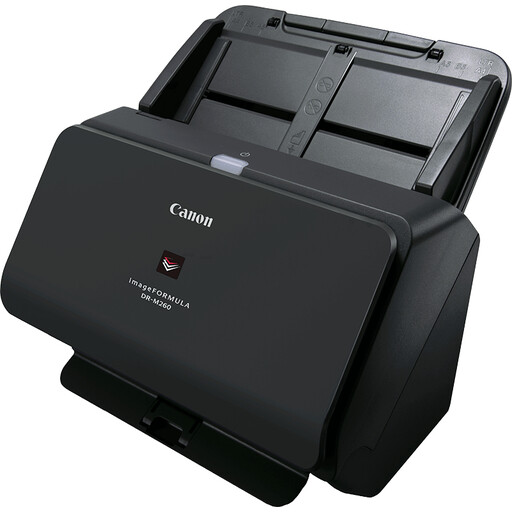
Canon imageFORMULA DR-M260
A sheet-fed scanner for digitising documents at a workstation.
The product description lists duplex scanning, ultrasonic double-feed detection and a quoted scan speed of up to 60 ppm.
Quoted paper weight: 27–413 g/m².
View at Joybuy
 No image available
Canon imageFORMULA DR-F120
The combination of a flatbed and automatic feeder suits a workstation that handles both individual forms and originals that need to be placed on the glass.
The product description lists a 50-sheet ADF and duplex scanning at up to 20 pages per minute.
View at Joybuy
 No image available
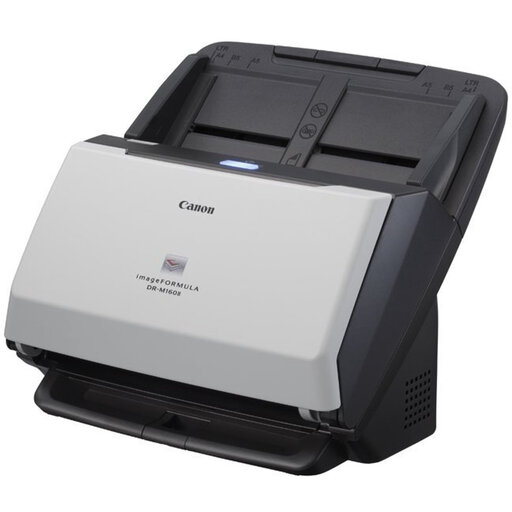
Canon imageFORMULA DR-M160II
An ADF scanner for handling regular batches of individual documents.
The product description lists an automatic 60-sheet feeder and duplex scanning at up to 120 images per minute.
View at Joybuy
 No image available
Epson DS-C330
A compact sheet-fed scanner for individual documents at a workstation with limited space.
The product description lists a sheet feeder, document capture software and a U-shaped paper path.
View at Joybuy
 No image available
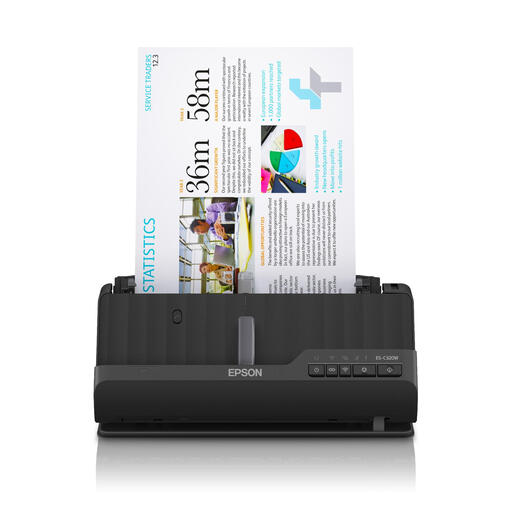
Epson ES-C320W
A compact document scanner for a workstation where wireless connectivity or a network destination could come in handy.
The product specifications list Wi-Fi, network destinations, automatic duplex scanning and a quoted scan speed of 30 ppm.
View at Joybuy
Frequently asked questions
Does an organisation need to ask for consent before scanning membership forms?
Not automatically. Processing personal data requires an appropriate legal basis under the GDPR. Before processing begins, the organisation must assess which legal basis is suitable for the specific purpose.
Can scans go straight to a shared cloud folder?
That depends on how the processing and access security are set up. The organisation must put appropriate security measures in place. If an external service processes personal data on its behalf, the Dutch Data Protection Authority says a data processing agreement is required. A scan-to-cloud feature alone doesn’t show that these arrangements are in place.
How long can scanned membership forms be kept?
Don’t keep personal data for longer than necessary for the stated purpose. The Dutch Data Protection Authority explains that the GDPR doesn’t specify a general, fixed retention period; also check whether a different statutory retention period applies to particular data.
Can a volunteer feed a whole batch of double-sided forms through at once?
Only if the forms and the specific model are suitable for this. Compare the number of individual sheets with the ADF capacity, check that the scanner scans both sides automatically, and start with a test batch. Then check that every front and reverse side is present and legible.
Is a searchable PDF enough to check completed form details?
No. A searchable PDF doesn’t guarantee that handwriting has been recognised accurately. Check a test scan for names, completed fields and information on the reverse before archiving the files.


