
If you process batches of forms
If you regularly scan individual forms, compare the capacity of the automatic document feeder (ADF) with the size of your usual batch. Also consider duplex scanning if there’s information on both sides.


Choose a sheet-fed scanner based on the size of your usual batch, whether your forms are double-sided and how much space the device takes up when in use. Then check that its connectivity and software suit your scanning set-up. If the forms contain personal data, make sure you also have suitable security, access and retention arrangements in place.
If you regularly scan individual forms, compare the capacity of the automatic document feeder (ADF) with the size of your usual batch. Also consider duplex scanning if there’s information on both sides.
On a small desk or at a shared workstation, consider how much space the scanner needs when in use, as well as its power supply and connection. Its compact size when stored won’t tell you how much room you’ll need while scanning.
If you need to search your forms later, check that the software creates the file format you want and where the files are stored. If the scans contain personal data, make sure access and retention arrangements align with your organisation’s procedures.
Start with the size of your usual batch and the space available while scanning. Then check the file output, connectivity and arrangements for any personal data.
| What to consider | What should you check? | Who is this important for? |
|---|---|---|
| Batch processing | Count the sheets in a typical batch and compare the number with the ADF capacity. Check whether double-sided forms can be scanned in a single pass and how you can spot missing sheets. | If I regularly process a batch of individual forms, I want to reload less often and be able to check that the scan is complete. Around 36% of consumers put batch processing first. |
| Space and set-up | Measure the available space when the scanner is ready to use. Also check whether the power supply and USB or Wi-Fi connection will work in that location. | With a small desk or a shared workstation, I want to know whether the scanner will fit when in use. Around 29% of consumers prioritise having practical workspace. |
| Finding scans later | Test a sample form to see whether the software creates the file format you want, such as a searchable PDF, and check where the file is saved. | If I need to find forms later, I want the file output and storage to suit the way I work. Around 21% of consumers put being able to find files first. |
| Personal data | Establish what information is on the forms and discuss who can open the scans, where they’re stored and when they’ll be deleted. | If forms contain personal data, I want clear arrangements for access and retention in place beforehand. Around 14% of consumers name secure processing as their top priority. |
The stated capacity applies to certain paper conditions. HP doesn’t specify multiple-feed detection for the HP ScanJet Pro 2000 s2, so you’ll need to check important batches carefully to make sure they’re complete.
Compare the type of paper and batch size with the model specifications, and check important scans for missing sheets.
Allow time for reloading or checking for missing sheets.
The space a scanner needs with its input or output tray open may differ from the space it takes up when stored. Canon gives separate dimensions for the imageFORMULA R30 with the tray closed and open.
Measure the available depth where you’ll actually be scanning.
If the scanner doesn’t fit with the tray open, it may not work in your usual scanning spot.
A scanner connection or searchable file output won’t automatically control who can open files or how long they’re kept. The Dutch Data Protection Authority describes the need for appropriate security when processing personal data; the specific measures depend on the circumstances.
Test the process from paper to saved file. If you’re handling personal data, agree with your organisation on who has access and when files will be deleted.
Your scanning process may also require you to set up and manage storage, access and retention periods.
The ADS-1800W is a compact option to consider for smaller batches or shared workstations.
The ES-C320W is worth comparing if you have limited workspace.
The imageFORMULA R30 is a USB desktop scanner for processing batches from a Mac or Windows computer.
The ScanJet Pro 2000 s2 is a PC-focused sheet-fed scanner worth comparing if file output is important.
The SmartOffice PS186 is a USB option for processing forms from a Windows computer.
These Joybuy products are sheet-fed scanners worth comparing for feeding and digitising individual forms. Check the batch size, workspace requirements and file output you need for each model.
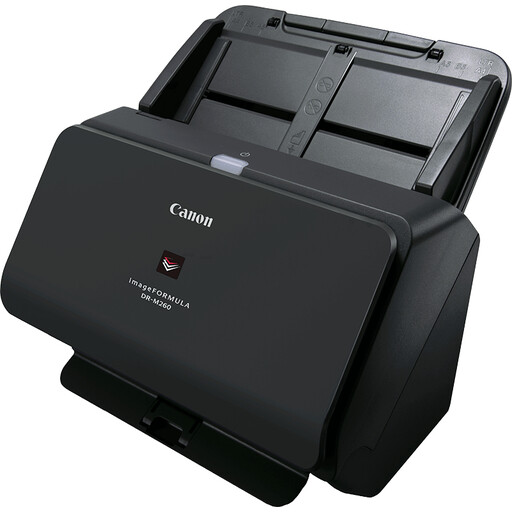 No image available
An option to compare if you want to feed individual documents and be alerted to double feeds.
The product information lists scanning speeds of up to 60 ppm and double-feed detection. The title lists A4 and 600 × 600 DPI.
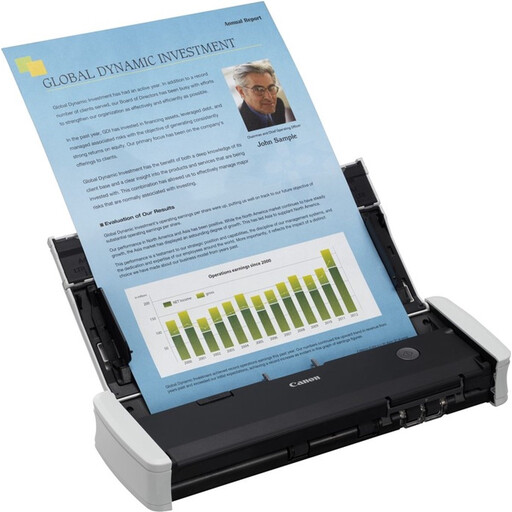 No image available
An option to compare for smaller batches and double-sided forms with a USB connection.
The product information lists a 20-sheet input capacity, duplex scanning and built-in CaptureOnTouch Lite software. The title lists A4 and 600 × 600 DPI.
 No image available
An option to compare if you’re looking for a scanner with an automatic document feeder for forms.
The product information lists a U-shaped paper path and output to PDF, JPG and TIFF. The title lists A4 and 600 × 600 DPI. Don’t scan documents with staples, paper clips or wet ink.
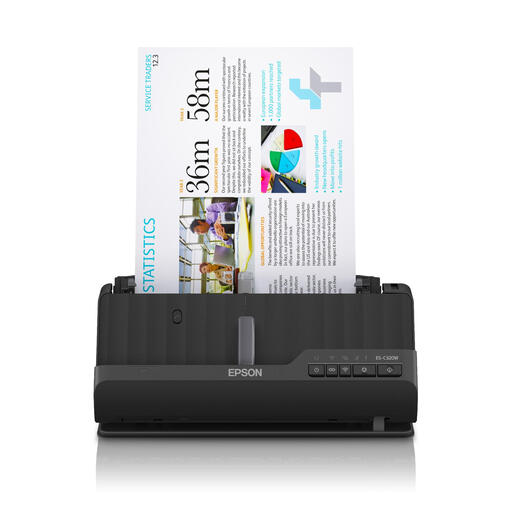 No image available
An option to compare if you need automatic feeding for a small workspace.
Epson describes the ES-C320W as having Wi-Fi and a U-shaped paper path. The product information also lists a straight paper path for certain originals; check whether it’s suitable for your forms. The title lists A4 and 600 × 600 DPI. Don’t scan documents with staples or wet ink.
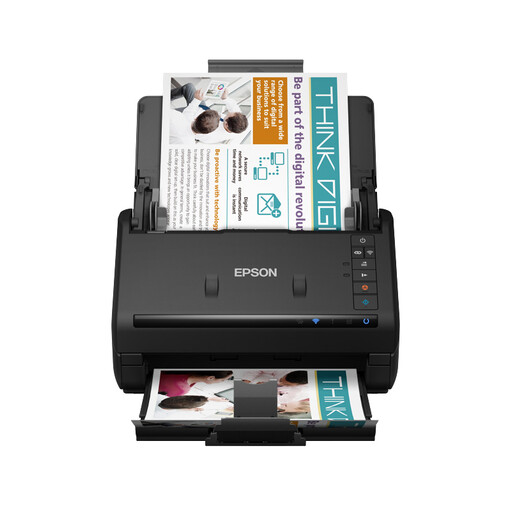 No image available
An option to compare if you need to process larger batches and double-sided forms.
The product information lists a 100-sheet ADF, automatic duplex scanning, Wi-Fi and USB 3.0. Don’t feed documents with staples, wet ink or damage. The title lists A4 and 600 × 600 DPI.
An automatic document feeder is useful for feeding individual forms one after another; choose duplex scanning if there’s information on both sides. Compare the feeder capacity with your usual batch size and check that important scans are complete.
Check the originals and follow the cleaning instructions for your exact model. Epson notes that dust on the rollers or glass of the ES-C320W can cause feeding problems or reduce image quality.
Check what cleaning and replacement parts your chosen model needs. The Epson ES-C320W manual covers replacing the roller kit; follow the instructions for your model.
First, assess the risks and access permissions for that folder. The Dutch Data Protection Authority says that organisations processing personal data must determine appropriate security measures; the measures needed depend on the data and the way it’s handled. Rules for pupil records apply only if the scans are actually part of such a record.
Don’t keep personal data for longer than necessary for its purpose, and check whether a specific retention period applies to the document in question. According to the Dutch Data Protection Authority, the GDPR doesn’t set a single specific retention period for all data; don’t automatically apply the rules for pupil records to maintenance forms.