If you only scan one invoice occasionally and have limited workspace, consider a compact sheet-fed scanner. For regular batches or double-sided invoices, a model with an automatic document feeder (ADF) and duplex scanning is more practical. Also check that the paper, computer connection and file workflow suit the way you work.
Who is this type of scanner suitable for?
Processing batches of invoices
You want to feed in several invoices at a time, sometimes double-sided, without starting each sheet individually. So look at the ADF capacity and duplex scanning. Canon, Brother and Epson list these features for various WorkForce and imageFORMULA models.
Scanning in a small hobby room
You mainly scan individual invoices and want to use or store the device in a limited workspace. Epson describes the WorkForce ES-50 as space-saving and powered via USB from a PC or laptop. Check that the connection suits your scanning setup.
Building a searchable invoice archive
You want to find scans easily later and store invoices securely. Check the file workflow and legibility. If your invoices are subject to the Dutch tax retention requirements, the Dutch Tax and Customs Administration also sets conditions for digital storage.
What should you look for when choosing?
Start with the number of invoices you scan in each session: individual sheets need a different feed method from batches. Then decide how you want to find your files and what types of paper you need to feed through the scanner.
| What to consider |
What to look for |
Who should pay particular attention? |
| Batch scanning |
Check that the scanner has a proper ADF, what capacity applies for the stated paper weight, and whether double-sided scanning is supported. Canon lists a 20-sheet capacity for the R10, Brother 20 sheets for the ADS-1800W and Epson 100 sheets for the ES-550W. |
If I scan a batch or double-sided invoices at a time, I want to spend less time feeding sheets individually; around 40% of consumers prioritise batch scanning. |
| Space and connection |
Check the scanner’s dimensions when in use, and make sure USB, wireless connectivity and the power supply you need are suitable for your scanning setup. |
In a small hobby room, I want the scanner to be easy to fit in and connect; space and placement matter most to around 30% of consumers. |
| Finding and storing invoices |
Check the file workflow and make sure scans remain legible. OCR can help you find text, but it doesn’t replace checking the invoice or the applicable retention requirements. |
I want to be able to find invoices later and store scans securely; archiving is a priority for around 20% of consumers. |
| Unusual paper |
Compare the sizes and paper weights of your documents with the specifications for the exact model. For ordinary documents, Canon lists 64–128 g/m² for the R10; Epson gives a range of 35–270 g/m² for the ES-50. |
For receipts or other types of paper, I want to know in advance whether they can go through the feeder; suitability for unusual paper is a priority for around 10% of consumers. |
Common pitfalls
-
Confusing automatic feeding with an ADF for a batch
A feed mode for individual sheets doesn’t automatically mean you can load several invoices at once. Epson describes an automatic feed mode for the ES-50; Canon explicitly lists an ADF capacity for the R10.
If you want to feed in a batch at once, look for an ADF and a capacity stated in sheets in the specifications.
Without batch feeding, each invoice needs more hands-on attention.
-
Assuming OCR or a PDF takes care of archiving
OCR can make text searchable, but it doesn’t prove that all invoice details have been captured correctly or that a digital copy meets the applicable tax requirements.
Check the scan and find out whether the Dutch tax retention requirements apply to your records before disposing of paper originals. The Dutch Tax and Customs Administration requires a correct and complete reproduction, and the preservation of authenticity features, for digital storage.
-
Assuming accessories are included as standard
Brother also sells power accessories and an output tray for the ADS-1800W separately. The version you need depends on your power supply and how you want paper to be output.
Check what’s in the box and compare it with what you need for your workspace.
You may need to arrange a suitable power adapter or output tray separately.
Brands to consider
Epson
The WorkForce ES-50 is a compact option for individual sheets; the ES-550W is designed for larger batches and has an ADF.
- According to Epson, the ES-50 has a space-saving design and is powered via USB from a PC or laptop. Epson lists a 100-sheet ADF, duplex scanning and OCR via ScanSmart for the ES-550W.
- The ES-50’s feed mode isn’t the same as an ADF that takes a batch of sheets. Not everyone needs a higher-capacity ADF.
Canon
The imageFORMULA R10 is a compact, USB-connected option for small batches and double-sided A4 documents.
- Canon specifies a 20-sheet ADF at 80 g/m² and duplex scanning.
- Canon lists 64–128 g/m² for ordinary documents. Check unusual originals separately.
Brother
According to Brother, the ADS-1800W is a compact scanner with wireless connectivity and a small ADF.
- Brother lists a 20-sheet ADF, duplex scanning and USB-C power.
- Power adapters and an output tray are also available as separate accessories. Check what’s included with the version you choose.
Ricoh ScanSnap
The iX1300 offers different feeding methods for continuous A4 scanning and other documents, such as cards.
- Ricoh describes U-turn Scan for continuous A4 feeding and Return Scan for other documents.
- Ricoh says ScanSnap Cloud availability may vary by region. Check whether the cloud feature you want is available in the Netherlands.
Scanners at Joybuy
This selection includes scanners for invoices and documents, including sheet-fed models and scanners with an ADF. Compare each model’s feeding method, supported media and connection with the way you’ll use it in your hobby room.
 No image available
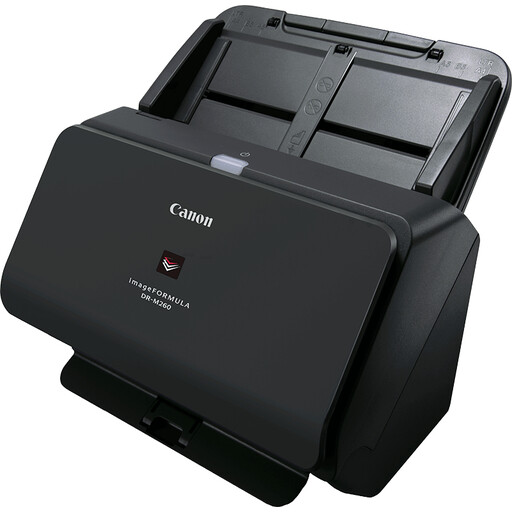
Canon imageFORMULA DR-M260
An option to compare if you want to scan A4 invoices and different types of documents.
The product description lists media from 27 g/m² to 413 g/m². The product name states 600 × 600 DPI and A4.
View at Joybuy
 No image available
Canon imageFORMULA DR-F120
A model to consider if you want to combine an ADF with a flatbed scanner.
The product description lists a 50-sheet ADF and double-sided scanning. The product name states 600 × 600 DPI and A4.
View at Joybuy
 No image available
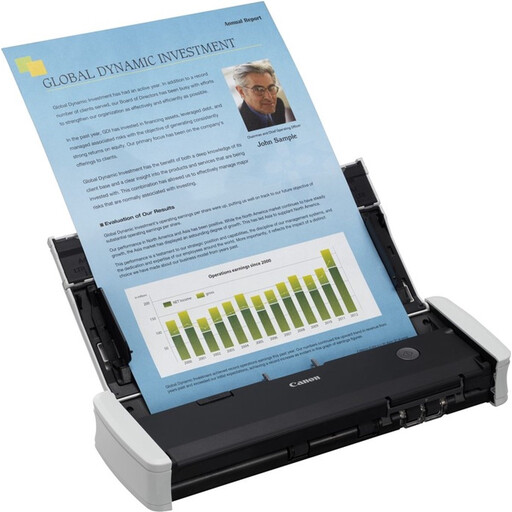
Canon imageFORMULA R10
An option for small batches of invoices if you can connect the scanner to a computer via USB.
The product description lists a 20-sheet feeder, duplex scanning and support for documents from A4 down to plastic business cards. The product name states 600 × 600 DPI.
View at Joybuy
 No image available
Epson DS-C330
A model to compare if you want to scan invoices in a limited space.
The product description lists a U-turn paper path and PDF, JPG and TIFF file output. The product name states A4 and 600 × 600 DPI.
View at Joybuy
 No image available
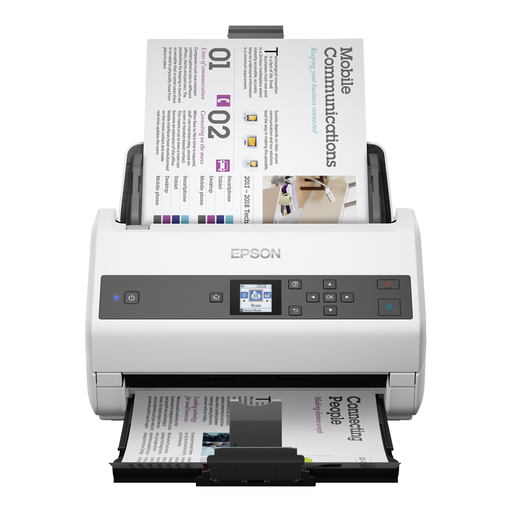
Epson WorkForce DS-970
An option to compare if you process larger batches and have room for a permanent setup.
The product description lists a 100-sheet ADF and double-sided scanning. The stated dimensions are 296 × 169 × 167 mm; the product name states 600 × 600 DPI and A4.
View at Joybuy
Frequently asked questions
Is feeding one sheet at a time the same as an ADF for batches of invoices?
No. Epson describes an automatic feed mode for continuous scanning on the ES-50, while Canon explicitly specifies a 20-sheet ADF capacity for the R10. Check whether the model you choose can take several sheets at once.
What should I look for in terms of connection and power?
Make sure the connection and power supply suit the place where you scan. According to Epson, the ES-50 is powered via the USB connection on a PC or laptop; Brother also lists separate power accessories for the ADS-1800W. Check the connection required and what’s included with the version you choose.
Which accessories should I check for my scanning setup?
Check whether you need a power adapter or output tray, and whether it’s included with the version you choose. Brother also sells these accessories separately for the ADS-1800W. Check the contents of the box for the exact model, too.
Can I scan and store paper supplier invoices from the Netherlands digitally?
If the invoices are part of your Dutch tax records, the Dutch Tax and Customs Administration allows digital storage provided the scan is a correct and complete reproduction of the original and authenticity features are preserved. Check whether these conditions apply to your records before disposing of paper originals.
What if scanned invoices contain personal data?
Organisations processing personal data must take appropriate security measures based on the risks, as required by the Dutch Data Protection Authority. The Authority also states that the GDPR does not set a specific general retention period for personal data. Find out which requirements apply to your situation before choosing a storage or cloud workflow.


