
Team sharing a scanning station
Several staff members need to send paper invoices to the right administrative destination. On-device controls and pre-set destinations may be useful here, as Epson and Brother explain for their respective models.


Start by deciding how staff will send scans to the right administrative folder. A scanner with on-device controls and network destinations suits a workspace without a dedicated scanning PC, while USB makes sense if one managed computer handles the scanning process. Then match the feeder capacity and paper path to your document volumes and types. Storage, access permissions and retention need to be set up separately.
Several staff members need to send paper invoices to the right administrative destination. On-device controls and pre-set destinations may be useful here, as Epson and Brother explain for their respective models.
If you regularly scan invoices one after another, consider feeder capacity, duplex scanning and checks for missing pages. HP, Canon and Ricoh list these features for specific models.
Scans need to be easy to find, and retention arrangements and access to personal data must be properly managed. OCR can make searching easier, but it does not replace good administrative processes.
| What to consider | What should you check? | Who is this important for? |
|---|---|---|
| The right scan destination | Check that the exact model can scan to the permitted destination and find out how staff select it. | When colleagues share a scanner, I want every scan to go to the intended records system. Around 31% of consumers say getting scans to the right destination is their top priority. |
| Processing batches of invoices | Compare the feeder capacity with your usual batch size and check that duplex scanning suits your documents. | If you regularly process several invoices in a row, you’ll want to refill the feeder less often and scan both sides. Around 25% of consumers put batch processing speed first. |
| Paper and desk space | Check which paper path is suitable for your documents and measure how much space the device needs for feeding and output. | At a small shared desk, I also want to handle unusual paper documents without losing sight of the workspace available. Around 19% of consumers prioritise space and mixed paper sizes. |
| Finding and retaining documents | Check the scan image, file names, storage location, access and retention period. Searchable PDFs alone do not amount to an archiving system. | If I need to find invoices later, I want both the complete scan and the record-keeping arrangements to be in order. Around 25% of consumers put archiving and management first. |
OCR can make documents searchable, but the Dutch Tax and Customs Administration sets separate requirements for accurate and complete representations of scanned invoices and for keeping records that can be checked.
Before archiving, check both sides, the legibility of the scan, the destination and the retention arrangements.
Missing pages or an incorrect archiving process can mean extra work to put things right.
A scanner with network or cloud destinations does not determine who is allowed to receive or view invoices.
Test an approved scan destination for each user with a non-confidential document, and set up access permissions.
Setting up and managing destinations and permissions takes careful attention.
The paper path and feeder capacity also affect how much space the device needs in use. Stated speeds are not a measure of performance with your own mix of invoices.
Measure the space available and compare the ADF capacity with the batch you usually scan in one go.
According to Epson, the ES-C380W is designed for compact scanning, with on-device controls and pre-set destinations.
Brother describes the ADS-1800W as a compact scanner with wireless connectivity and on-device controls.
According to HP, the ScanJet Pro 3000 s4 is aimed at a fixed computer workstation that regularly processes batches of documents.
Canon describes the imageFORMULA R30 as a USB scanner for use with a Mac or Windows computer.
According to Ricoh, the fi-8170 is a business scanner suited to recurring scanning tasks.
This selection mainly features scanners for use with a computer, alongside a compact Epson scanner and a model for larger batches. Check that each device’s scanning process suits your shared workspace.
 No image available
Worth considering if a dedicated computer handles the scanning process for batches of invoices.
Specifications listed in the product name: A4 and 600 × 600 DPI.
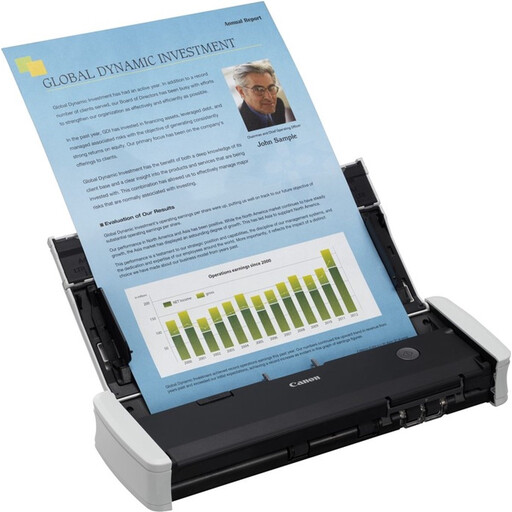 No image available
A computer-connected option to compare for smaller scanning tasks at a dedicated workstation.
Specifications listed in the product name: A4, 600 × 600 DPI and white.
 No image available
An option to compare if you’re looking for a compact scanner for invoices to use with a dedicated computer.
Specifications listed in the product name: A4 and 600 × 600 DPI.
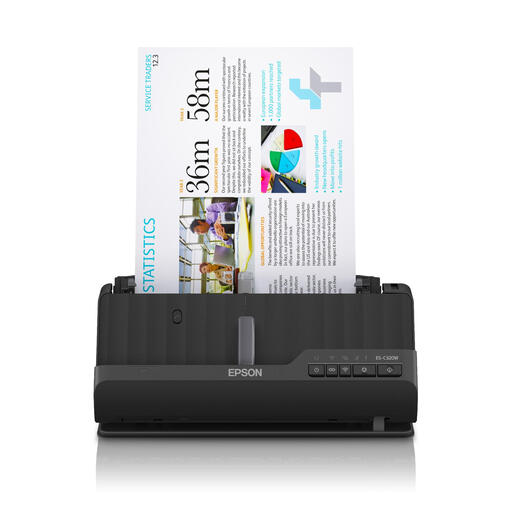 No image available
An option to compare for a shared workspace where a compact scanning setup is preferred. Check that the available destinations suit your way of working.
Specifications listed in the product name: A4 and 600 × 600 DPI.
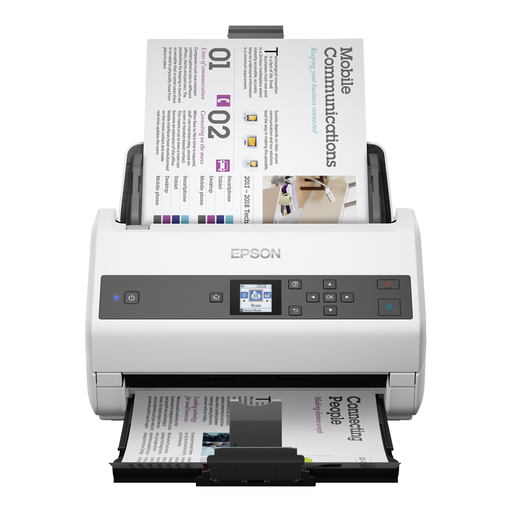 No image available
An option to compare if you regularly process larger scanning jobs.
Specifications listed in the product name: A4 and 600 × 600 DPI. The network interface is optional, so check whether you need it.
Not in every case. According to the Dutch Tax and Customs Administration, digital retention may be sufficient if the scan is an accurate and complete representation of the original and the requirements for keeping records that can be checked are met. Invoices generally need to be kept for 7 years; for invoices relating to immovable property, the period is 10 years.
That depends on the model and how it is set up. Epson says the ES-C380W can scan without a PC to destinations including a network folder; with the Canon imageFORMULA R30, a connected Mac or Windows computer handles the scanning process. Set up destinations and access permissions before the team uses the scanner.
No. Epson describes OCR as a way to make scanned documents searchable, but the Dutch Tax and Customs Administration requires scanned invoices retained digitally to be accurate and complete representations, with records that can be checked. So check the scan itself and how the invoice is stored, too.
If the service processes personal data on behalf of your organisation and therefore acts as a processor, the organisation and processor must set out their arrangements in a written data processing agreement, according to the Dutch Data Protection Authority. Whether a particular service has that role depends on how the data is processed; the scanner’s network functionality does not determine this.